Remote Work Best in category 1 results Remote Access AI Tool

Popular AI tools in the Remote Access field of Remote Work include LetsView, etc., helping you quickly improve efficiency.

LetsView

LetsView

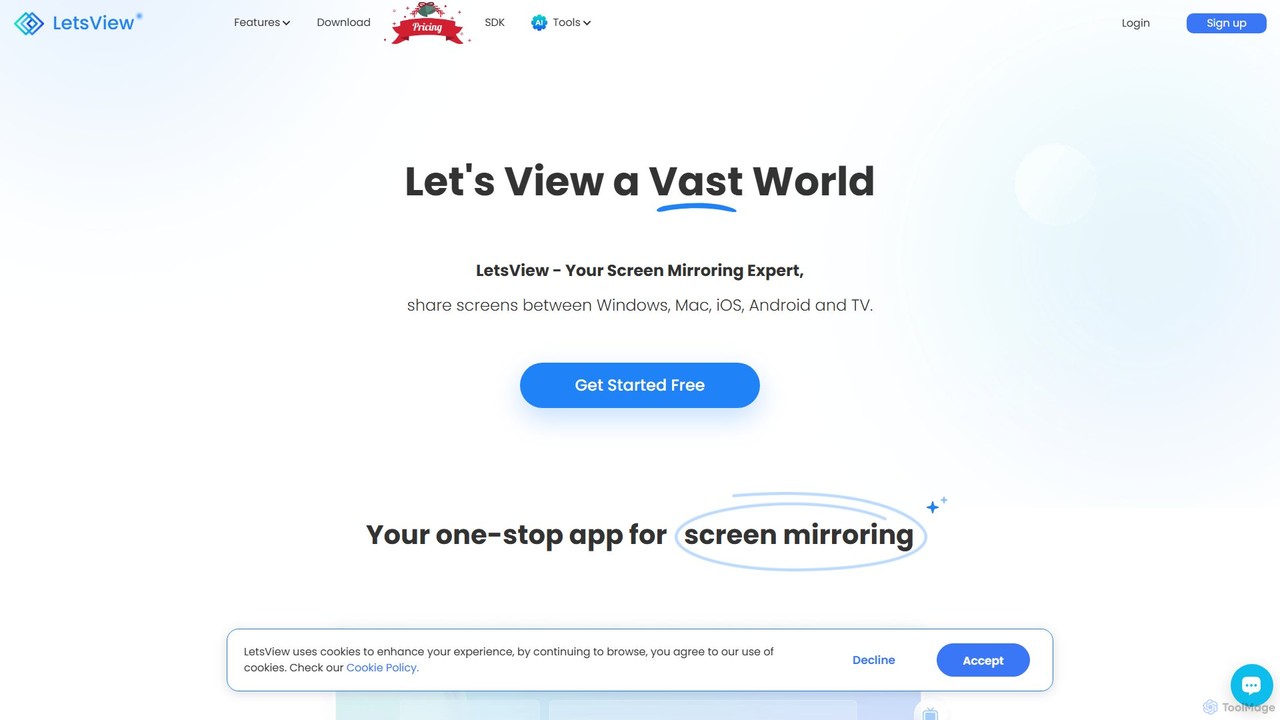
A powerful and versatile screen mirroring and remote access tool. LetsView allows you to wirelessly cast your phone, …

600.9K

About Remote Access

Remote Access tools are applications that enable users to view and control a computer or device from another location over a network connection. These tools work by streaming the remote device's screen to the local device and transmitting keyboard and mouse inputs back in real-time. This provides seamless, location-independent access to files, applications, and system resources as if you were physically present. They are a crucial component of modern remote work and IT support infrastructures.

Core Features

  • Remote Control & Screen Sharing: Directly view and interact with the remote desktop interface in real-time.
  • Secure File Transfer: Move files and folders between the local and remote computers through an encrypted channel.
  • Unattended Access: Connect to a remote device without requiring a person to be present to grant permission, ideal for server maintenance.
  • Session Recording: Record remote sessions for auditing, training, or security compliance purposes.
  • Multi-Platform Support: Function across different operating systems, including Windows, macOS, Linux, iOS, and Android.

Use Cases

Remote Access tools are widely used in IT departments for technical support and troubleshooting employee devices. They are also essential for remote and hybrid workers who need to access powerful office workstations or specific software from home. System administrators rely on these tools for managing servers and network infrastructure located in data centers or different offices without physical travel.

How to Choose

When selecting a Remote Access tool, prioritize security features like end-to-end encryption and two-factor authentication. Evaluate performance based on connection speed, latency, and display quality. Consider platform compatibility to ensure it supports all your devices. Finally, assess the pricing model—whether it's based on users, devices, or concurrent sessions—to find the best fit for your budget and team size.

Remote AccessUse Cases

1

Remote IT Support and Troubleshooting

An IT support specialist receives a ticket from an employee whose software is malfunctioning. Instead of traveling to the employee's desk, the specialist initiates a remote access session. With the employee's permission, they take control of the computer, view the error messages, run diagnostic tools, and adjust system settings directly. They can install patches or reinstall software as needed. This process resolves the issue in minutes, minimizing downtime and eliminating the need for physical travel, significantly improving the IT team's efficiency.

2

Accessing Office Computers for Hybrid Work

A video editor working from home needs to access a powerful workstation at the office, which has specialized editing software and large project files stored locally. Using a remote access tool, they can connect to their office PC from their personal laptop. The tool provides a high-fidelity stream of the desktop, allowing them to use the demanding software and access terabytes of data smoothly. This enables a flexible hybrid work model without sacrificing access to high-performance computing resources, ensuring productivity remains high regardless of location.

3

Unattended Server and System Administration

A system administrator is responsible for maintaining a fleet of servers located in a secure data center. Using a remote access tool configured for unattended access, they can log into any server at any time, day or night, without needing physical access or local assistance. They can perform critical tasks such as applying security patches, monitoring performance, restarting services, and managing user accounts. This capability is essential for 24/7 system uptime and allows for rapid response to any server-side issues, all from a central management console.

4

Collaborative Remote Pair Programming

Two software developers located in different cities need to collaborate on a complex piece of code. They use a remote access tool to share a single development environment. One developer (the driver) writes the code while the other (the navigator) observes, reviews, and provides real-time feedback. They can easily switch roles by passing control. This setup ensures both are looking at the exact same code and environment, eliminating sync issues and fostering close collaboration, much like working side-by-side in an office.

5

Accessing Personal Files While Traveling

A business professional is traveling for a conference and realizes they left a critical presentation file on their home office computer. Instead of panicking, they use a remote access app on their laptop to connect to their home PC. They navigate the file system, locate the presentation, and use the secure file transfer feature to download it directly to their laptop. This provides immediate access to any file on their home machine from anywhere in the world with an internet connection, acting as a personal, secure cloud without needing to upload files in advance.

6

Conducting Remote Software Training and Demos

A sales engineer needs to demonstrate a complex software product to a potential client in another country. Using a remote access tool, the engineer can either share their own screen to walk the client through a live demo or request control of the client's screen to guide them through a trial installation. This interactive approach allows for real-time questions and hands-on guidance, providing a much more effective and personalized experience than a pre-recorded video. It helps bridge geographical gaps and accelerates the sales and training cycles.

Remote AccessFrequently Asked Questions