
Os & Utility Best in category 1 results Macos AI Tool

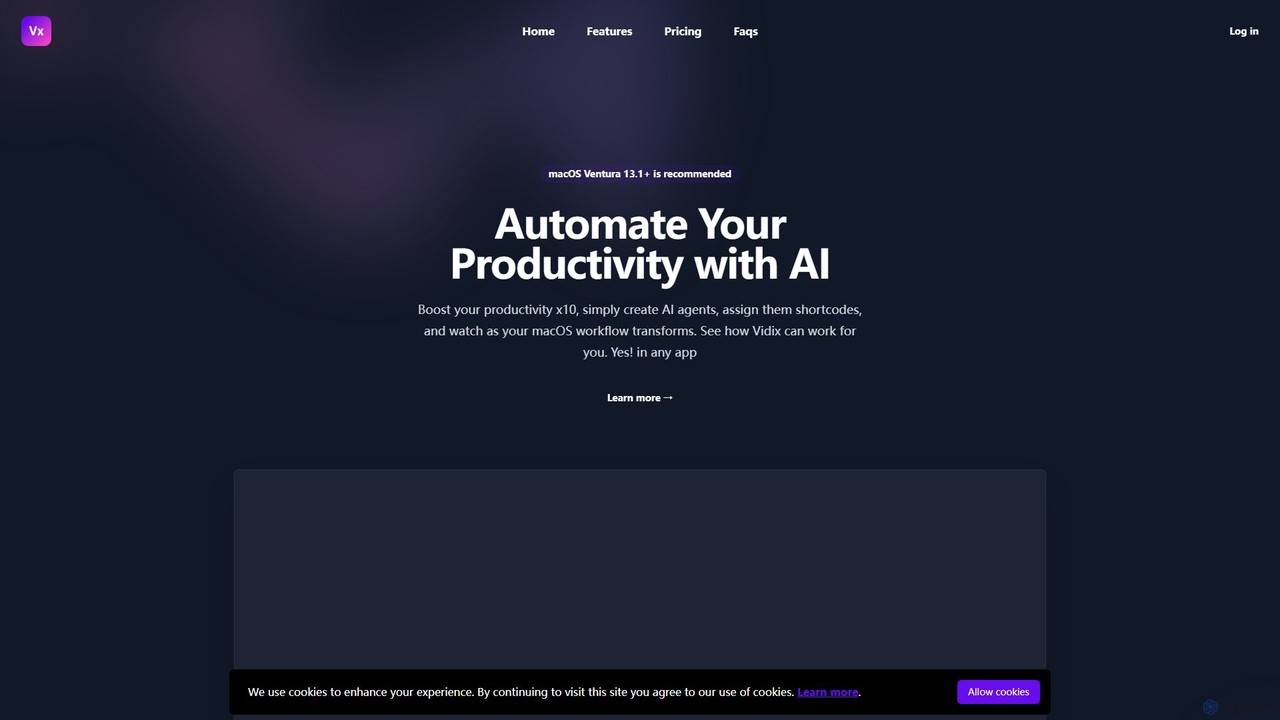
Popular AI tools in the Macos field of Os & Utility include Vidix, etc., helping you quickly improve efficiency.

Vidix

Vidix

Vidix is a powerful AI assistant for macOS designed to boost productivity. It allows users to create custom …

4.8K

About Macos

macOS AI tools are a class of applications specifically designed and optimized to run on Apple's macOS operating system. These tools leverage native technologies like Apple Silicon (M-series chips), the Neural Engine, and the Core ML framework to deliver high-performance, energy-efficient AI processing directly on the device. Their primary value lies in providing a seamless, secure, and deeply integrated AI experience that aligns with the macOS ecosystem's user interface and privacy standards. This on-device focus often results in faster response times and enhanced data security compared to purely cloud-based alternatives.

Core Features

  • Native Performance Optimization: Built to utilize Apple Silicon, Metal API, and the Neural Engine for accelerated AI tasks like model inference and data processing.
  • Deep System Integration: Often integrates with macOS features such as the menu bar, Finder, Spotlight search, and Shortcuts for streamlined workflows.
  • Unified User Experience: Adheres to Apple's Human Interface Guidelines, offering a familiar, intuitive, and consistent interface.
  • On-Device Processing: Many tools prioritize local processing, enhancing user privacy and enabling offline functionality.

Use Cases

These tools are particularly valuable for creative professionals, developers, and knowledge workers within the Apple ecosystem. Common applications include on-device image generation for designers, local code completion for programmers, and intelligent document summarization for researchers, all performed with the responsiveness and security of a native application.

How to Choose

When selecting a macOS AI tool, consider its level of system integration—whether it's a standalone app or a menu bar utility. Evaluate if it's optimized for Apple Silicon (Universal Binary) for best performance. Also, determine if its processing is primarily on-device for privacy or cloud-based for handling larger-scale tasks. Finally, assess its resource consumption to ensure it aligns with your hardware capabilities.

MacosUse Cases

1

On-Device Image Generation for Designers

A graphic designer uses a native macOS AI application to generate visual concepts and design variations. By running the AI model directly on their Mac with Apple Silicon, they can iterate through hundreds of ideas in minutes without uploading sensitive project files to the cloud. The tool's integration with Finder allows them to drag and drop existing assets as input, and the familiar macOS interface makes the creative process smooth and uninterrupted, significantly speeding up the initial brainstorming phase.

2

Menu Bar Assistant for Quick Text Tasks

A writer or researcher uses a lightweight AI tool that resides in the macOS menu bar. While working in any application, they can highlight text and use a keyboard shortcut to instantly summarize it, check for grammar, or rephrase it for clarity. This avoids the need to switch contexts by opening a separate app or browser tab. The tool's efficiency and seamless integration into the native OS environment help maintain focus and significantly improve productivity during intensive writing and research sessions.

3

AI-Powered Code Completion in a Native Editor

A software developer uses an AI plugin within their native macOS code editor, such as Xcode or Nova. The tool leverages on-device models, accelerated by the Neural Engine, to provide highly relevant and instantaneous code suggestions. Because it runs locally, it works offline and ensures that proprietary code never leaves the machine. This deep integration provides a smoother, faster coding experience than cloud-based alternatives, reducing interruptions and helping the developer write better code more quickly.

4

Automated File Organization with Finder Integration

A project manager uses an AI utility that integrates directly with macOS Finder. They can select a folder of mixed-format project files (documents, images, spreadsheets) and the tool automatically analyzes the content, renames files according to a predefined template, and sorts them into subfolders based on project name or date. This automation, running silently in the background, saves hours of manual organization and ensures project assets are always consistently structured and easy to locate via Spotlight search.

5

Local Transcription and Summarization of Meetings

A professional uses a native macOS app to transcribe audio recordings from meetings. The app leverages Core ML for fast and accurate on-device speech-to-text conversion, ensuring meeting contents remain confidential. After transcription, the AI automatically generates a concise summary, identifies key decisions, and lists action items. This entire process happens offline, providing a secure and efficient way to document meetings and extract valuable information without relying on third-party cloud services.

6

Intelligent Screenshot Analysis and OCR

Any macOS user can utilize a tool that enhances the native screenshot functionality. After taking a screenshot, the AI tool automatically performs Optical Character Recognition (OCR) to make all text within the image selectable and searchable. It can also identify objects, QR codes, or people. This content is then indexed by Spotlight, allowing the user to find a specific screenshot later by searching for a word or object that appeared in it, transforming a static image library into a searchable knowledge base.

MacosFrequently Asked Questions