Version Control Best in category 1 results Git Tools AI Tool

Popular AI tools in the Git Tools field of Version Control include ChetakAI, etc., helping you quickly improve efficiency.

ChetakAI

ChetakAI

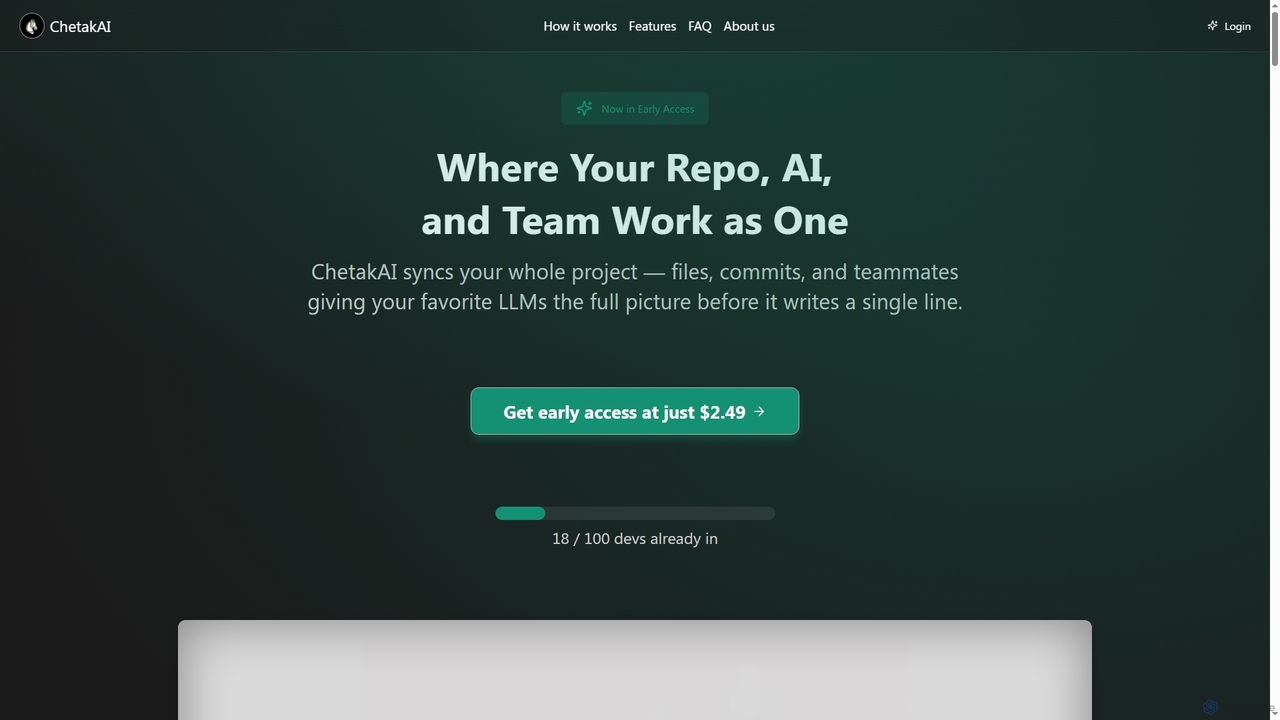
ChetakAI is an AI-powered development platform that unifies your code, AI, and team into a single, context-aware workspace. …

2.2K

About Git Tools

Git Tools are applications that provide a graphical user interface (GUI) or an enhanced command-line interface to simplify interactions with the Git version control system. These tools translate complex Git commands into intuitive visual actions, making tasks like branching, merging, and reviewing history more accessible. They are designed to boost developer productivity by providing clear visualizations of repository structure and commit history. Using a Git Tool can significantly reduce the learning curve for beginners and streamline complex workflows for experienced developers.

Core Features

  • Visual Branch Management: Graphically view, create, merge, and rebase branches to understand project history at a glance.
  • Interactive Staging: Selectively stage individual lines or hunks of code for precise, atomic commits.
  • Conflict Resolution GUI: A visual interface to compare conflicting changes side-by-side and resolve them efficiently.
  • Commit History Visualization: Explore the project's evolution through an interactive, graphical log of all commits, branches, and tags.
  • Remote Repository Integration: Seamlessly connect and synchronize with remote services like GitHub, GitLab, and Bitbucket.

Use Cases

Git Tools are essential for software development teams of all sizes, from individual freelancers to large enterprises. They are used by developers to manage daily coding tasks, by DevOps engineers to oversee deployment pipelines, and by project managers to track progress. In collaborative environments, these tools facilitate code reviews and help maintain a clean, understandable project history, which is crucial for long-term project maintainability.

How to Choose

When selecting a Git Tool, consider your operating system (Windows, macOS, Linux) and preferred workflow. Evaluate whether you need a full-featured GUI or a simpler client. Check for integrations with your favorite IDEs (e.g., VS Code, JetBrains) and platforms (e.g., GitHub). Also, compare the feature sets—some tools offer advanced capabilities like Git-flow integration or interactive rebasing, while others focus on simplicity. Finally, consider the pricing model, as there are both powerful free and commercial options available.

Git ToolsUse Cases

1

Simplifying Complex Merge Conflicts

A software developer on a team is tasked with merging a long-lived feature branch back into the main development branch. The merge results in numerous conflicts across multiple files. Instead of using complex command-line diff tools, the developer uses a GUI Git Tool. The tool presents a three-way merge view, clearly showing the base version, their changes, and the incoming changes. They can resolve each conflict chunk by chunk, choosing the correct code or manually editing the result in a built-in editor. This visual approach prevents errors and reduces the time spent on merging by over 50%.

2

Crafting a Clean Commit History with Interactive Rebase

Before submitting a pull request, a developer wants to clean up their feature branch's commit history, which contains many small, incremental commits like 'fix typo' and 'wip'. Using a Git Tool's interactive rebase feature, they can visually reorder, squash (combine), and reword commits in a simple drag-and-drop interface. They combine several small fixes into a single, meaningful commit and write a clear commit message. This results in a clean, logical history that is much easier for teammates to review, leading to faster approvals and a more maintainable codebase.

3

Visualizing Project History to Track Down a Bug

A critical bug has been reported in production. A senior developer needs to quickly identify which change introduced the issue. Instead of manually parsing through `git log` output, they use a Git Tool to visualize the entire commit history of the main branch. The graphical view allows them to easily see merges, branches, and individual commits over time. They can filter the log by author or date range and click on any commit to see the exact code changes. This visual exploration helps them pinpoint the problematic commit in minutes, a task that could have taken much longer using only the command line.

4

Onboarding New Developers to a Git Workflow

A team lead is onboarding a junior developer who is new to Git. Explaining concepts like branching, merging, and remote repositories using only the command line can be abstract and confusing. The team lead uses a visual Git Tool during the training session. They demonstrate creating a new branch, which appears as a new line in the history graph. They show how commits are added and how a pull request is created. The visual feedback helps the new developer build a strong mental model of how Git works, accelerating their learning process and enabling them to contribute to the team's workflow confidently much sooner.

5

Performing Precise Commits with Line-by-Line Staging

A developer has made several unrelated changes within the same file—fixing a bug and simultaneously refactoring a separate function. To maintain a clean history, they need to create two separate, logical commits. Using a Git Tool with interactive staging, they can view the file's diff and select only the specific lines (or 'hunks') related to the bug fix for the first commit. After committing the bug fix, they then stage and commit the remaining refactoring changes. This practice, known as creating atomic commits, is made simple and error-proof by the tool's visual interface, greatly improving the clarity of code reviews.

6

Managing Multiple Remotes for Open Source Contributions

An open-source contributor is working on a feature for a popular project. They have their own fork of the repository on GitHub and also need to keep their local version synced with the original 'upstream' repository. A Git Tool simplifies this workflow by allowing them to easily configure and switch between multiple remote repositories ('origin' and 'upstream'). The GUI clearly displays which branches are tracking which remotes. They can fetch updates from 'upstream' and merge them into their feature branch, then push their completed work to their 'origin' fork to create a pull request, all through a few clicks in a visual interface.

Git ToolsFrequently Asked Questions