Desktop Best in category 1 results Windows App AI Tool

Popular AI tools in the Windows App field of Desktop include Lightkey, etc., helping you quickly improve efficiency.

Lightkey

Lightkey

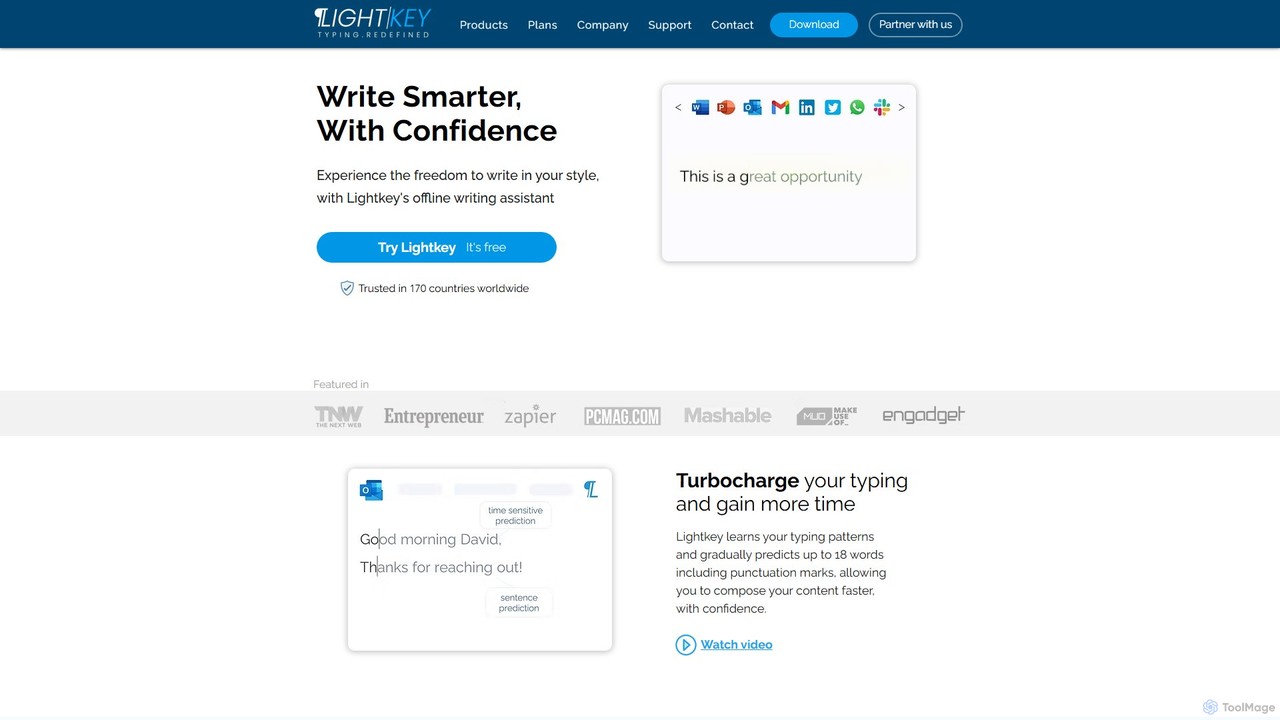
Lightkey is an AI-powered text prediction and real-time correction software for Windows. It learns your typing patterns to …

15.7K

About Windows App

AI Windows Apps are native software applications designed to run directly on the Windows operating system, leveraging local hardware for AI-powered tasks. These tools utilize the computer's CPU, GPU, and RAM to deliver high performance and responsiveness, often without needing a constant internet connection. This local processing model provides significant advantages in speed, data privacy, and offline accessibility for complex AI workloads. They offer deep integration with the Windows environment, interacting seamlessly with the file system, notifications, and other desktop applications.

Core Features

  • Native Performance & GPU Acceleration: Directly utilizes the system's hardware, especially the GPU, for rapid processing of demanding AI tasks like image generation or data analysis.
  • Offline Functionality: Many features can be used without an internet connection, ensuring productivity and access anywhere.
  • Deep System Integration: Interacts smoothly with the Windows OS, including File Explorer, clipboard, and system-wide shortcuts for a fluid workflow.
  • Enhanced Data Privacy: Processes and stores data locally on your device, minimizing the need to upload sensitive information to cloud servers.
  • Rich User Interface: Offers complex and responsive interfaces built with native Windows components, providing a more robust user experience than web-based alternatives.

Use Cases

AI Windows Apps are ideal for professionals who require high performance and data security. This includes graphic designers and video editors using AI for local rendering, developers integrating AI assistants into their local coding environments, and data analysts processing sensitive datasets on their own machines. They are also valuable for any user who needs reliable AI tool access in areas with poor connectivity.

How to Choose

When selecting an AI Windows App, first verify its system requirements, including OS version, RAM, and especially GPU compatibility for performance-intensive tasks. Evaluate the specific AI features offered and ensure they align with your needs. Consider its integration capabilities with other software you use daily. Finally, review the application's data privacy policy to understand how your information is handled, even when processed locally.

Windows AppUse Cases

1

Local AI Image Generation and Upscaling

A graphic designer uses a native Windows AI application to generate high-resolution concept art. By leveraging their computer's powerful NVIDIA GPU, the application can produce multiple image variations in seconds, a process that would be slower and require uploading assets on a web-based tool. The entire workflow, from text prompt to final 4K image upscaling, happens offline, ensuring the confidentiality of their creative projects and providing uninterrupted work even with unstable internet.

2

Offline Video Transcription and Subtitling

A video editor working on a documentary needs to transcribe hours of interview footage. Using a Windows AI app, they can process large video files directly on their hard drive without uploading them. The app leverages the CPU for audio processing to generate accurate transcripts and timestamps locally. This offline capability is crucial when working on location with limited internet access and ensures the sensitive interview content remains secure on their device throughout the editing process.

3

Secure Local Data Analysis for Business

A financial analyst needs to analyze confidential sales spreadsheets to identify trends. Instead of using a cloud-based service, which would violate company data policy, they use a Windows AI application. The tool integrates with Microsoft Excel, allowing them to run predictive models and generate visualizations directly on their desktop. All data remains within the company's secure network, ensuring full compliance with privacy regulations like GDPR and protecting sensitive business intelligence.

4

Desktop AI Coding Assistant Integration

A software developer uses a Windows AI assistant that integrates directly into their local Visual Studio Code editor. The tool provides real-time code completion, bug detection, and function generation without sending snippets of proprietary code to an external server. Because it runs locally, the assistant has access to the entire codebase for better context and provides suggestions instantly. This enhances productivity while maintaining the security and integrity of the company's source code.

5

AI-Powered Local Knowledge Management

A researcher uses a Windows AI note-taking app to organize years of research papers, notes, and articles stored on their PC. The application locally indexes all documents, creating a searchable knowledge base. They can ask complex questions in natural language, and the AI synthesizes answers by pulling information from multiple local PDFs and Word documents. This process is fast, private, and works perfectly offline, making it an indispensable tool for deep research and writing.

6

Automating Desktop Workflows with AI Agents

An office administrator uses a Windows AI agent to automate repetitive tasks. They create a workflow where the agent monitors an Outlook inbox for invoices, opens attached PDFs, uses AI to extract key information (invoice number, amount, date), and inputs this data into a local accounting software. The agent operates entirely on the desktop, interacting with different applications just like a human would, but much faster. This saves hours of manual data entry each week and reduces errors, all within a secure, local environment.

Windows AppFrequently Asked Questions