Os Best in category 1 results Windows Tools AI Tool

Popular AI tools in the Windows Tools field of Os include GPTBox, etc., helping you quickly improve efficiency.

GPTBox

GPTBox

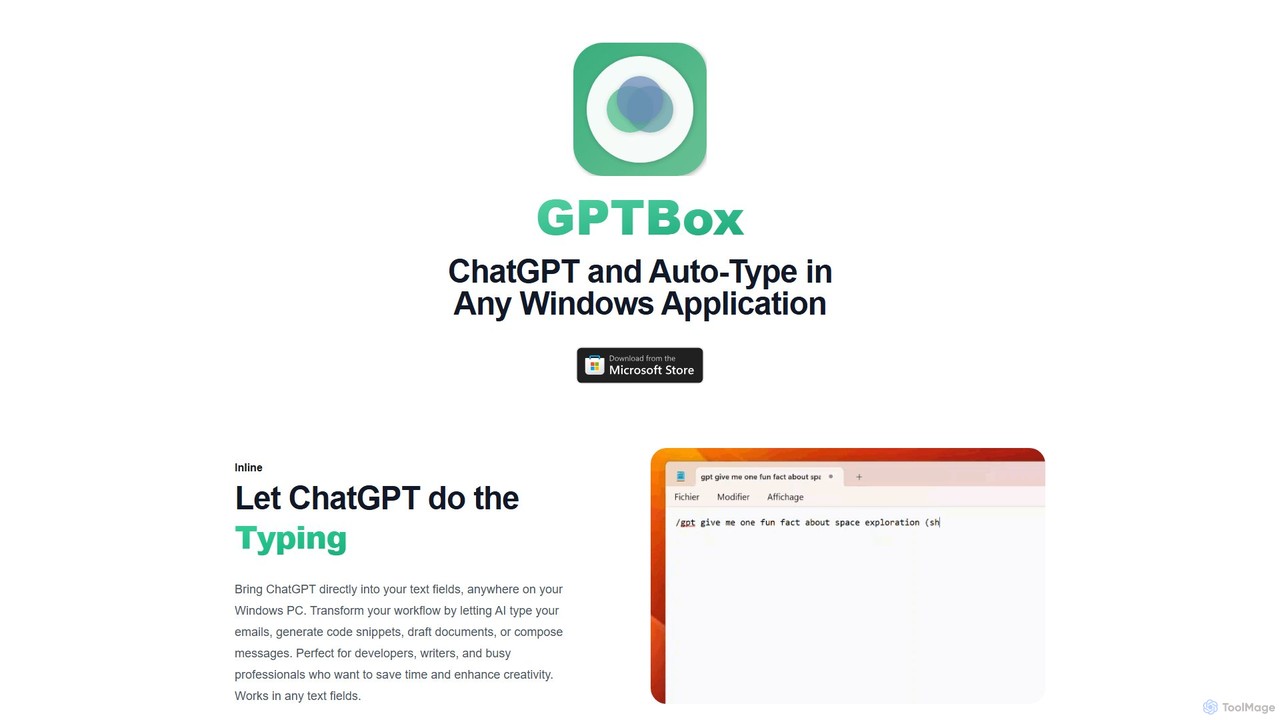
GPTBox is a native Windows application that seamlessly integrates ChatGPT and DeepSeek into your taskbar. It allows you …

2.3K

About Windows Tools

AI Windows Tools are a category of software designed to run natively on the Windows operating system, integrating artificial intelligence to enhance system functions and user productivity. These tools leverage direct access to system resources like the file system, hardware acceleration (GPU), and native APIs to deliver high performance and responsiveness. They offer powerful capabilities ranging from intelligent file management and workflow automation to local data processing and creative content generation, all within a familiar desktop environment. This native integration ensures better performance, enhanced data privacy, and offline functionality compared to purely web-based alternatives.

Core Features

  • Deep System Integration: Seamlessly interacts with File Explorer, the Start Menu, and system notifications for an intuitive workflow.
  • Hardware Acceleration: Utilizes dedicated GPUs (NVIDIA CUDA, AMD ROCm) via DirectX for rapid processing of AI tasks like image and video editing.
  • Offline Capability: Performs many tasks without an internet connection, ensuring data privacy and continuous operation.
  • Native UI/UX: Follows Windows design guidelines, providing a familiar and easy-to-navigate user interface.

Use Cases

These tools are ideal for professionals and power users who handle large files or require high performance. For example, content creators can use local AI video enhancers, developers can run AI code assistants offline, and researchers can perform semantic searches on local document archives without uploading sensitive data to the cloud.

How to Choose

When selecting an AI Windows Tool, consider your system specifications (OS version, RAM, GPU). Evaluate the tool's integration with other software you use, such as Microsoft Office or Adobe Creative Suite. Also, assess its offline capabilities and data privacy policy. Finally, check the pricing model—whether it's a one-time purchase or a subscription.

Windows ToolsUse Cases

1

Intelligent Local File Search and Management

A legal researcher needs to find specific clauses across thousands of case documents stored on their local Windows PC. Using a standard keyword search is inefficient. They use an AI Windows Tool that indexes their files locally and allows for semantic search. The researcher can type a query like 'precedent for intellectual property in software' and the tool finds relevant paragraphs in Word documents and PDFs, even if they don't contain the exact keywords. This process, which previously took hours, is now completed in minutes, directly within their secure desktop environment.

2

Automating Desktop Workflows Across Applications

An office administrator frequently performs a routine task: extracting data from a daily sales report in Excel, drafting a summary email in Outlook, and saving the report as a PDF in a specific folder. Using an AI Windows Tool for automation, they record these steps once. The AI then generates a script that runs automatically every morning. It intelligently identifies the correct data range in Excel, uses natural language generation to write a concise email summary, and handles the file conversion and saving process. This automation saves the administrator 30 minutes daily and eliminates human error.

3

Local Image and Video Enhancement with GPU Acceleration

A freelance photographer has a batch of 200 low-resolution photos from an old event that need to be upscaled for a client's website. Uploading gigabytes of data to a web service is slow and raises privacy concerns. Instead, they use a native AI Windows Tool that leverages their computer's NVIDIA GPU. The tool processes the entire batch locally, upscaling images to 4K resolution while intelligently reducing noise and sharpening details. The GPU acceleration completes the task in under an hour, a fraction of the time it would take to upload and download from a cloud service, and all original files remain securely on their hard drive.

4

Real-time Transcription and Meeting Summaries

A project manager uses a Windows AI tool that integrates with the system's audio input to capture and transcribe online meetings in real-time. The application runs quietly in the background during Microsoft Teams calls. Immediately after the meeting ends, the tool automatically generates a full transcript, a concise summary with key decisions, and a list of action items. This summary is saved directly to their local 'Meetings' folder. This eliminates the need for manual note-taking, ensures accuracy, and allows them to share outcomes with stakeholders instantly, all without sending sensitive meeting audio to an external server.

5

AI-Assisted Coding in a Windows Environment

A software developer working on a complex project in Visual Studio on Windows uses a native AI code assistant. Because the tool runs locally, it provides instantaneous code completions and suggestions without any network latency. It can analyze the entire local codebase to provide context-aware recommendations, identify potential bugs, and even generate unit tests. This offline capability is crucial when working on proprietary code that cannot be exposed to cloud services. The deep integration with the Windows development environment accelerates the coding process and improves code quality significantly.

6

System Optimization and Intelligent Troubleshooting

A power user notices their Windows PC is slowing down but can't identify the cause. They install an AI-powered system utility tool. The tool runs in the background, monitoring resource usage, background processes, and system logs. It uses machine learning to identify patterns that predict performance bottlenecks or potential hardware failures. Instead of generic advice, it provides specific, actionable recommendations, such as 'The application X is causing a memory leak. Consider updating its driver' or 'Your SSD's health is degrading; a backup is recommended.' This proactive, intelligent monitoring keeps the system running smoothly and prevents data loss.

Windows ToolsFrequently Asked Questions