ToolMage
Sign in

Best 1 Remote Access AI tools for Mobile Development

Popular Remote Access AI tools in Mobile Development include Termly, helping you work more efficiently.

Free

Termly

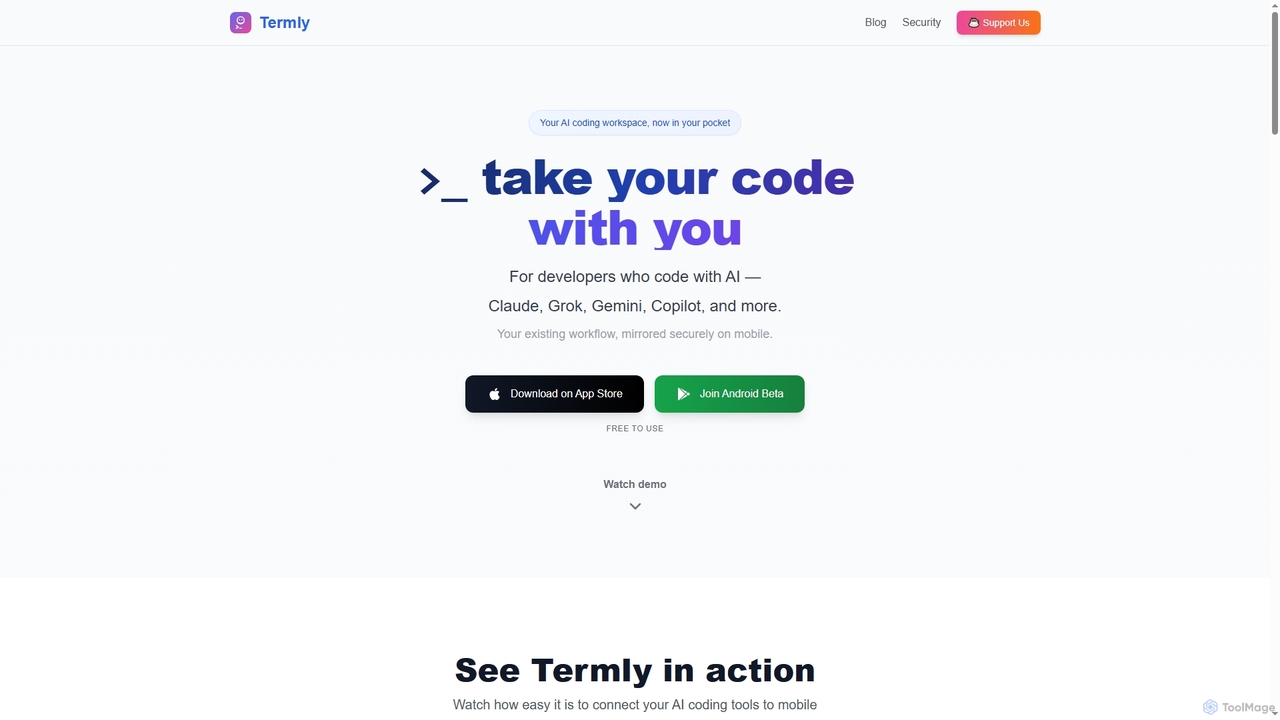
Termly is a universal AI coding assistant that securely mirrors your existing desktop AI development workflow to your mobile device. It enables developers to continue coding with tools like Claude, Copilot, and Gemini on iOS or Android, offering mobile continuity, bank-grade security, and instant setup.

Ai Coding Assistant
Visits 41.2KFavorites 104Likes 104

About Remote Access

Remote Access tools are a category of software designed to enable users to connect to and control a computer, server, or network from a different geographical location. These tools typically establish a secure, encrypted connection over the internet, allowing for real-time interaction with the remote system's desktop, applications, and files. They are invaluable for facilitating remote work, providing IT support, managing servers, and accessing specialized development environments, particularly within the broader context of mobile development where remote testing and debugging are often essential.

Core Features

  • Desktop Sharing: View and control the remote computer's screen as if you were physically present.
  • File Transfer: Securely send and receive files between local and remote machines.
  • Session Recording: Record remote sessions for auditing, training, or troubleshooting purposes.
  • Multi-Monitor Support: Seamlessly work across multiple displays on the remote system.
  • Security Protocols: Implement robust encryption and authentication methods to protect data.

Use Cases

Remote Access tools are widely used by IT professionals for troubleshooting and maintenance, developers needing to access powerful workstations or specific testing environments, and businesses supporting a distributed workforce. For mobile development, they enable developers to remotely access build servers, test devices, or virtual machines to deploy and debug applications without physical presence.

How to Choose

When selecting a Remote Access tool, consider the required level of security, ease of use for both host and client, compatibility with various operating systems (including mobile platforms), and network performance under different conditions. Evaluate features like file transfer capabilities, multi-user support, and integration with existing IT infrastructure, alongside pricing models and customer support quality.
Featured tool rankings

Remote Access use cases

1

Providing Remote Technical Support for Mobile Users

IT support teams use remote access tools to diagnose and resolve issues on employees' or customers' mobile devices (smartphones, tablets) without requiring physical presence. This includes accessing device settings, installing/uninstalling apps, or guiding users through complex procedures, significantly reducing downtime and improving user satisfaction.

2

Accessing Cloud-Based Mobile Development Environments

Mobile developers often need to work from various locations. Remote access tools allow them to securely connect to powerful cloud-based IDEs, build servers, or virtual machines configured with specific SDKs and emulators. This ensures consistent development environments and enables collaboration regardless of physical location, enhancing productivity.

3

Remote Debugging and Testing on Physical Mobile Devices

Quality Assurance (QA) engineers and developers utilize remote access to connect to a farm of physical mobile devices or emulators hosted in a data center. They can install, run, and debug mobile applications directly on these devices, observing real-time behavior and performance across different models and OS versions, which is critical for comprehensive testing.

4

Managing Backend Servers for Mobile Applications

DevOps engineers and system administrators use remote access to securely manage and maintain the backend infrastructure supporting mobile applications. This involves deploying updates, monitoring server performance, troubleshooting database issues, and configuring network settings, all from a central location, ensuring the stability and scalability of mobile services.

5

Securely Accessing Corporate Network Resources Remotely

Remote employees, including mobile app designers or project managers, use remote access to securely connect to the company's internal network. This allows them to access shared drives, internal tools, and sensitive data necessary for their work, maintaining data security and compliance while working from home or on the go.

6

Facilitating Collaborative Mobile App Development

Development teams leverage remote access for collaborative coding sessions or pair programming, especially when team members are geographically dispersed. They can share screens, jointly debug code, and review changes in real-time on a shared development environment, streamlining the development process and improving code quality.

Remote Access FAQ

What are Remote Access tools?

Remote Access tools are software applications that allow users to connect to and control a computer or network from a different physical location, typically over the internet. They enable users to view the remote desktop, run applications, transfer files, and manage system settings as if they were sitting directly in front of the machine. These tools are fundamental for remote work, IT support, and accessing specialized environments like those used in mobile development.

How do I choose the right Remote Access tool for mobile development?

When selecting a Remote Access tool for mobile development, prioritize features like robust security protocols (e.g., end-to-end encryption, multi-factor authentication), compatibility with various operating systems (Windows, macOS, Linux, Android, iOS for client access), and high-performance screen sharing for smooth interaction with remote IDEs or test devices. Also, consider file transfer capabilities, multi-user support for collaboration, and integration with existing development workflows or cloud platforms.

What are the key security features of Remote Access tools?

Key security features in Remote Access tools include strong encryption (e.g., AES 256-bit) for all data transmitted, multi-factor authentication (MFA) to prevent unauthorized access, and granular access controls that allow administrators to define specific permissions for each user or device. Other important features are session logging and auditing, idle session timeouts, and the ability to whitelist/blacklist IP addresses, all crucial for protecting sensitive development data and intellectual property.

How do Remote Access tools differ from VPNs in mobile development?

While both provide remote connectivity, Remote Access tools focus on controlling a specific remote machine's desktop and applications, offering direct interaction with its GUI. VPNs (Virtual Private Networks), on the other hand, create a secure tunnel to a private network, making your local device appear as if it's physically within that network. In mobile development, Remote Access is used for direct control of a remote test device or IDE, while a VPN might be used to access internal network resources or APIs from a remote development machine.

What are the main benefits of using Remote Access tools for mobile app testing?

Using Remote Access tools for mobile app testing offers several benefits: it enables testing on a diverse range of physical devices or emulators hosted remotely, reducing the need for extensive local hardware. It facilitates collaboration among geographically dispersed QA teams, allowing them to share and debug issues in real-time. Furthermore, it ensures consistent testing environments, accelerates the testing cycle, and provides secure access to sensitive test data or internal build servers, ultimately improving app quality and time-to-market.