
Lumo
Code Assistant
AI TOOL COMPARISON
What is the difference, and which fits your workflow? Compare features, usage, pricing models and traffic side by side.
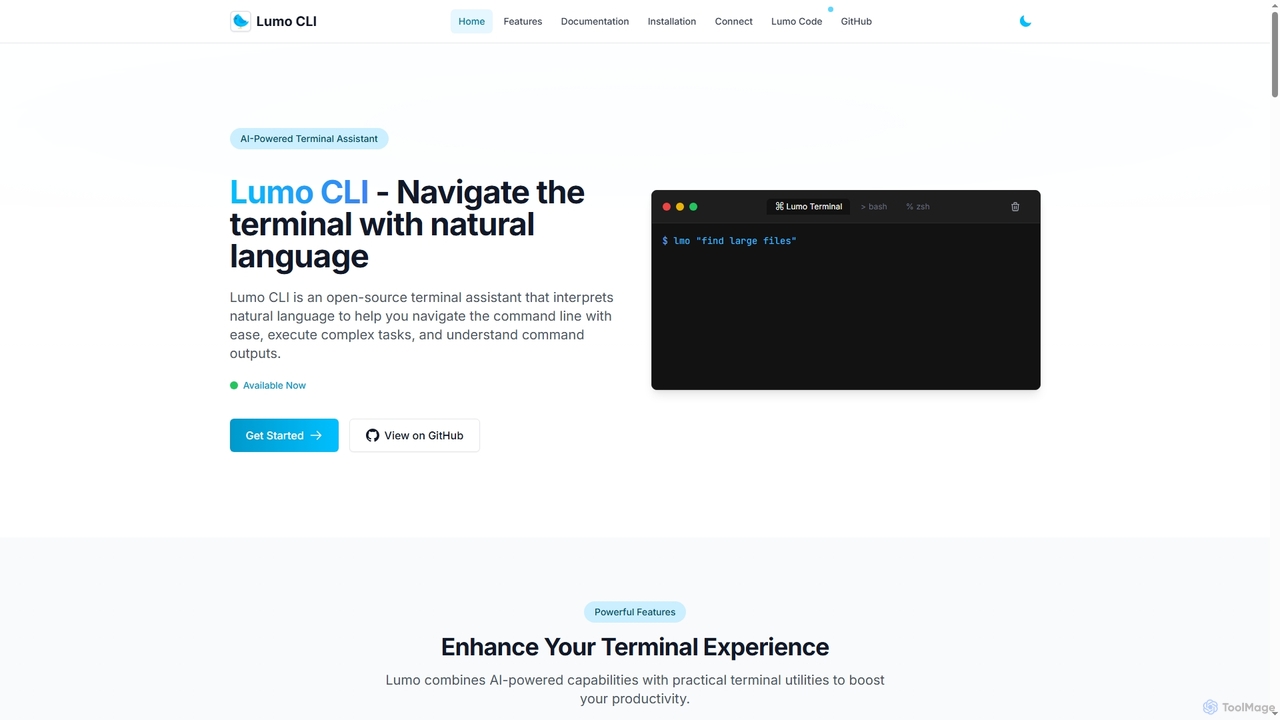
Lumo is an open-source, AI-powered terminal assistant that allows users to interact with the command line using natural language. It translates plain English into executable commands, automates complex tasks, monitors system health, and supports multiple AI models including Gemini, OpenAI, and Ollama for local inference.
ShellMate is an open-source, AI-powered command-line productivity tool designed for developers and system administrators. Powered by OpenAI, it acts as your terminal's best friend, allowing you to use natural language to find commands, get predictive suggestions based on your history, and receive context-aware help without ever leaving your console. Simply use the `sm` shortcut to boost your command-line efficiency and reduce time spent searching for syntax.
Compare product focus, pricing models and audiences. Highlighted rows indicate different listed information; unknown pricing does not mean free.
| Quick facts | Lumo | ShellMate |
|---|---|---|
| Pricing model | Free | Free |
| Product type | App | App |
| Primary focus | Code Assistant | Code Assistant |
| Audience and roles | Cybersecurity Analyst · Data Scientist · DevOps Engineer · IT Support Specialist · Software Developer · System Administrator | No data available |
| Categories | Code Assistant · Command Line · Automation | Code Assistant · Command Line · Automation |
| Added | Dec 9, 2025 | Aug 7, 2025 |
| Updated | Nov 19, 2026 | Nov 19, 2026 |
Explore the listed product descriptions, features and workflows. Taxonomy labels alone are not feature evaluations.
Lumo is an open-source AI-powered terminal assistant designed to enhance command-line productivity for developers, system administrators, and tech enthusiasts. It interprets natural language queries to generate and explain terminal commands, eliminating the need to memorize complex syntax. Lumo can also function as an autonomous agent to execute sequences of commands for completing intricate tasks. With support for multiple AI providers like Google Gemini, OpenAI, and local models via Ollama, it offers flexibility and privacy. Additional utilities include system health monitoring, local network file transfer, and clipboard management, making it a comprehensive tool for navigating the terminal with ease.
Getting started with Lumo involves a few simple steps. First, install the Lumo CLI on your system (Linux, macOS, or Windows) using either a pre-built binary or by building from the source code available on GitHub. After installation, run the `lumo setup` command to configure your preferred AI provider (e.g., OpenAI, Gemini, or a local Ollama model). Once configured, you can start using it by typing `lumo` followed by your query in natural language, such as `lumo "find large files in Linux"`. For more complex operations, you can use the Terminal Agent Mode with prefixes like `lumo auto:` or `lumo agent:` to have it plan and execute a series of commands.
Lumo is ideal for a variety of scenarios. Developers can use it to quickly find the right commands for tasks like setting up a Python virtual environment or using `grep` with multiple patterns. System administrators can leverage the Terminal Agent Mode to automate backup procedures or monitor system resources. Beginners learning the command line can use Lumo as an interactive guide to understand commands and their functions. It's also useful for debugging, as users can pipe error logs directly into Lumo for a quick analysis and explanation.
The main advantage of Lumo is its ability to significantly lower the barrier to entry for complex command-line operations, boosting productivity for both new and experienced users. Its multi-provider support, especially for local models via Ollama, gives users control over their data and allows for offline functionality. Being open-source provides transparency and the ability for customization. The integrated suite of tools, from system monitoring to file transfer, makes it a versatile and powerful assistant rather than just a simple command translator.
ShellMate is a revolutionary open-source command-line productivity tool, brought to you by Deepspring.ai, designed to be the ultimate companion for anyone who frequently works within a terminal environment. Powered by the advanced capabilities of OpenAI, ShellMate transforms your command-line interface (CLI) from a rigid, syntax-heavy environment into an intuitive, conversational workspace. It's built for developers, system administrators, data scientists, and even beginners who want to harness the full power of the shell without the steep learning curve. By integrating AI directly into your console, ShellMate minimizes context switching, boosts efficiency, and makes complex tasks more manageable.
Getting started with ShellMate is straightforward. After a simple installation process, the tool integrates seamlessly into your existing terminal workflow. You can interact with it using the convenient `sm` shortcut.
There are several ways to leverage its power:
ShellMate is versatile and benefits a wide range of users:
The primary advantage of ShellMate is the massive boost in productivity it provides. By reducing the cognitive load of remembering command syntax, it frees up mental energy for more critical problem-solving. It accelerates workflows, flattens the learning curve of the command line, and fosters a more efficient and less frustrating development environment. Being free and open-source makes it an accessible and trustworthy tool for individuals and teams alike.
ShellMate is completely free to use. As an open-source tool, it is maintained by the community. Users are encouraged to download it, use it without any cost, and contribute to the project if they find it valuable. There are no paid plans, subscriptions, or hidden fees.
Their taxonomy shows where the products overlap and where each one has a more distinct focus. Unknown fields are shown explicitly and are never filled with assumptions.
Traffic is shown on the same scale so differences in market visibility are not visually understated.
Both charts share the same months and vertical scale. Each tool identifies its latest reporting month; missing months are left blank, not counted as zero. Regional and source visit counts are estimates calculated from the reported shares.
No data available
| Country/region | Percentage | Estimated visits |
|---|---|---|
| 🇮🇳India | 100% | 338 |
Ratings, comments, favorites, and likes are community signals—not a substitute for product fit.
Lumo supports multiple AI providers to offer flexibility. According to its documentation, you can choose between Google Gemini, OpenAI, or Ollama for local AI inference, which allows the tool to function even without an internet connection.
Lumo provides support for multiple platforms. The official website confirms that it is supported on Linux, macOS, and Windows.
You can install Lumo in two main ways. The recommended quick approach is using pre-built binaries for your platform (e.g., via `curl` for Linux). Alternatively, you can build it from the source by cloning the GitHub repository, which requires Go 1.22 or higher to be installed on your system.
Yes, Lumo features a 'Terminal Agent Mode' specifically for this purpose. By using the `auto:` or `agent:` prefix, you can ask Lumo to perform complex tasks like 'create a backup of my documents folder'. It will generate a plan of commands, allow you to review and refine it, and then execute the sequence.
Yes, Lumo is presented as a completely open-source tool. The website provides links to its GitHub repository and does not mention any pricing, subscriptions, or paid plans, indicating it is free for anyone to use, inspect, and contribute to.
This page is assembled from ToolMage product listings, taxonomy, traffic statistics and on-site user feedback. It is not a hands-on test or an independent review.