Design Best in category 1 results Annotation AI Tool

Popular AI tools in the Annotation field of Design include jelli, etc., helping you quickly improve efficiency.

Free
jelli

jelli

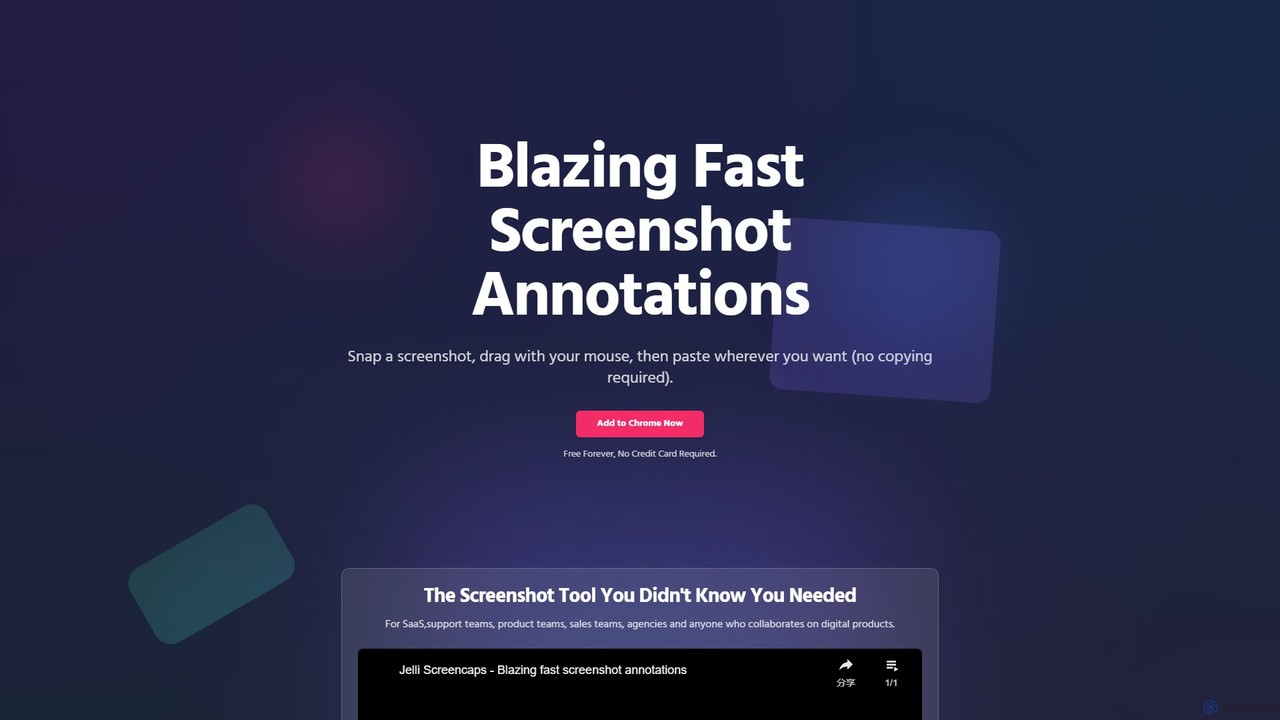
jelli is a blazing-fast Chrome extension for screenshot annotation. Instantly capture your screen, add arrows, rectangles, and other …

2.3K

About Annotation

Annotation tools are applications designed to add notes, comments, and visual markup directly onto digital files such as images, PDFs, and design mockups. These tools provide a visual layer for feedback, allowing users to pinpoint specific areas with text, shapes, or drawings to communicate changes clearly. They are essential in collaborative design and review processes, streamlining communication between team members and stakeholders and creating a clear, actionable record of feedback. This approach significantly reduces ambiguity compared to traditional email or message-based reviews.

Core Features

  • Visual Markup: Add text comments, draw shapes (arrows, circles, rectangles), and highlight specific areas on any file.
  • Collaborative Workspace: Enable multiple users to comment and reply in real-time or asynchronously on a shared asset.
  • Version Tracking: Compare different versions of a file side-by-side to track changes and review feedback history.
  • Contextual Comments: Pin comments to exact coordinates on an image or timestamp on a video for precise feedback.
  • Integration Support: Connect with project management and design software like Jira, Slack, Figma, or Adobe Creative Cloud.

Use Cases

Annotation tools are widely used by UI/UX design teams, product managers, and marketing departments for reviewing creative assets. They are also valuable for web developers gathering client feedback on live websites, and for remote teams that need a centralized platform for visual collaboration and approval workflows.

How to Choose

When selecting an annotation tool, consider the types of files you need to review (images, videos, PDFs, live URLs). Evaluate its collaboration features, such as user tagging and real-time commenting. Check for essential integrations with your existing workflow tools. Finally, assess the user interface to ensure it is intuitive for all stakeholders, including non-technical clients.

AnnotationUse Cases

1

Reviewing UI/UX Design Mockups

A UI/UX designer uploads a new mobile app interface mockup to an annotation tool. The product manager, lead developer, and copywriter are invited to review. The product manager uses a drawing tool to circle the navigation bar and comments, 'Let's simplify this to three icons.' The developer points to a specific button and asks about its state changes. The copywriter highlights a headline and suggests alternative text. All feedback is centralized on the mockup, providing a clear, actionable to-do list for the designer's next revision.

2

Collecting Client Feedback on a Live Website

A web development agency launches a staging version of a client's new website. Instead of sending emails with screenshots, they provide the client with a link to an annotation tool that overlays the live site. The client can browse their site, click on any element they want to change—like an image, a text block, or a form—and leave a comment directly. The tool automatically captures browser information and screen size, helping developers quickly identify and replicate reported bugs or visual inconsistencies.

3

Collaborative Video Proofing for Marketing

A marketing team is producing a new promotional video. The video editor uploads the first draft to a video annotation platform. The marketing manager, brand strategist, and copywriter watch the video and add time-stamped comments. The manager notes at 0:15, 'The logo animation is too slow.' The strategist draws a box over a scene at 0:32 and suggests, 'Let's replace this shot with customer testimonials.' This process avoids confusing email chains with vague time references and ensures all feedback is precisely linked to the relevant video frame.

4

Streamlining PDF Document Approvals

A legal team needs to review and approve a multi-page contract. Instead of printing it out or sending conflicting edits in a Word document, they upload the PDF to an annotation tool. Lawyers can highlight specific clauses, add comments with legal questions, and use stamps like 'Approved' or 'Requires Revision' on each page. This creates a single source of truth for all feedback, maintains the integrity of the original document, and provides a clear audit trail of all changes and approvals before the final version is signed.

5

Providing Feedback on Educational Assignments

An architecture professor receives digital submissions of building plans from students. Using an annotation tool, the professor can directly mark up the CAD drawings or PDFs. They can draw arrows to point out structural issues, add notes about design principles, and highlight areas that meet the criteria well. This visual feedback is far more effective and specific than written comments alone, helping students to better understand their mistakes and areas for improvement in a visual and contextual manner.

6

Internal Review of Marketing Campaign Assets

Before launching a new social media campaign, a marketing team needs to approve several assets, including images, ad copy, and short videos. All assets are uploaded to a central annotation tool. The brand manager checks for brand consistency, the copywriter proofs the text for errors, and the social media manager verifies the image dimensions are correct for each platform. By commenting on the same files, the team ensures everyone is aligned and avoids the risk of launching a campaign with unapproved or incorrect content.

AnnotationFrequently Asked Questions