
Design Best in category 1 results Screenshot Tool AI Tool

Popular AI tools in the Screenshot Tool field of Design include ScreenML, etc., helping you quickly improve efficiency.

ScreenML

ScreenML

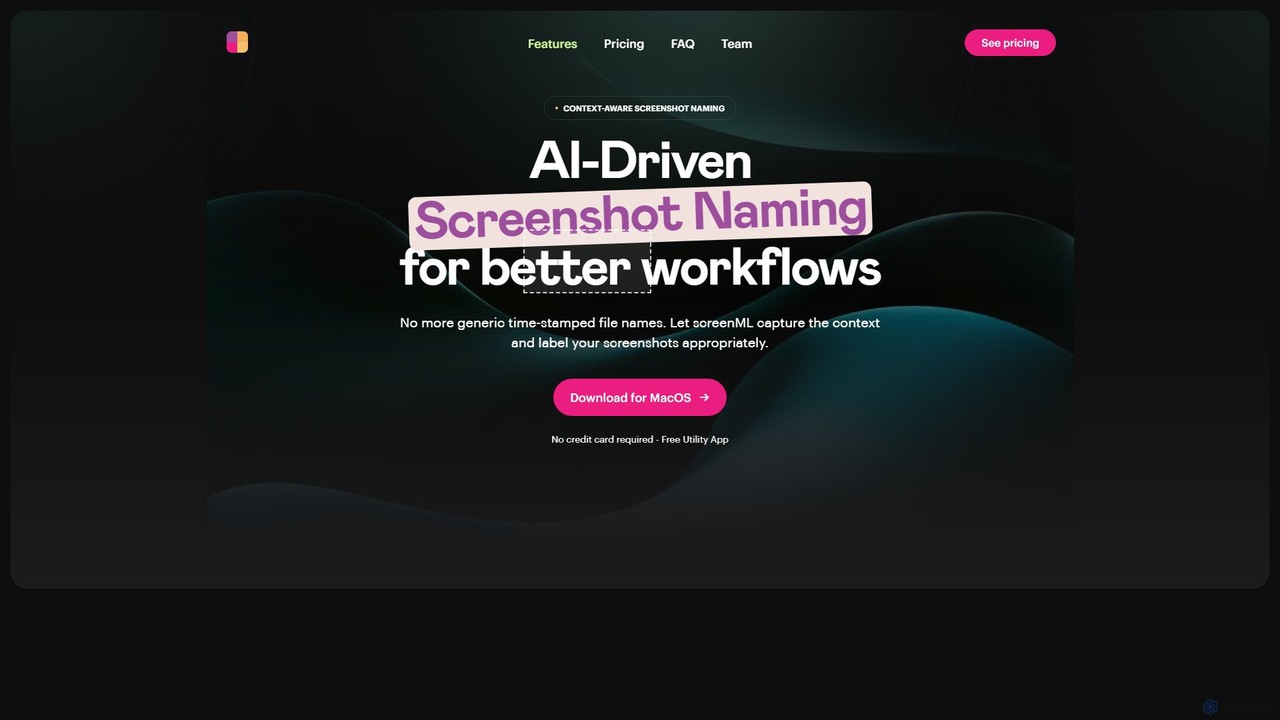
ScreenML is an AI-powered MacOS utility that automatically renames your screenshots with context-aware, descriptive filenames. It eliminates cluttered …

2.9K

About Screenshot Tool

AI Screenshot Tools are advanced utilities for capturing and processing screen images with intelligent features. These tools leverage technologies like Optical Character Recognition (OCR) and computer vision to not just capture pixels, but to understand the content within them. They enable users to instantly extract text, identify UI elements, and apply smart annotations, transforming static images into interactive, data-rich assets. This capability significantly accelerates workflows in design, development, and technical support.

Core Features

  • AI-Powered OCR: Instantly extracts and copies text from any image or screenshot, making non-selectable text accessible.
  • Smart Annotation: Automatically suggests annotations, highlights key elements, or numbers steps in a sequence for creating tutorials.
  • Automatic Redaction: Intelligently detects and blurs sensitive information like names, email addresses, or numbers to protect privacy.
  • Visual Search: Allows searching through a library of screenshots using the text content within the images themselves.
  • UI Element Detection: Recognizes interface components like buttons, menus, and forms for more precise feedback and documentation.

Use Cases

These tools are integral for roles requiring clear visual communication. UI/UX designers use them to provide specific feedback on mockups. Quality assurance testers create detailed, annotated bug reports. Technical writers build step-by-step guides and documentation more efficiently. Customer support teams quickly share visual solutions with users.

How to Choose

When selecting an AI Screenshot Tool, consider the accuracy of its OCR technology for your specific language needs. Evaluate its integration capabilities with your existing workflow tools like Jira, Slack, or Notion. Assess the range and intelligence of its annotation features. Finally, for handling sensitive data, prioritize tools with robust and reliable automatic redaction functionalities.

Screenshot ToolUse Cases

1

Creating Technical Documentation and Tutorials

A technical writer is tasked with creating a user manual for a new software application. Instead of manually capturing, annotating, and transcribing each step, they use an AI Screenshot Tool. As they perform the workflow, the tool automatically captures each screen, detects UI elements like buttons and menus, and generates sequential numbered annotations. The AI-powered OCR extracts all visible text, which can be used to create searchable documentation, reducing the manual effort of writing instructions by over 70%.

2

Providing Precise Design Feedback

A UI/UX designer needs to provide feedback on a new web page mockup. They take a full-page screenshot. The AI tool automatically identifies distinct sections and interactive elements. The designer can then click on a specific button and leave a comment like 'Change color to 5A67D8' directly tied to that element. This eliminates ambiguity compared to circling areas on a static image, ensuring developers understand the required changes with perfect clarity and context.

3

Efficient Bug Reporting with Privacy Protection

A QA tester finds a bug in a customer portal. They use an AI Screenshot Tool to capture the screen. The tool's AI automatically detects and suggests redacting sensitive data like the customer's name, address, and account number. The tester confirms the redactions with a single click, adds an arrow pointing to the error message, and the tool automatically includes browser and OS metadata. This creates a comprehensive, secure, and actionable bug report for the development team in seconds.

4

Building a Searchable Visual Knowledge Base

A customer support team frequently encounters similar user issues. An agent uses an AI Screenshot Tool to capture the solution for a common problem. The tool's OCR automatically indexes all text within the screenshot. This image is then saved to a shared library. When another agent faces a similar issue, they can simply search for keywords from the error message or UI text, and the relevant visual guide instantly appears. This transforms a collection of images into a powerful, searchable knowledge base, reducing resolution times.

5

Extracting Data from Visual Reports and Charts

A market analyst needs to extract key statistics from a dozen PDF reports and online dashboards, where data is presented in charts and tables as images. Manually retyping this data is tedious and error-prone. By using an AI Screenshot Tool, the analyst captures each chart and table. The tool's advanced OCR not only extracts the text but also recognizes the tabular structure, allowing the data to be directly copied into Excel or Google Sheets for analysis. This process automates data entry and ensures accuracy.

6

Automating Workflow Documentation for Training

A team lead needs to document a complex, multi-step process for onboarding new hires. They activate the 'smart capture' mode in their AI Screenshot Tool. As they click through the entire process, the tool automatically takes a screenshot at each key action (e.g., clicking a button, filling a form). Afterwards, the tool presents a sequenced gallery of all captured steps. The team lead can then quickly add brief text descriptions to each step, generating a comprehensive visual training guide in a fraction of the time it would take manually.

Screenshot ToolFrequently Asked Questions