ToolMage
Sign in

Best 3 Image To Video AI tools for Image Editing

Popular Image To Video AI tools in Image Editing include Bunnie AI, Motion Control AI, and VideoPop, helping you work more efficiently.

Motion Control AI
Paid

Motion Control AI

Motion Control AI, powered by Kling 2.6, transforms static images into dynamic, high-fidelity videos. It offers precise control over character actions, expressions, and camera movements using reference images and text prompts, enabling professional-grade image-to-video generation for various creative and commercial applications.

3D
Visits 6.7KFavorites 27Likes 19
Bunnie AI
Freemium

Bunnie AI

Bunnie AI is an advanced AI video generator that transforms photos into dynamic, ready-to-share videos using a vast library of over 1000 templates. It offers next-gen motion effects, body shaping, and AI clothes changing features, designed for quick, high-quality content creation without complex editing, making professional video creation accessible to everyone.

3D
Visits 19.8KFavorites 113Likes 98
VideoPop
Paid

VideoPop

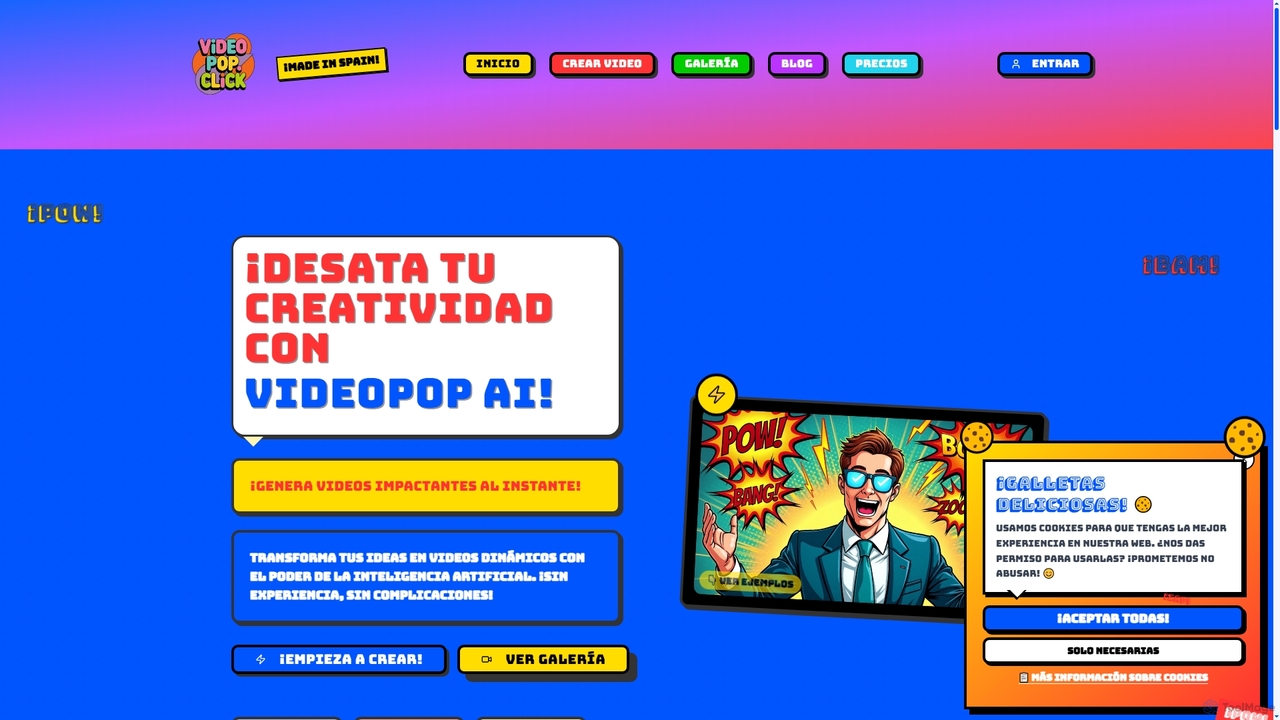
VideoPop is an AI-powered video generator that transforms text and images into dynamic, engaging short videos instantly. Designed for ease of use, it allows anyone to create vibrant content for social media, marketing, or personal memories without prior video editing experience. Leverage advanced AI to bring your ideas and photos to life with special effects and animations.

3D
Visits 5.6KFavorites 105Likes 114

About Image To Video

Image To Video tools are a class of AI-powered software that transform static images into dynamic video clips. These tools analyze an image's content and depth to apply motion effects, camera movements, and animations, creating the illusion of a live scene. They are primarily used to enhance visual content for social media, marketing, and digital art, making static visuals more engaging and eye-catching. Unlike traditional video editors, their core function is to generate motion from a single, still source image.

Core Features

  • 2.5D Parallax Effect: Creates a sense of depth by moving foreground and background layers at different speeds.
  • AI-driven Animation: Automatically animates specific elements within an image, such as clouds, water, or facial expressions.
  • Camera Motion Control: Simulates camera movements like zoom, pan, and dolly to add a cinematic feel.
  • Animated Overlays: Allows for the addition of animated text, particles, or effects on top of the image.

Use Cases

These tools are widely used by social media managers, digital marketers, and content creators to produce short, captivating videos for platforms like Instagram, TikTok, and Facebook. Artists and photographers also use them to bring their static works to life, creating animated portfolios or digital art pieces. In e-commerce, they can be used to create simple, dynamic product showcases from still product photos.

How to Choose

When selecting an Image To Video tool, consider the level of control offered—some are template-based for speed, while others provide detailed keyframe controls. Evaluate the quality and realism of the AI-generated motion. Also, check the supported output resolutions, formats, and whether the tool leaves a watermark on free plans. Finally, consider the user interface's complexity and your own technical skill level.

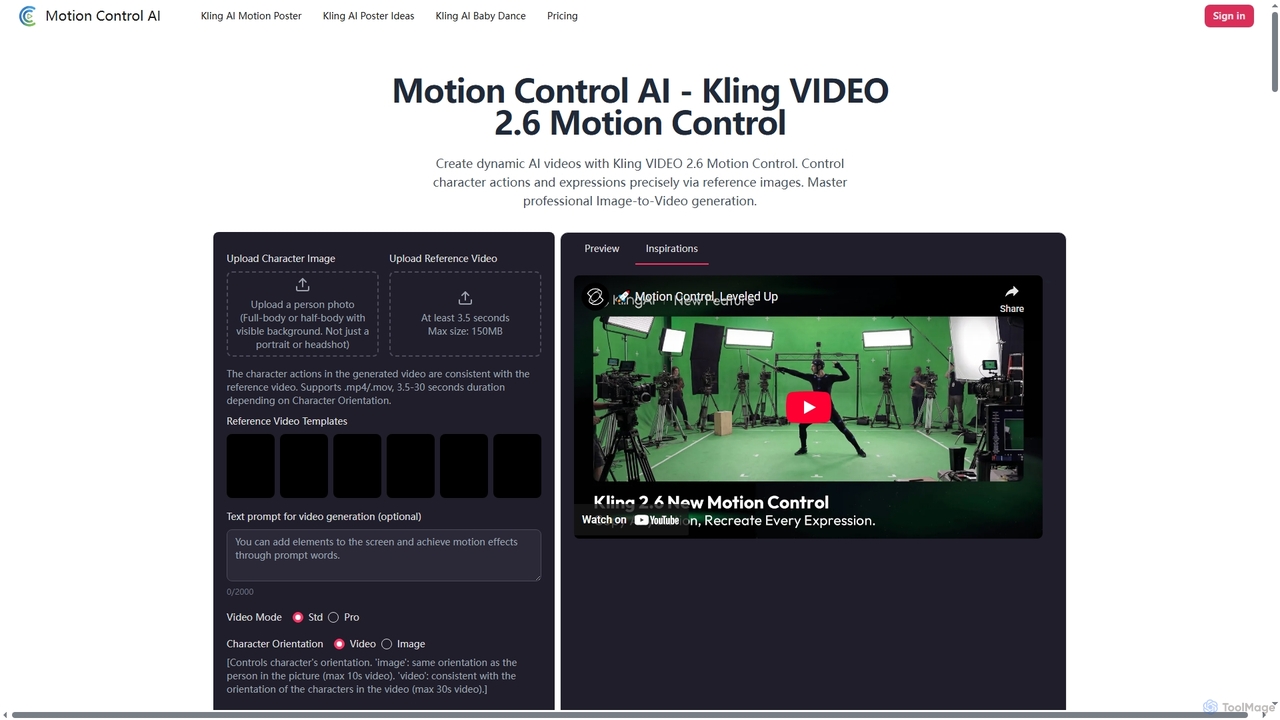
Image To Video use cases

1

Creating Animated Social Media Posts

A social media manager for a fashion brand needs to create daily engaging content. Instead of just posting static photos of new apparel, they use an Image To Video tool. They upload a high-quality product image, and the AI applies a subtle zoom-in effect and animates the fabric to simulate a gentle breeze. This transforms a simple photo into a 10-second captivating video for Instagram Stories, increasing viewer engagement and stopping the scroll more effectively than a static image.

2

Animating Digital Art and Illustrations

A digital artist wants to showcase their portfolio on their website and social media in a more dynamic way. They take a detailed landscape illustration and use an Image To Video tool to apply a 2.5D parallax effect. The tool separates the foreground trees, mid-ground mountains, and background sky, moving them at different rates to create a convincing illusion of depth and movement. They also add a subtle animation to the clouds. The resulting animated artwork is more immersive and helps their portfolio stand out.

3

Creating Dynamic Real Estate Listings

A real estate agent wants to make their property listings more appealing. They take a high-resolution photo of a living room and use an Image To Video tool to create a slow, cinematic pan from left to right. This simple animation gives potential buyers a better sense of the space and flow of the room compared to a static photo. The resulting short video can be used on property websites, in email newsletters, and on social media to attract more interest and schedule more viewings.

4

Enhancing E-commerce Product Photos

An online store owner selling handcrafted jewelry wants to highlight the intricate details of their products. They use an Image To Video tool on a close-up shot of a necklace. The tool creates a subtle 'shimmer' or 'glint' effect on the gemstones and a slow zoom towards the pendant's clasp. This animated photo, embedded on the product page, draws the customer's eye to the quality craftsmanship and details, potentially increasing conversion rates by providing a more luxurious and engaging product view.

5

Animating Historical Photos or Portraits

A museum or educational content creator wants to bring history to life. They take a static, historical portrait of a famous figure and use an AI Image To Video tool that specializes in facial animation. The tool subtly animates the person's eyes to blink, their head to turn slightly, and their expression to shift into a gentle smile. This 'living portrait' effect can be incredibly powerful in documentaries, online courses, or museum exhibits, creating a deeper emotional connection between the viewer and the historical subject.

6

Generating Looping Backgrounds for Websites

A web designer is creating a landing page for a wellness retreat. To create a serene atmosphere, they use an Image To Video tool on a high-quality photo of a calm beach. The tool animates the water with gentle, repeating waves and makes the clouds drift slowly across the sky. The output is a short, seamlessly looping video that serves as an elegant and non-distracting background for the website's hero section, enhancing the overall user experience without the high cost of a professional video shoot.

Image To Video FAQ

What are AI Image To Video tools?

AI Image To Video tools are applications that use artificial intelligence to add motion to a single static image, transforming it into a short video clip. They work by analyzing the image to identify different layers (like foreground and background) or specific elements (like water or faces) and then applying automated animations, such as parallax effects, camera pans, or subtle movements. They are primarily used to create engaging visual content for social media, marketing, and digital art without needing complex video editing skills.

How to choose the right Image To Video tool?

When selecting an Image To Video tool, consider these factors:

  • Animation Style: Determine if you need simple effects like zooms and pans, or more complex animations like 2.5D parallax or facial animation.
  • Level of Control: Decide if a simple, template-based tool is sufficient, or if you require manual controls like keyframes and effect customization for more creative freedom.
  • Output Quality: Check the maximum resolution and frame rate the tool can export. Ensure it meets the quality standards for your intended platform (e.g., HD for social media).
  • Pricing and Watermarks: Evaluate the cost and check if the free or lower-tiered plans include a watermark on the final video.
What's the difference between Image To Video tools and regular video editors?

The main difference lies in their starting point and core function. Image To Video tools start with a single static image and their primary purpose is to generate motion within that image. Regular video editors (like Adobe Premiere or Final Cut Pro) start with multiple video clips, images, and audio files, and their primary purpose is to arrange and sequence these assets on a timeline. In short, one creates motion from stillness, while the other organizes existing motion and media.

What kind of images work best for these tools?

Images with clear separation between foreground, mid-ground, and background elements tend to produce the best results, especially for 2.5D parallax effects. High-resolution photos are also preferable as they retain quality when zoomed or panned. For animating specific elements, images with distinct, well-defined features (like a clear sky, a body of water, or a portrait with visible eyes) allow the AI to apply effects more accurately.

Can these tools create long videos from a single image?

Generally, no. Image To Video tools are designed to create short, looping clips, typically ranging from 3 to 15 seconds. The goal is to add a touch of dynamic life to a static image, not to generate a full-length narrative video. The limited motion they can generate from a single frame is best suited for brief, eye-catching content like social media posts, website backgrounds, or digital advertisements.