ToolMage
Sign in

Best 1 Inpainting AI tools for Image Editing

Popular Inpainting AI tools in Image Editing include Sih.Ai, helping you work more efficiently.

Sih.Ai
Free

Sih.Ai

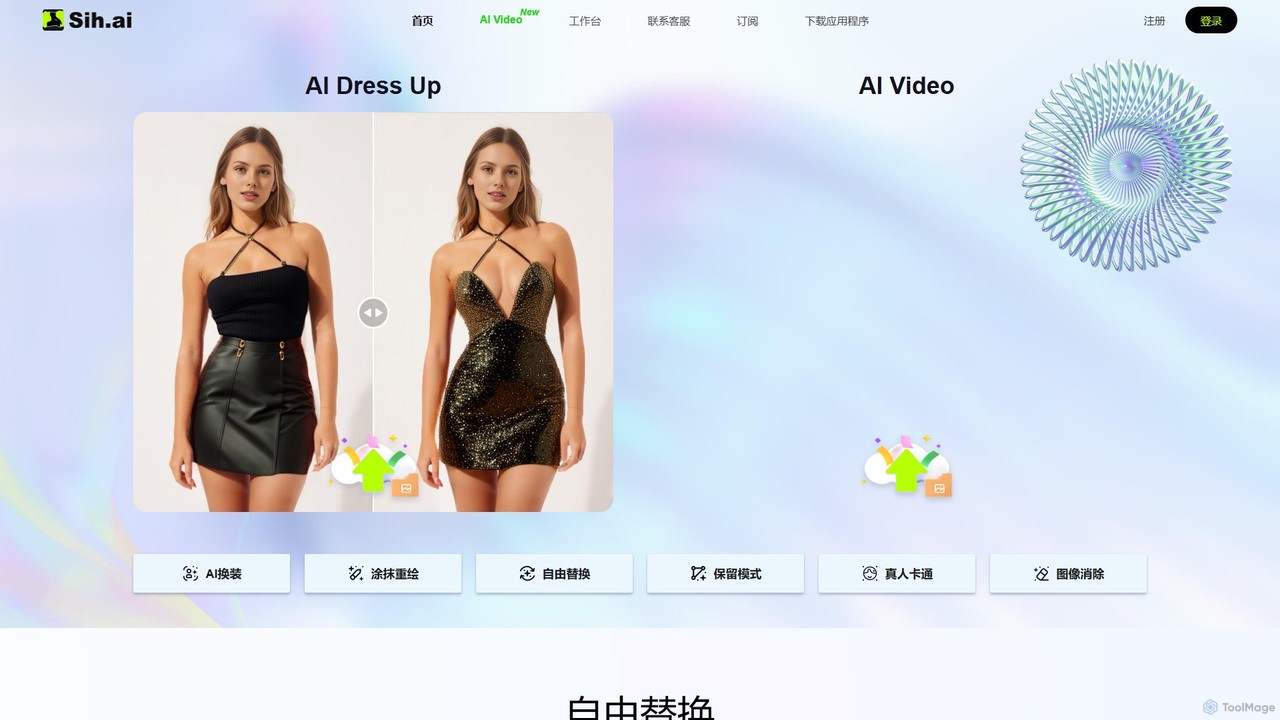
Sih.Ai is a free, comprehensive AI image editing and redrawing toolkit. It specializes in advanced inpainting, allowing users to effortlessly change clothes, hairstyles, backgrounds, and even replace models in photos. It also offers powerful photo restoration and enhancement features.

Image Generation
Visits 6.5KFavorites 173Likes 134

About Inpainting

Inpainting tools are a specialized class of AI image editors designed to intelligently reconstruct or remove parts of an image. These tools use advanced generative algorithms to analyze the surrounding context, such as textures, patterns, and lighting, to seamlessly fill in selected areas. The primary value lies in their ability to perform complex repairs and object removal tasks that would be time-consuming or impossible with traditional editing methods. This technology enables users to restore damaged photos, eliminate distractions, and clean up images with remarkable realism.

Core Features

  • Object Removal: Select and erase unwanted people, objects, or text from a photo, with AI generating a natural-looking background.
  • Image Restoration: Repair physical damage like scratches, cracks, dust, or creases in old or scanned photographs.
  • Blemish & Defect Correction: Quickly remove skin imperfections, sensor dust, or other minor flaws in an image.
  • Generative Fill: Replace a masked area not just with the background, but with entirely new, context-aware content based on text prompts.

Use Cases

Inpainting tools are widely used in professional photography for retouching portraits and cleaning up landscapes. In e-commerce, they are essential for creating clean, consistent product images by removing props or reflections. Archivists and historians use them to restore damaged historical documents and photographs, while graphic designers and content creators leverage them to remove watermarks or adapt existing imagery for new projects.

How to Choose

When selecting an Inpainting tool, consider the realism and quality of the fill; a good tool should leave no obvious traces. Evaluate the precision of its selection tools (e.g., adjustable brushes, masks) for handling complex shapes. Processing speed is another key factor, especially for high-resolution images or batch work. Finally, consider its integration capabilities, such as whether it functions as a standalone app or a plugin for software like Adobe Photoshop.

Inpainting use cases

1

Remove Tourists from Travel Photos

A travel photographer or blogger often captures stunning landscapes, only to find them cluttered with other people. Using an AI Inpainting tool, they can simply paint over the unwanted individuals in the photo. The AI analyzes the surrounding scenery—sky, mountains, or sea—and generates a seamless patch to cover the selection. This process, which takes only a few seconds, results in a clean, professional-looking image that focuses solely on the intended subject, making it perfect for portfolios, blogs, or social media.

2

Restore Damaged Historical Photographs

An archivist or someone restoring family photos is often faced with images damaged by cracks, creases, or stains. Manually repairing these in traditional software is a meticulous and expert-level task. With an AI Inpainting tool, they can carefully trace over the damaged lines and spots. The AI algorithm intelligently reconstructs the missing information by referencing adjacent, undamaged areas of the photo, preserving details like fabric texture or facial features. This dramatically speeds up the restoration process and makes it accessible to non-experts, helping preserve precious memories.

3

Clean Up E-commerce Product Images

An e-commerce store manager needs product photos to be clean, professional, and free of distractions. However, photoshoots can result in images with minor imperfections like dust on the product, unwanted reflections, or distracting background elements. Instead of reshooting, the manager can use an Inpainting tool to quickly paint over these flaws. The AI fills the area seamlessly, matching the product's surface or the plain background. This allows for rapid cleanup of hundreds of product images, ensuring a consistent and appealing look across the entire online store, which can directly impact sales.

4

Erase Watermarks or Text from Images

A graphic designer or social media manager might need to use an image as a background for a new design, but it contains a text overlay or a watermark. Assuming they have the rights to use the image, they can use an Inpainting tool to remove these elements. By selecting the text or logo, the AI reconstructs the underlying image details, whether it's a complex pattern, a gradient, or a photograph. This is significantly faster and more effective than using a clone stamp tool, which often struggles with non-uniform backgrounds and can leave repetitive artifacts.

5

Digitally Declutter Rooms for Real Estate

A real estate agent wants to showcase a property, but the current tenant's furniture is distracting or doesn't match the desired aesthetic. Using an Inpainting tool, the agent can 'erase' the existing furniture from the photos. They simply mask the couch, table, and other items. The AI then intelligently fills in the empty spaces with plausible flooring and walls, referencing the visible parts of the room. This creates a clean, empty slate, making the room appear larger and allowing potential buyers to envision their own furniture in the space. It's a fast and cost-effective alternative to physical staging.

6

Retouch Portraits and Headshots

A portrait photographer or even a casual user wants to perfect a headshot by removing temporary blemishes, stray hairs, or distracting background elements like a light switch. Using an Inpainting tool with a small brush, they can precisely select these minor imperfections. The AI removes them while preserving the natural skin texture, avoiding the blurry or artificial look that can result from older editing techniques. This allows for quick, subtle, and professional-grade retouching without needing extensive knowledge of complex software like Photoshop.

Inpainting FAQ

What is AI Inpainting?

AI Inpainting is an image editing technique that uses artificial intelligence to intelligently fill in missing or unwanted areas of an image. Unlike traditional tools that copy pixels, AI Inpainting analyzes the context of the surrounding area—including textures, lighting, and patterns—to generate entirely new, realistic pixels that blend in seamlessly. It's primarily used for object removal, repairing damaged photos, and correcting imperfections.

How does Inpainting differ from a clone stamp or healing brush?

A clone stamp tool manually copies pixels from one area to another, which can create repetitive patterns and works poorly on complex backgrounds. A healing brush blends copied pixels with the target area, which is better but still limited. AI Inpainting is fundamentally different because it doesn't just copy pixels; it generates new pixels based on a deep understanding of the image's content. This allows it to create much more realistic and context-aware fills, especially when removing large objects or repairing intricate textures.

What are the key features to look for in an Inpainting tool?

When choosing an Inpainting tool, prioritize the following features:

  • Quality of Results: The generated fill should be realistic, seamless, and free of artifacts.
  • Precise Selection Tools: Look for adjustable brushes, lasso tools, and masking options to accurately select complex areas.
  • Processing Speed: The tool should be able to process edits quickly, especially on high-resolution images.
  • Generative Fill Capability: Modern tools often include the ability to fill an area with new content based on a text prompt, which adds significant creative flexibility.
  • Ease of Use: An intuitive interface allows users of all skill levels to achieve professional results without a steep learning curve.
Can Inpainting be used to add new objects to an image?

Traditionally, Inpainting focused on removal and repair. However, many modern AI Inpainting tools have evolved to include a feature often called "Generative Fill." This powerful capability allows you to select an area and, instead of just filling it with the background, you can provide a text prompt to describe what new object or element you want to generate in that space. So, while classic Inpainting removes, its modern counterpart can both remove and add, making it a versatile tool for creative image editing.

Who can benefit from using AI Inpainting tools?

A wide range of users can benefit from AI Inpainting tools. This includes:

  • Photographers: For retouching portraits, removing distracting elements from landscapes, and cleaning up event photos.
  • E-commerce Businesses: To create clean and professional product images by removing props, reflections, or imperfections.
  • Graphic Designers: For cleaning up source images, removing watermarks (with permission), or modifying existing assets.
  • Archivists and Hobbyists: To restore old, damaged family or historical photographs.
  • Real Estate Professionals: For digitally decluttering rooms to create more appealing property listings.
  • Casual Users: To easily fix personal photos, like removing photobombers or unwanted objects.