
Tubly
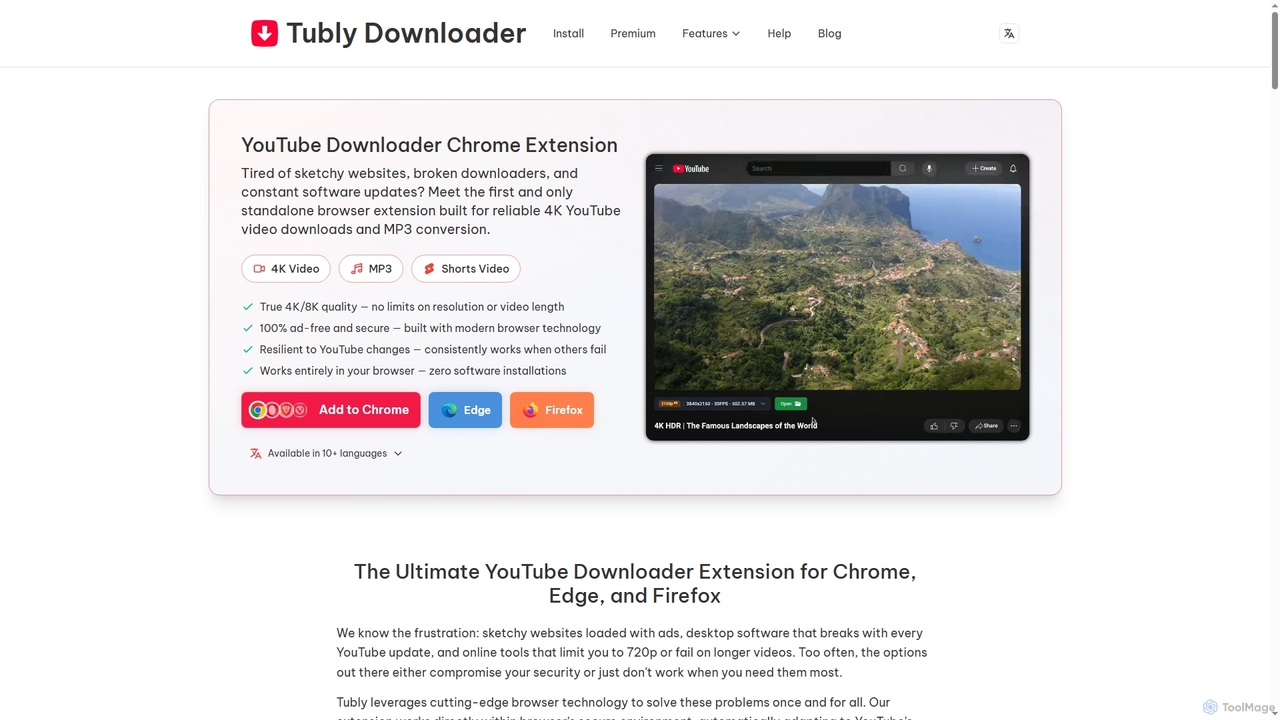
Tubly is a powerful and secure browser extension for Chrome, Edge, and Firefox, enabling users to download YouTube …
Tubly is a powerful and secure browser extension for Chrome, Edge, and Firefox, enabling users to download YouTube videos in up to 8K resolution and convert them to high-quality 320kbps MP3s. It supports YouTube Shorts, private content, and offers an ad-free, reliable offline viewing experience across all major operating systems.
About Audio Converter
Audio Converter tools are specialized applications designed to change the digital format of audio files. They function by decoding the source audio data and re-encoding it into a new format, such as converting a high-quality WAV file to a compressed MP3 for web use. This process is essential for ensuring compatibility across different devices, optimizing file sizes for storage or streaming, and preparing audio for specific production workflows. Modern AI-powered converters can intelligently optimize encoding settings for the best balance of quality and size, and efficiently handle batch processing of large libraries.
Core Features
- Multi-Format Support: Convert between a wide range of audio formats, including MP3, WAV, AAC, FLAC, OGG, and M4A.
- Parameter Adjustment: Modify technical specifications like bitrate, sample rate, channels (mono/stereo), and codec.
- Batch Conversion: Process multiple audio files simultaneously, saving significant time for large projects.
- Audio Extraction: Isolate and save audio tracks from video files such as MP4, AVI, or MOV.
- Metadata Editing: Edit or preserve metadata tags like artist, album, title, and cover art during conversion.
Use Cases
Audio converters are widely used by podcasters to prepare episodes for various streaming platforms, musicians to create distribution-ready files from master recordings, and web developers to optimize audio assets for faster website loading. They are also valuable for archivists standardizing audio collections and casual users creating custom ringtones or managing personal music libraries.
How to Choose
When selecting an Audio Converter, consider the range of supported input and output formats to ensure it meets your needs. Evaluate the conversion quality and speed, especially for batch processing. Look for a user-friendly interface that matches your technical skill level, and check for advanced features like metadata editing or audio extraction if required for your workflow.
Audio ConverterUse Cases
Podcast Episode Distribution Preparation
A podcast creator has just finished editing their weekly episode in a high-quality, lossless WAV format. To distribute it on platforms like Spotify and Apple Podcasts, they need a smaller, more stream-friendly format. Using an audio converter, they batch convert the master WAV file into a 128kbps stereo MP3 file. The tool also allows them to embed metadata, including the episode title, podcast name, and cover art, ensuring it displays correctly in all podcast players. This process reduces the file size by over 80% without a noticeable loss in voice quality, making it quick to upload and easy for listeners to stream.
Optimizing Audio Assets for Web Development
A front-end developer is building an interactive website that uses multiple sound effects for user actions. The original sound files are in WAV format, which are too large and could slow down page loading times. To optimize performance, the developer uses an audio converter to process all sound effects. They convert each WAV file into two formats: MP3 for general browser support and OGG for better quality-to-size ratio in browsers that support it. The batch conversion feature processes all 50+ sound files in under a minute. This ensures fast load times and a smooth user experience across different web browsers without sacrificing audio quality.
Extracting Audio from Video for Remixing
A DJ and music producer wants to remix a dialogue clip from a movie for a new track. The clip is in an MP4 video file. Instead of using complex video editing software, they use an audio converter with an extraction feature. They simply load the MP4 file into the converter, select the output format as WAV to maintain the highest possible quality for editing, and start the process. The tool quickly extracts only the audio track, ignoring the video, and saves it as a clean WAV file. This allows the producer to immediately import the audio into their Digital Audio Workstation (DAW) and start creative work, saving time and disk space.
Archiving a Digital Music Collection
A music enthusiast has a large collection of CDs they've ripped over the years, mostly in WMA (Windows Media Audio) format. To ensure long-term preservation and compatibility with modern devices, they decide to convert their entire library to FLAC, a popular lossless format. Using an audio converter with robust batch processing, they add their entire multi-gigabyte music folder. The tool automatically reads the existing metadata (artist, album, track number) and preserves it in the new FLAC files. The conversion runs overnight, and in the morning, they have a perfectly organized, high-fidelity, and future-proof archive of their music collection.
Creating Custom Mobile Ringtones
A user wants to create a custom ringtone from their favorite song, which is an MP3 file. Their smartphone requires ringtones to be in a specific format and length, such as M4R for iPhones. They use an audio converter that also includes basic trimming functionality. First, they load the MP3 and trim it to a 30-second clip of the song's chorus. Then, they select M4R as the output format and adjust the audio to be slightly louder so it's audible in noisy environments. After a quick conversion, the M4R file is ready to be transferred to their phone. This avoids the need for separate audio editing and conversion applications, streamlining the entire process.
Preparing Audio Files for a Digital Audio Workstation (DAW)
A sound designer receives audio assets for a project from various sources, resulting in a mix of formats like OGG, MP3, and M4A. Their professional DAW software works best with uncompressed WAV files for optimal performance and editing precision. They use an audio converter to standardize all incoming files. They set up a batch process to convert all files to a 48kHz, 24-bit WAV format, which is the project's standard. The converter processes the entire folder of mixed-format files, creating a new, clean set of WAV files ready for import. This ensures a smooth, efficient workflow within the DAW and prevents potential compatibility or performance issues.