ToolMage
Sign in

Best 1 Git Client AI tools for Developer Tools

Popular Git Client AI tools in Developer Tools include SnapCommit, helping you work more efficiently.

Paid

SnapCommit

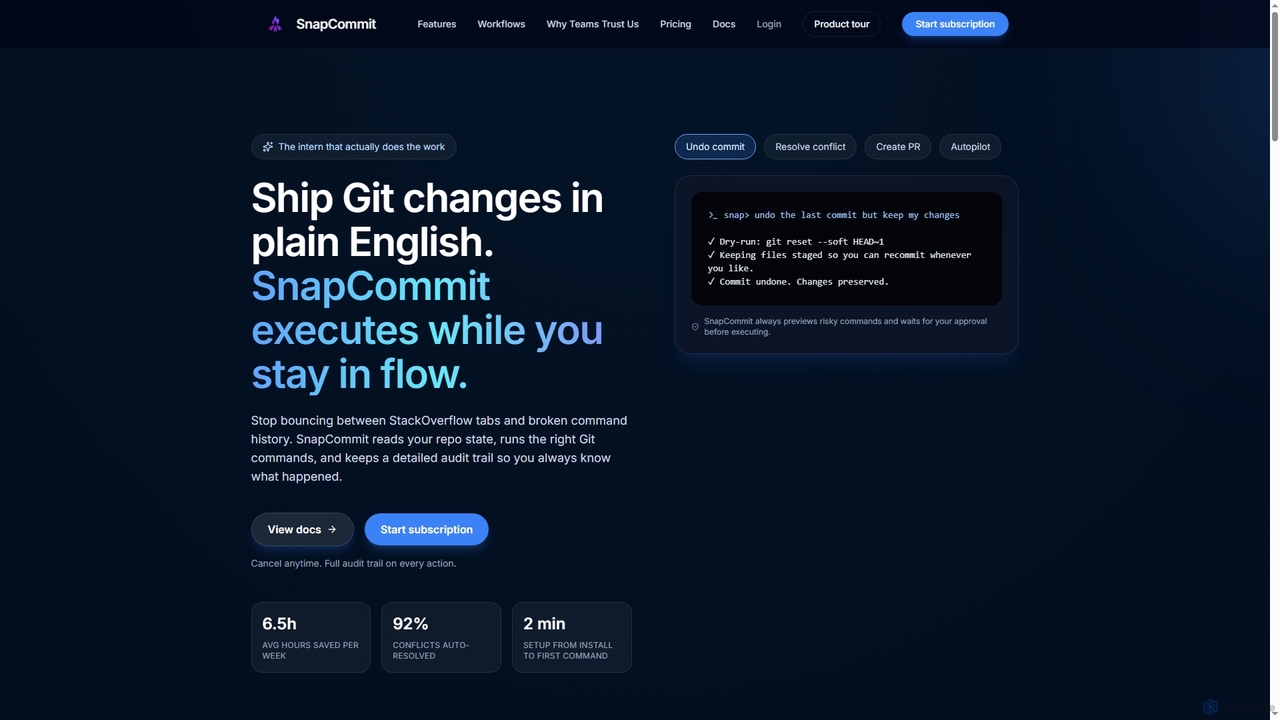
SnapCommit is an AI-powered terminal Git assistant that allows developers to manage Git operations using plain English commands. It automates complex workflows like committing, resolving conflicts, and creating pull requests, enhancing productivity and ensuring code integrity with dry-run previews and a detailed audit trail.

Code Assistant
Visits 3.5KFavorites 98Likes 98

About Git Client

Git Clients are specialized software applications that provide a graphical user interface (GUI) for interacting with Git version control systems, making complex developer tools more accessible. They simplify common Git operations like committing, branching, and merging, enhancing productivity for developers and teams managing code repositories. These tools abstract away the command-line complexities, offering a visual and intuitive way to manage source code.

Core Features

  • Visual History: Graphically displays commit history, branches, and merges for easy navigation.
  • Branch Management: Simplifies creating, switching, merging, and rebasing branches through a visual interface.
  • Conflict Resolution: Provides integrated tools to visually identify and resolve merge conflicts.
  • Staging Area Control: Offers granular control over which changes are staged for the next commit.
  • Remote Repository Interaction: Facilitates pushing, pulling, and fetching changes from remote repositories.

Applicable Scenarios

Git clients are indispensable for software developers, DevOps engineers, and content creators who manage version-controlled projects. They are particularly useful in collaborative development environments where multiple team members contribute to a single codebase, enabling easier tracking of changes, code reviews, and seamless integration of work.

How to Choose

When selecting a Git client, consider its user interface and ease of use, the breadth of Git features it supports (e.g., rebase, cherry-pick), integration capabilities with IDEs or other developer tools, platform compatibility (Windows, macOS, Linux), and pricing model. Evaluate whether it offers advanced visualization and conflict resolution tools that align with your team's workflow.

Featured tool rankings

Git Client use cases

1

Visualizing and Navigating Repository History

A software developer needs to understand the evolution of a codebase, identify when a specific feature was added, or trace a bug's origin. Using a Git client, they can visually browse the entire commit history, filter by author or date, and see the exact changes introduced in each commit. This graphical representation saves significant time compared to sifting through command-line logs, making it easier to pinpoint relevant changes and understand project progression.

2

Streamlining Feature Branch Workflow

A development team implements new features or bug fixes using a branch-based workflow, requiring frequent creation, switching, and merging of branches. Git clients allow developers to easily manage these operations through a visual interface, often with drag-and-drop functionality. This simplifies complex branching strategies, reduces the risk of errors during merges, and helps maintain a clean and organized repository structure, accelerating the development cycle.

3

Resolving Merge Conflicts Visually

When multiple developers work on the same file, merge conflicts inevitably arise. Git clients provide dedicated conflict resolution tools that visually highlight conflicting sections of code, allowing developers to choose which changes to keep or manually edit the merged result. This visual aid significantly reduces the complexity and time spent on resolving conflicts, minimizing frustration and potential errors compared to manual text editing.

4

Managing Staging Area and Commits

Before committing changes, developers often need to review and select specific modifications to include in a commit. Git clients offer an intuitive interface to manage the staging area, allowing users to stage individual lines, hunks, or entire files. This granular control ensures that each commit is atomic and focused, leading to a cleaner project history and easier debugging, which is crucial for maintaining code quality.

5

Performing Code Reviews and Feedback

Team leads and senior developers often conduct code reviews to ensure code quality and adherence to standards. Git clients facilitate this process by providing clear visual diffs between branches or commits, allowing reviewers to easily spot changes, add comments, and suggest improvements directly within the interface. This streamlines the feedback loop, making code reviews more efficient and collaborative, ultimately improving the overall quality of the software.

6

Managing Multiple Remote Repositories

Developers often work with projects that involve multiple remote repositories (e.g., an upstream open-source project and a personal fork). Git clients provide a centralized view and easy management of these remotes, allowing users to fetch, pull, and push changes to different origins with a few clicks. This simplifies the workflow for contributing to open-source projects or managing complex enterprise setups, ensuring all codebases remain synchronized efficiently.

Git Client FAQ

What is a Git Client?

A Git Client is a graphical user interface (GUI) application designed to simplify interaction with Git version control systems. It provides visual tools for managing repositories, commits, branches, and merges, making Git operations more intuitive than using the command line. These tools are part of the broader category of developer tools, specifically aimed at enhancing the user experience for version control tasks.

How do Git Clients differ from the Git Command Line Interface (CLI)?

Git Clients offer a visual, interactive interface for Git operations, often with drag-and-drop functionality and graphical representations of history and branches. The Git CLI, on the other hand, requires typing commands in a terminal, offering fine-grained control and scripting capabilities. Clients are generally easier for beginners and for visualizing complex repository states, while CLI is preferred by advanced users for automation, precision, and when a GUI is unavailable.

What are the main benefits of using a Git Client?

The primary benefits of using a Git Client include enhanced usability and a shallower learning curve for Git operations, especially for visual learners or those new to version control. They provide clear visual representations of repository history, branch structures, and merge conflicts, which significantly improves understanding and reduces errors. This leads to increased productivity, faster code reviews, and a more streamlined development workflow for individuals and teams.

Who should use a Git Client?

Git Clients are ideal for a wide range of users, from novice developers who find the command line intimidating to experienced professionals seeking a more efficient and visual way to manage complex Git workflows. They are particularly beneficial for teams engaged in collaborative software development, designers managing versioned assets, and anyone who prefers a graphical interface for tasks like code review, branch management, and conflict resolution. If you value clarity and ease of use in your version control, a Git client is a valuable tool.

What features should I look for in a Git Client?

When choosing a Git Client, prioritize features that enhance your workflow. Look for intuitive visual representations of the commit history and branch structure, robust tools for merge conflict resolution, and granular control over the staging area. Integration with your preferred IDE (Integrated Development Environment) and support for multiple remote repositories are also crucial. Additionally, consider platform compatibility (Windows, macOS, Linux) and whether it offers advanced functionalities like interactive rebase or cherry-picking through its GUI.