ToolMage
Sign in

Best 1 Game Library Management AI tools for Gaming

Popular Game Library Management AI tools in Gaming include Minimap, helping you work more efficiently.

Minimap
Freemium

Minimap

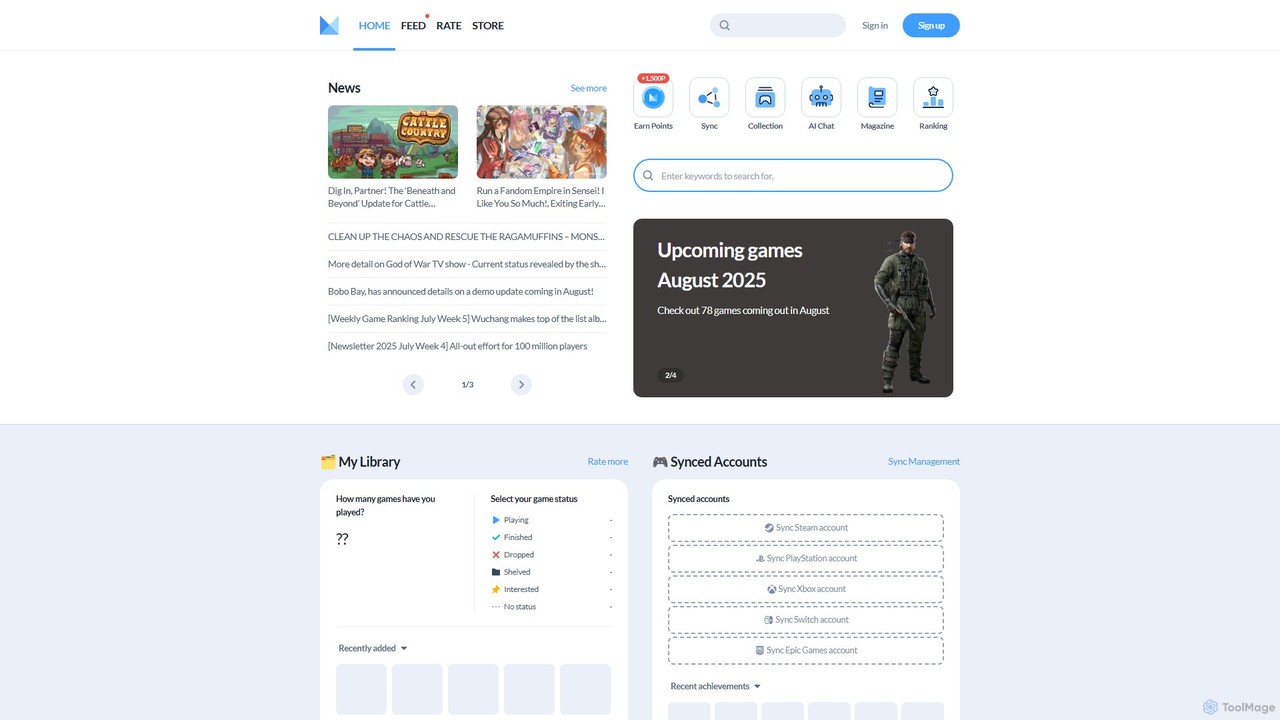
Minimap is your AI-powered gaming companion, designed to unify your entire game library from platforms like Steam, PlayStation, Xbox, and Switch. Track your progress, discover new titles, connect with a global community of gamers, and get personalized recommendations.

Social Networking
Visits 145.6KFavorites 127Likes 138

About Game Library Management

Game Library Management tools are applications that consolidate video games from multiple digital distribution platforms into a single, unified interface. They work by importing data from various launchers like Steam, Epic Games Store, GOG, and others, allowing users to browse, sort, and launch their entire collection from one place. This approach simplifies the gaming experience for players who own titles across different services, providing a centralized hub for all their digital games. These tools often enhance the library with rich metadata, playtime tracking, and advanced customization options.

Core Features

  • Unified Library Aggregation: Imports and displays games from various PC launchers and services in one interface.
  • Automatic Metadata Fetching: Automatically downloads cover art, descriptions, ratings, and other game details.
  • Advanced Filtering and Sorting: Provides powerful tools to organize games by genre, platform, tags, playtime, and other criteria.
  • Playtime Tracking: Consolidates gameplay hours from different platforms into a single, comprehensive record.
  • Emulator Integration: Allows for the management and launching of retro games alongside a modern PC game collection.

Use Cases

These tools are primarily used by PC gamers with extensive game collections spread across multiple digital storefronts. They are particularly valuable for game collectors, data enthusiasts who want to track their gaming habits, and players looking to efficiently manage a large backlog. Content creators and streamers also use them to quickly access any game in their library without juggling different applications.

How to Choose

When selecting a Game Library Management tool, consider the scope of supported platforms to ensure it covers all your launchers. Evaluate its metadata import capabilities and the accuracy of the data it fetches. Assess the level of customization for themes and layout, as well as the power of its filtering and tagging systems. Finally, check for performance, especially with large libraries, and the availability of community plugins or extensions for added functionality.

Game Library Management use cases

1

Unify Multiple PC Game Launchers

For a PC gamer with titles purchased on Steam, the Epic Games Store, GOG, and Ubisoft Connect, managing and remembering where each game is installed can be cumbersome. A Game Library Management tool solves this by scanning the system and importing all installed games into a single, visually appealing interface. The user can then see their entire collection at a glance, sort it by recently played or genre, and launch any game directly, regardless of its original platform, streamlining the process of deciding what to play next.

2

Curate a Comprehensive Retro and Modern Collection

A game collector wants to create a definitive archive of their entire gaming history, including modern PC titles and classic console games played via emulators. They use a Game Library Management tool to integrate their ROM libraries alongside their Steam and GOG collections. The tool automatically fetches high-quality box art, descriptions, and release dates for thousands of retro games. The collector can then apply custom tags like 'Favorite Childhood Games' or 'Completed on Original Hardware' to meticulously organize and browse their personal museum of gaming.

3

Efficiently Manage and Tackle a Game Backlog

A player has accumulated hundreds of unplayed games during sales events and feels overwhelmed by their 'pile of shame'. They use a Game Library Management tool to get a clear overview of their entire backlog. They create custom categories like 'To Play Next', 'On Hold', and 'Dropped'. Using the filtering features, they can sort the backlog by Metacritic score or estimated time to beat, helping them decide which short, highly-rated game to tackle next. This systematic approach turns an intimidating list into a manageable and enjoyable challenge.

4

Track and Analyze Personal Gaming Statistics

A data-driven gamer is curious about their own gaming habits. They use a Game Library Management tool that aggregates playtime from Steam, GOG, and other connected services. This provides a single, accurate total of hours spent across their entire library. They can then use the tool's sorting features to see which genres they play the most, view a list of their most-played games of all time, and track how their preferences have changed over the years. This consolidated data offers personal insights that are impossible to get when viewing each platform's statistics in isolation.

5

Streamline Game Access for Content Creators

A Twitch streamer has a library of over a thousand games and often takes requests from their audience. Instead of fumbling through multiple launchers live on stream, they use a Game Library Management tool as their central command center. With a quick search, they can instantly find and launch any requested game, whether it's an indie title from itch.io or a AAA game from the Epic Games Store. This provides a more professional and seamless viewing experience for their audience, eliminating awkward pauses and launcher-switching on screen.

6

Customize the Visual Theme of a Game Library

A user who values aesthetics wants their game library to reflect their personal style, finding the default interfaces of launchers like Steam to be too rigid. They choose a Game Library Management tool known for its powerful theming capabilities. They download and apply a custom theme that mimics a retro console interface, complete with pixel art fonts and sound effects. They further customize the view by replacing default cover art with animated posters for their favorite games, creating a browsing experience that is both highly personal and visually dynamic.

Game Library Management FAQ

What are Game Library Management tools?

Game Library Management tools are software applications designed to unify your video game collections from various digital stores (like Steam, GOG, Epic Games Store) and emulators into a single, cohesive interface. Instead of opening multiple different launchers, you can see, organize, and launch all your games from one place. They often add features like aggregated playtime tracking, advanced filtering, and enhanced metadata that are not available in the individual launchers.

What's the difference between a game launcher and a game library manager?

A game launcher, like Steam or the Epic Games Store, is primarily a digital storefront tied to its own ecosystem for buying, downloading, and launching games. A game library manager is a meta-layer application that sits on top of these launchers. Its main purpose is aggregation and organization, not sales. While a launcher only manages its own games, a library manager brings games from many different launchers together into one view. You still need the original launchers installed to download and run the games.

How should I choose a Game Library Management tool?

When selecting a tool, consider these factors:

  • Platform Support: Ensure it can connect to all the services where you own games (Steam, GOG, Epic, Ubisoft Connect, EA App, etc.).
  • Emulator Integration: If you play retro games, check for robust support for various emulators and ROM management.
  • Customization: Look at the options for changing themes, layouts, and how game information is displayed.
  • Metadata Sources: A good tool pulls data from reliable databases to ensure your library is populated with accurate art and information.
  • Performance: The tool should be fast and responsive, even when managing thousands of games.
Do I still need the original game launchers installed?

Yes, absolutely. A game library manager is a frontend, not a replacement. It organizes your library and sends the command to launch a game, but the actual game files, updates, and DRM (Digital Rights Management) are all handled by the original launcher (like Steam or the EA App). Therefore, you must have the respective launchers installed and logged in for the library manager to function correctly and launch your games.

Can these tools manage games from console platforms like PlayStation or Xbox?

Generally, these tools are focused on PC gaming. While some may offer integrations to import your game list from PlayStation Network or Xbox Live to see your full collection, they cannot launch console games. The primary functionality is to manage and launch games installed on your PC, which includes games from PC launchers and emulators. Managing console libraries is typically for cataloging purposes only.