Utilities Best in category 1 results Clipboard AI Tool

Popular AI tools in the Clipboard field of Utilities include chatgpttextformatter, etc., helping you quickly improve efficiency.

Free
chatgpttextformatter

chatgpttextformatter

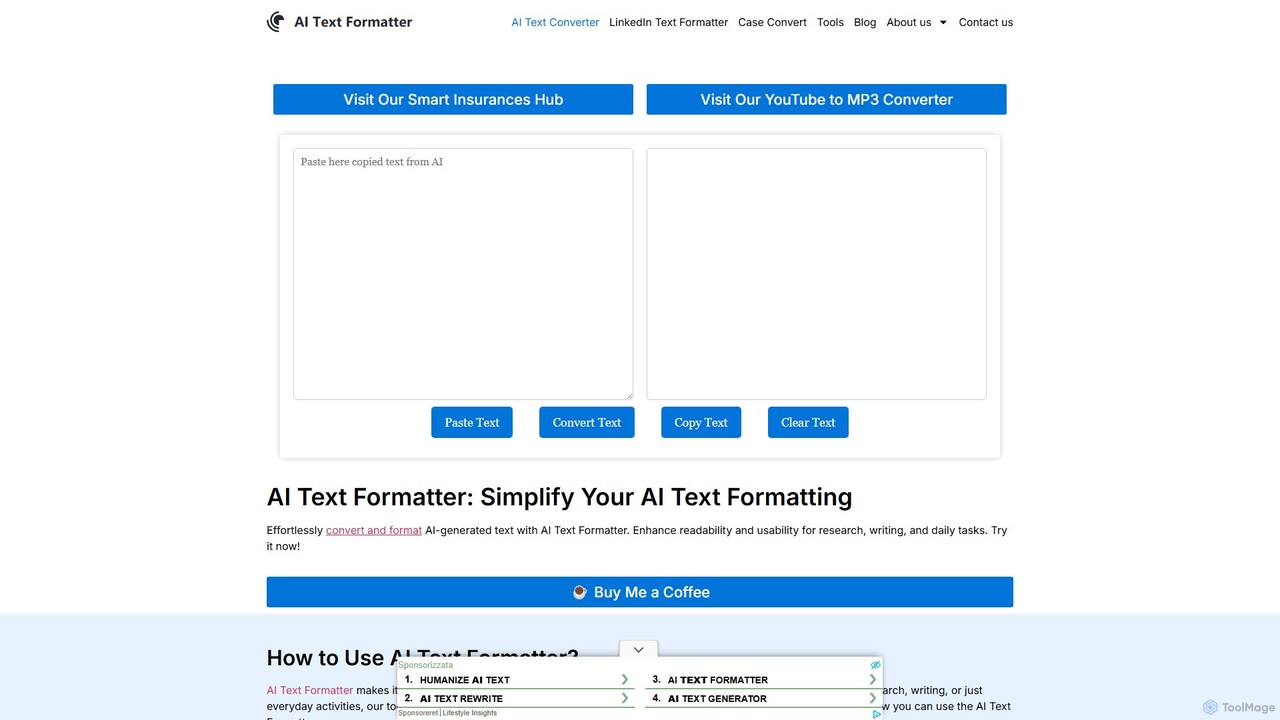
A free online tool designed to instantly clean and reformat text copied from AI chatbots like ChatGPT. It …

6.0K

About Clipboard

Clipboard tools are advanced utilities designed to enhance and expand the basic copy-paste functionality of an operating system. They work by maintaining a history of items you've copied, allowing you to access not just the last item, but dozens or even hundreds of previous clips. This functionality transforms the simple clipboard into a powerful productivity hub for managing text snippets, images, links, and files. By enabling features like cross-device synchronization, powerful search, and snippet organization, these tools streamline workflows for anyone who frequently handles information.

Core Features

  • Clipboard History: Automatically saves a log of everything you copy, allowing for easy recall of past items.
  • Cross-Device Sync: Seamlessly synchronizes your clipboard content across multiple computers and mobile devices.
  • Snippet Management: Store, organize, and quickly access frequently used text blocks like code, templates, or standard replies.
  • Advanced Search: Instantly find items in your history using keywords, filtering by content type or source application.
  • Format Control: Offers options to paste content as plain text, removing any unwanted formatting from the source.

Use Cases

These tools are invaluable for developers managing code snippets, writers and researchers compiling information from various sources, and customer support agents using standardized responses. Any role that involves repetitive copying and pasting or requires access to a history of copied data benefits significantly. For example, a content creator can gather multiple assets without losing track, or a programmer can access a library of common functions instantly.

How to Choose

When selecting a clipboard tool, consider your specific needs. Key factors include the level of cross-device sync required, support for different data types (text, images, files), and the robustness of search and organization features. Also, evaluate security aspects, such as end-to-end encryption for cloud-synced data, and platform compatibility (Windows, macOS, iOS, Android). Finally, consider the user interface and whether it offers customizable shortcuts for efficient access.

ClipboardUse Cases

1

Efficient Code Snippet Management for Developers

A software developer frequently uses recurring code blocks, API keys, and terminal commands. Instead of storing them in scattered text files or retyping them, they use a clipboard manager. They save each snippet with a descriptive name or tag. During development, they can invoke the clipboard manager with a shortcut, search for 'database connection' or 'API auth', and instantly paste the required code. This practice significantly reduces repetitive tasks, minimizes errors from manual typing, and keeps their workflow focused within the code editor.

2

Streamlining Content Research for Writers

A content writer is researching an article and needs to gather quotes, statistics, and links from multiple web pages. With a standard clipboard, they would have to copy one item, switch to their document, paste it, and then switch back. Using a clipboard manager, they can browse all source pages and copy every piece of relevant information consecutively. The tool saves everything in its history. Once the research phase is complete, they can open their document and paste all the collected items one by one from the clipboard history panel, arranging them as needed. This decouples the research and writing phases for a more efficient workflow.

3

Accelerating Customer Support Responses

A customer support agent handles dozens of inquiries daily, many of which involve similar questions. They use a clipboard manager to create a library of 'snippets' for common responses, such as welcome messages, troubleshooting steps, and links to FAQ pages. When a customer asks a known question, the agent uses a shortcut to search their snippets for 'password reset' or 'refund policy' and pastes the pre-written, approved response directly into the chat or email. This not only saves a significant amount of time but also ensures all customers receive consistent, accurate, and high-quality information.

4

Seamless Cross-Device Workflow

A project manager finds an important article on their desktop computer during work. They need to read it on their tablet during their commute. Using a clipboard manager with cross-device sync, they simply copy the article's URL on their desktop. When they open their tablet later, the URL is already in their clipboard, ready to be pasted into the browser. This same workflow applies to copying a phone number on a laptop to dial on a smartphone, or copying an image on a phone to use in a presentation on a desktop, creating a truly unified and fluid experience across all devices.

5

Organizing Research Materials for Academics

An academic researcher is writing a paper and needs to manage dozens of citations, figures, and notes from various PDF documents and websites. They use a clipboard manager that supports rich text and images. As they read, they copy relevant passages and charts. Later, they can open the clipboard history, which acts as a temporary repository of all their findings. They can search for a specific author's name or a keyword to quickly locate a citation. Some advanced tools even allow them to organize clips into folders named after different sections of their paper, such as 'Introduction' or 'Methodology', for structured access.

6

Managing Brand Assets for Marketers

A social media manager is responsible for maintaining brand consistency across multiple platforms. They use a clipboard manager to store essential brand assets as permanent snippets. This includes official hex color codes, approved taglines, a standard set of hashtags, and links to company profiles. When creating a new post or campaign, they can quickly access and paste these assets without having to look them up in a brand guideline document every time. This ensures accuracy, saves time, and helps maintain a consistent and professional brand voice across all marketing channels.

ClipboardFrequently Asked Questions