Utilities Best in category 2 results File Converters AI Tool

Popular AI tools in the File Converters field of Utilities include mergepdf、chatgpt2pdf, etc., helping you quickly improve efficiency.

chatgpt2pdf

chatgpt2pdf

A Chrome extension that allows you to save and export your ChatGPT conversations as high-quality PDF files with …

2.9K
Free
mergepdf

mergepdf

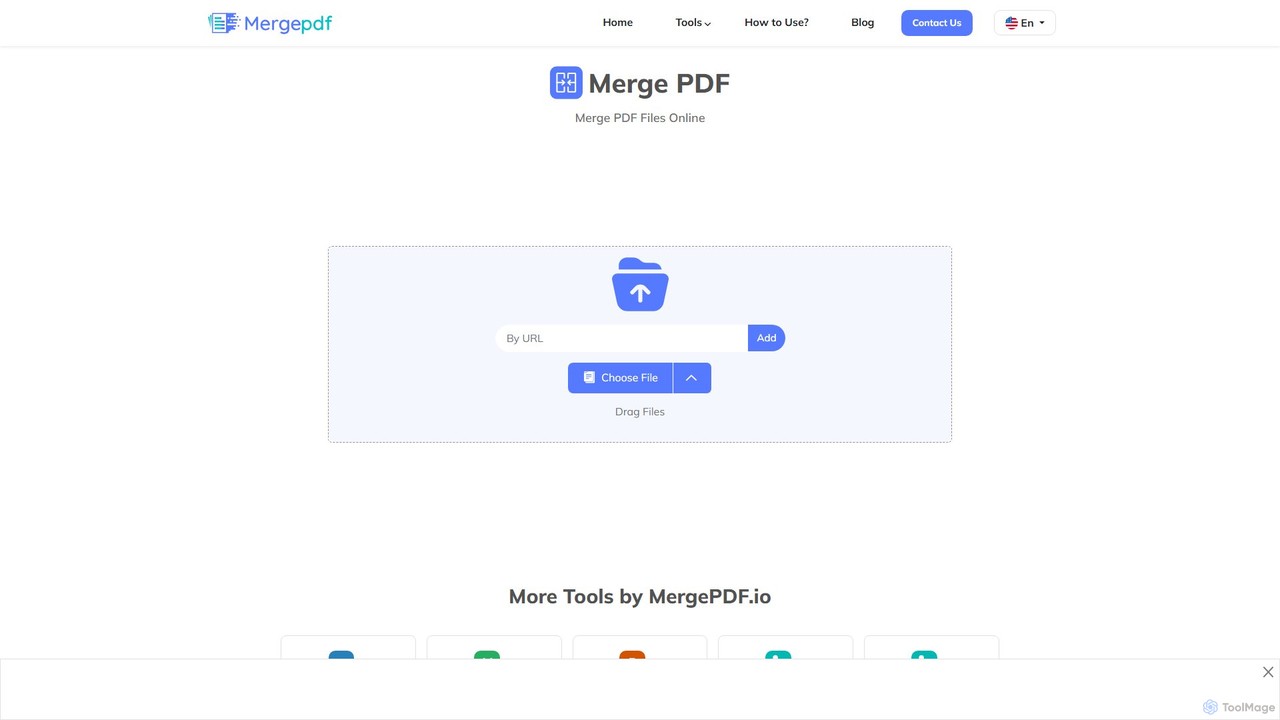
mergepdf is a free, secure, and user-friendly online tool for combining multiple PDF files into a single document. …

22.4K

About File Converters

File Converters are specialized utilities designed to change the format of a digital file from one encoding to another. These tools utilize algorithms to reinterpret data, enabling compatibility across different software, devices, and platforms. Their primary value lies in making information accessible and usable, whether it's converting a DOCX to a PDF for universal viewing, or an MP4 to an MP3 to extract audio. AI-powered converters further enhance this by offering intelligent features like content-aware compression and optical character recognition (OCR).

Core Features

  • Multi-Format Support: Convert between a wide array of document, image, audio, and video formats.
  • Batch Processing: Process multiple files simultaneously, saving significant time and effort.
  • AI-Powered OCR: Extract editable text from scanned documents and images with high accuracy.
  • Quality Control: Adjust output settings like resolution, bitrate, and compression level to balance quality and file size.
  • Cloud Integration: Directly access and save files from cloud storage services like Google Drive or Dropbox.

Applicable Scenarios

File converters are essential for administrative staff who need to standardize documents, marketers preparing media assets for various platforms, and legal professionals archiving records in specific formats like PDF/A. They are also invaluable for students and researchers converting reference materials, and for anyone needing to ensure their files are compatible with different systems.

Selection Criteria

When choosing a file converter, consider the range of supported input and output formats. Evaluate the conversion quality and speed, especially for large media files. For sensitive information, prioritize tools with strong security policies and data encryption. Also, assess the user interface, batch processing capabilities, and whether the pricing model aligns with your usage frequency.

File ConvertersUse Cases

1

Convert Scanned Documents into Editable Text

A legal assistant receives a 100-page scanned contract as a PDF image file, which needs to be reviewed and amended. Instead of retyping the entire document, they upload it to an AI file converter with OCR capabilities. The tool processes the file, recognizes the text, and converts it into a fully editable Microsoft Word document. This preserves the original formatting and saves hours of manual data entry, allowing the team to focus on the legal review immediately.

2

Prepare Media Assets for a Marketing Campaign

A marketing team has created a high-resolution promotional video in MOV format. To distribute it across various channels, they use a file converter. They convert the MOV file to a web-optimized MP4 for their website, a smaller GIF for social media posts, and extract the audio as an MP3 for a podcast snippet. The converter's batch processing feature allows them to create all necessary formats in one go, ensuring consistent branding and optimizing content for each platform's requirements.

3

Standardize Incoming Invoices for Archiving

An accounting department receives invoices from various vendors in multiple formats, including DOCX, XLS, and image-based PDFs. To maintain a consistent and searchable archive, the accounts payable clerk uses a file converter's batch function. They upload all the day's invoices and convert them to the PDF/A format, an ISO-standardized version of PDF for long-term preservation. This ensures all documents are uniform, non-editable, and will remain accessible and readable for years to come, simplifying audits and record-keeping.

4

Optimize Website Images for Faster Loading

A web developer is tasked with improving the performance of an e-commerce site. The product images are high-quality but large PNG files, causing slow page load times. Using a file converter, the developer uploads the entire folder of images. They configure the tool to batch-convert the PNGs to the modern, lightweight WebP format, applying smart compression to reduce file size by up to 70% without a noticeable loss in visual quality. This single action significantly speeds up the website, improving user experience and SEO rankings.

5

Extract Audio from Video for a Podcast

A podcaster conducts an interview over a video call and records it as an MP4 file. To use this content for their audio podcast, they need to extract the audio track. They upload the MP4 file to a file converter and select MP3 as the output format. The tool processes the video, strips away the visual data, and creates a high-quality MP3 file. Some advanced converters even offer features to automatically enhance the audio by reducing background noise, allowing the podcaster to quickly prepare and publish their new episode.

6

Prepare CAD Files for Client Presentation

An architect finalizes a building design in a specialized CAD program, saving it as a DWG file. To share the design with a client who doesn't have CAD software, they need a more accessible format. Using a file converter, they convert the complex DWG file into a 3D PDF. This allows the client to view, rotate, and inspect the 3D model using a standard PDF reader, without needing any specialized software. This conversion bridges the gap between technical software and client-facing communication, ensuring a smooth and professional presentation.

File ConvertersFrequently Asked Questions