ToolMage
Sign in

Best 6 Screen Reader AI tools for Accessibility

Popular Screen Reader AI tools in Accessibility include Voice Out, getwoord, GPT Reader, Narrator: Audiobook Maker, WebWhisper, and Read This, helping you work more efficiently.

Voice Out
Freemium

Voice Out

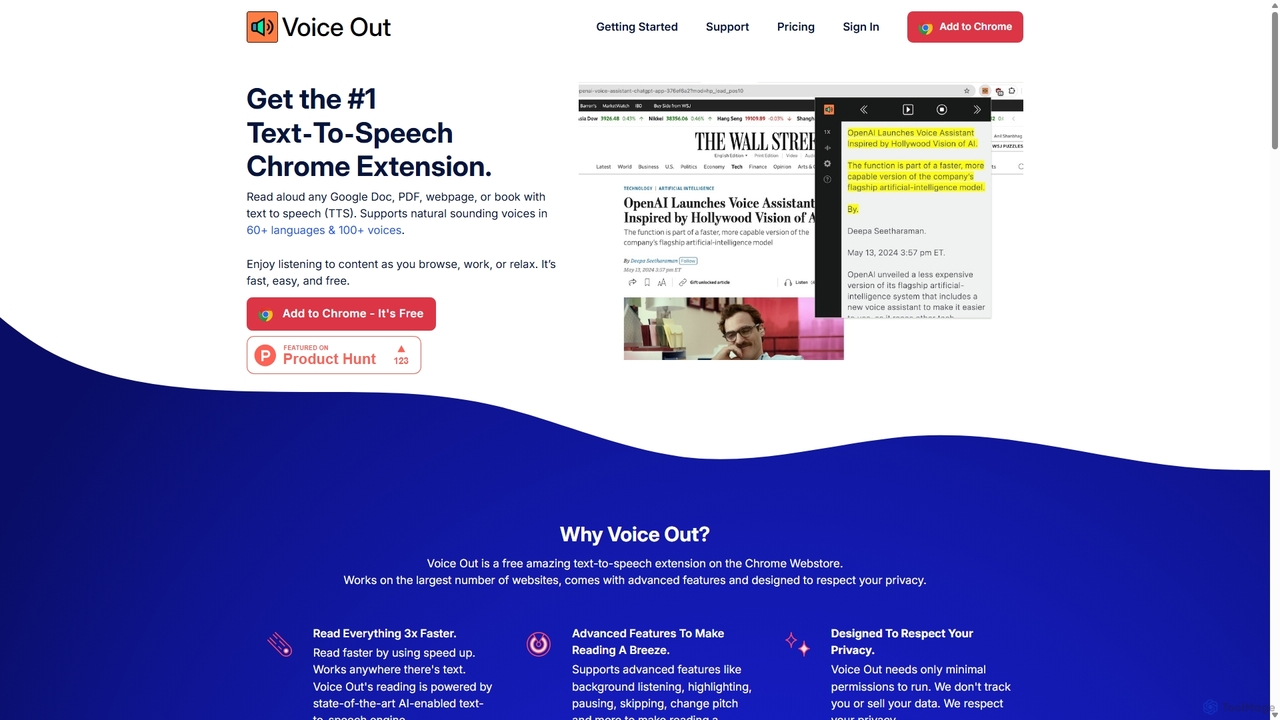
Voice Out is a leading text-to-speech (TTS) Chrome extension that converts any written content—from webpages and PDFs to Google Docs—into natural-sounding audio. Supporting over 60 languages with 100+ AI-powered voices, it enhances productivity, aids learning, and improves accessibility for all users. Listen to content while multitasking, proofread documents, or give your eyes a rest.

Screen Reader
Visits 78.7KFavorites 87Likes 76
WebWhisper
Free

WebWhisper

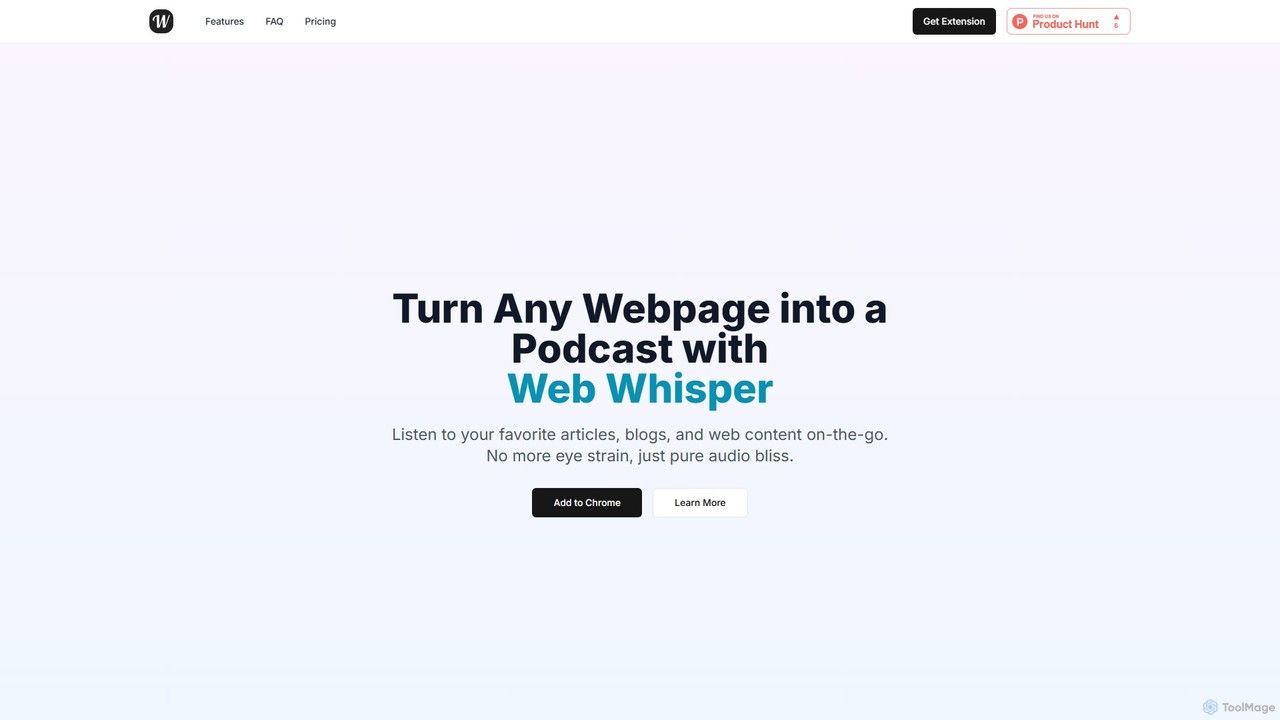
WebWhisper is a free Chrome extension that instantly converts any webpage, article, or blog post into a high-quality audio podcast. It allows you to listen to web content on the go, create playlists for later, and even access them offline. With natural-sounding AI voices and automatic language detection, it transforms your reading experience into an effortless listening one, reducing eye strain and boosting productivity.

Screen Reader
Visits 5.2KFavorites 116Likes 145
GPT Reader
Free

GPT Reader

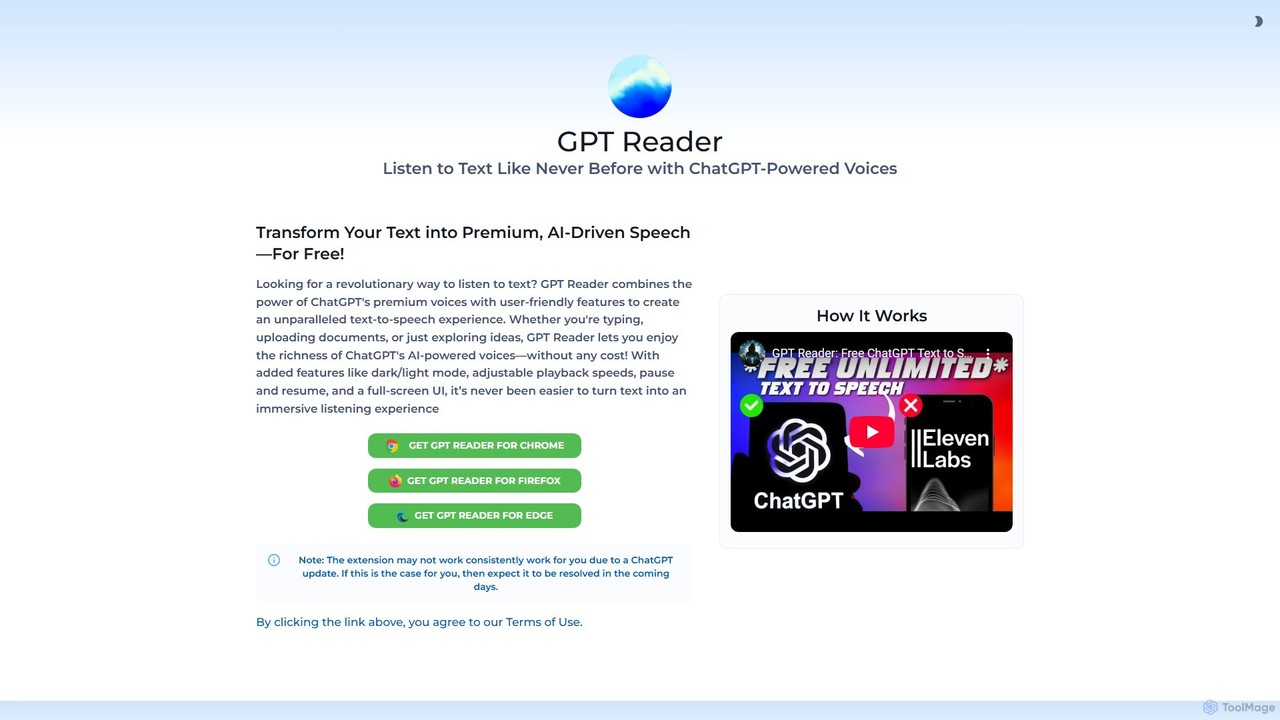
A free text-to-speech browser extension that uses premium, natural-sounding voices from ChatGPT. Convert articles, documents, and any selected text into high-quality audio for enhanced productivity and accessibility.

Screen Reader
Visits 48.9KFavorites 117Likes 126

About Screen Reader

A Screen Reader is a form of assistive technology that translates on-screen information into synthesized speech or braille output. It functions by interfacing directly with a computer's operating system to interpret and convey user interface elements, text, and web content. This enables individuals with visual impairments to independently navigate websites, use software applications, and access digital documents. Modern screen readers support complex web standards like ARIA, providing a rich, interactive experience beyond simple text-to-speech.

Core Features

  • Text-to-Speech (TTS) Conversion: Reads aloud all on-screen text, including menus, buttons, and content.
  • Interactive Navigation: Allows users to navigate through headings, links, forms, and other page elements using keyboard commands.
  • Braille Display Support: Outputs text to a connected refreshable braille display for tactile reading.
  • Verbosity Control: Offers customizable settings for how much detail is announced, such as punctuation and formatting.
  • Web Standards Support: Interprets ARIA (Accessible Rich Internet Applications) roles and properties to describe dynamic content and complex widgets.

Use Cases

Screen readers are essential for students, professionals, and home users with visual impairments. They are used for academic research, professional work involving documents and software, and daily tasks like online banking and communication. Additionally, web developers and QA testers use them as a primary tool to ensure their products meet accessibility standards like WCAG.

How to Choose

When selecting a screen reader, consider its compatibility with your operating system (e.g., JAWS for Windows, VoiceOver for macOS/iOS). Evaluate its support for the applications you use most frequently, such as web browsers and office suites. Also, compare features like voice customization, braille device support, and cost, as some are built-in and free while others are commercial products with advanced features.

Featured tool rankings

Screen Reader use cases

1

Academic Research for Visually Impaired Students

A university student with a visual impairment uses a screen reader to access digital textbooks, academic journals, and online library databases. The tool reads aloud complex PDF documents and web pages, allowing the student to navigate by headings and links to find specific information efficiently. This enables them to conduct research, write essays, and participate in online courses on an equal footing with their peers, fostering academic independence and success.

2

Web Accessibility Testing for Developers

A front-end developer or QA tester uses a screen reader to audit a new website for WCAG (Web Content Accessibility Guidelines) compliance. By navigating the site using only keyboard commands, they can identify issues such as missing alt text for images, improperly labeled form fields, and illogical navigation order. This process is crucial for ensuring the website is usable by everyone, including those with disabilities, and helps avoid potential legal issues related to accessibility.

3

Professional Document Review and Editing

An office worker with low vision uses a screen reader integrated with a word processor and email client. The software reads out document text, formatting details, and comments, allowing them to review reports, edit proposals, and compose professional emails efficiently. Keyboard shortcuts for navigation and editing commands enable a workflow that is as fast, or even faster, than using a mouse. This integration empowers professionals with visual impairments to excel in roles that are heavily document-dependent.

4

Navigating Complex Software Applications

A programmer who is blind uses a screen reader with a powerful code editor like Visual Studio Code. The screen reader announces syntax, indentation, and errors as they type, and provides auditory cues for debugging. They can navigate complex file structures, use version control, and interact with command-line interfaces entirely through audio feedback and keyboard commands. This demonstrates that screen readers are not limited to web pages but are crucial for professional access to specialized software.

5

Daily Online Tasks for Independent Living

An elderly individual with age-related vision loss uses a screen reader on their tablet to stay connected and manage daily life. They listen to news articles, manage their online banking, shop for groceries, and communicate with family via email and social media. The ability to adjust the speech rate and voice preferences makes the experience comfortable. This technology is a key enabler for digital inclusion, allowing users to maintain independence and participate fully in a digital society.

6

Consuming Social Media and Digital Content

A user navigates their favorite social media platform using a screen reader on their smartphone. The tool announces posts, describes images using available alt text, and reads comments, allowing for active participation in online communities. They can also use it to listen to long-form articles or ebooks during their commute. This application highlights how screen readers transform passive content consumption into an interactive and accessible experience, breaking down barriers to information and social connection.

Screen Reader FAQ

What is a Screen Reader?

A Screen Reader is an assistive technology software that converts digital text and interface elements into synthesized speech or braille. It is designed primarily for individuals with visual impairments, enabling them to use computers, smartphones, and other digital devices. Unlike simple text-to-speech tools, a screen reader provides contextual information and allows users to navigate and interact with the entire user interface, including menus, buttons, and web page structures.

How to choose the right Screen Reader?

Choosing the right screen reader depends on several factors. Consider the following:

  • Operating System: Select a screen reader compatible with your device (e.g., VoiceOver for Apple products, NVDA or JAWS for Windows, TalkBack for Android).
  • Primary Use: If you primarily browse the web, ensure it has strong support for modern web standards like ARIA. For professional work, check compatibility with your specific software.
  • Cost: Some screen readers like VoiceOver, NVDA, and TalkBack are free, while others like JAWS are commercial products offering extensive features and support.
  • Features: Compare customization options for voice, speed, and verbosity, as well as support for refreshable braille displays if needed.
What's the difference between a Screen Reader and a Text-to-Speech (TTS) tool?

The main difference lies in scope and functionality. A Text-to-Speech (TTS) tool typically only reads aloud a selected portion of text. A Screen Reader, however, is a full-fledged accessibility solution. It not only reads text but also interprets the entire user interface, announcing elements like buttons, links, headings, and form fields. It allows for keyboard-only navigation and interaction with applications and websites, providing the necessary context for a user with visual impairments to operate a device effectively.

Who primarily benefits from using Screen Readers?

The primary beneficiaries are individuals with blindness or significant vision loss, as screen readers provide the main interface for them to access digital information. However, other groups also benefit:

  • People with low vision: They may use screen readers in combination with screen magnifiers.
  • Individuals with reading disabilities (like dyslexia): Hearing text read aloud can improve comprehension.
  • Web developers and QA testers: They use screen readers to test and ensure their websites and applications are accessible to all users.
Do screen readers work on all websites and applications?

A screen reader's effectiveness heavily depends on how a website or application is built. They work best on platforms that follow accessibility standards, such as WCAG. This includes using proper HTML semantics (like headings and lists), providing text alternatives (alt text) for images, and ensuring all interactive elements are keyboard-accessible. On poorly coded or inaccessible sites, a screen reader may struggle to interpret the content correctly, leading to a frustrating user experience. This is why accessibility testing by developers is so important.