ToolMage
Sign in

Best 4 Utilities AI tools for Browser Extensions

Popular Utilities AI tools in Browser Extensions include Immersive Translate, Kudos, NopeCHA, and Echo Translate, helping you work more efficiently.

Immersive Translate
Freemium

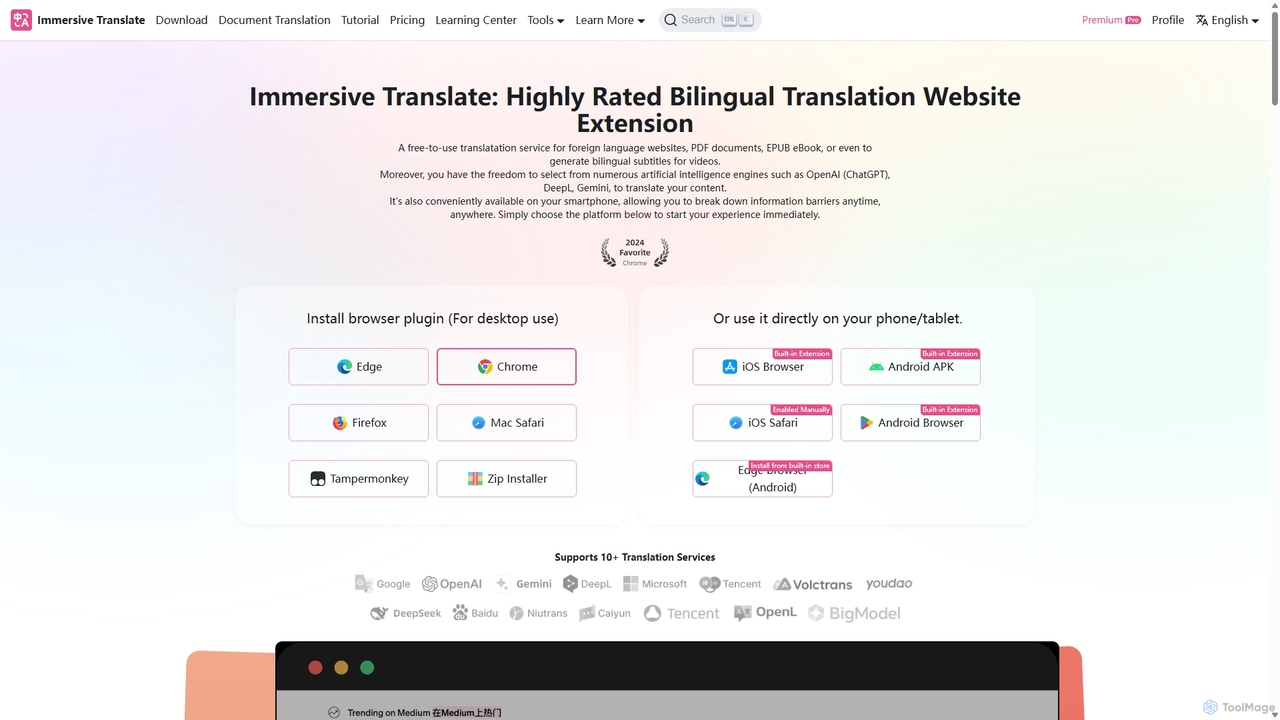
Immersive Translate

A powerful browser extension for immersive, bilingual translation of webpages, PDFs, videos, and more. It supports over 10 AI engines like DeepL and OpenAI, offering a side-by-side reading experience to break down language barriers for learning, work, and entertainment.

Utilities
Visits 5.4MFavorites 179Likes 162
Echo Translate
Freemium

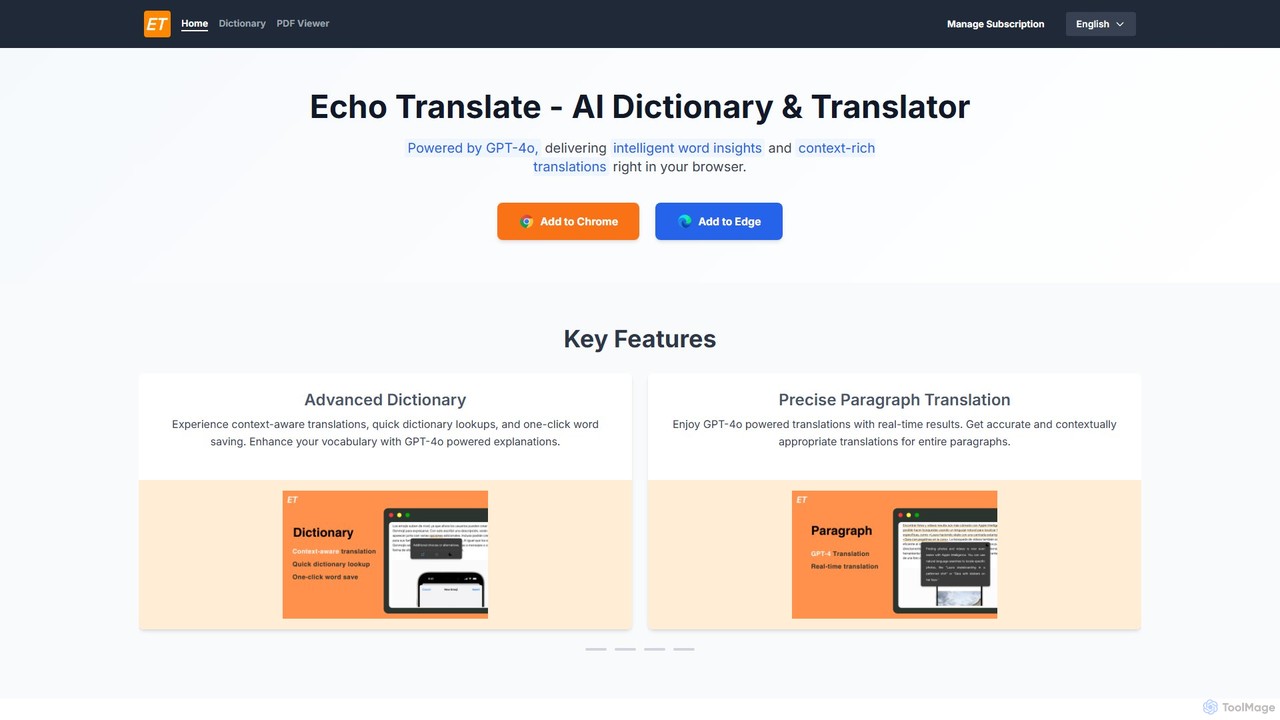
Echo Translate

Echo Translate is a GPT-4o powered AI dictionary and translator available as a browser extension. It offers intelligent, context-aware word insights, precise paragraph translations, and integrated vocabulary-building features. Ideal for language learners, students, and professionals, it supports numerous languages and includes a PDF translation function.

Utilities
Visits 8.9KFavorites 146Likes 175
NopeCHA
Freemium

NopeCHA

NopeCHA is an AI-powered CAPTCHA solver that automates the process of bypassing human verification tests. Available as a browser extension and a developer API, it offers a fast, affordable, and undetectable solution for various CAPTCHA types, including reCAPTCHA, FunCAPTCHA, and Cloudflare Turnstile.

Utilities
Visits 121.9KFavorites 158Likes 160
Kudos
Free

Kudos

Kudos is a free, AI-powered financial companion that helps you maximize credit card rewards automatically. It functions as a smart wallet browser extension and app, selecting the best card at checkout, finding hidden perks, tracking spending, and monitoring your credit score to help you save money effortlessly.

Utilities
Visits 930.1KFavorites 161Likes 154

About Utilities

AI Utility browser extensions are lightweight tools designed to perform specific, single-purpose tasks directly within your browser. They leverage AI to enhance or automate functions like format conversion, screen capture, or data extraction, acting as a digital multi-tool for everyday browsing. These extensions streamline micro-workflows, saving you from switching between different applications for small jobs. Their primary value lies in providing immediate access to specialized functions that improve efficiency and convenience.

Core Features

  • Single-Task Automation: Automates a specific, repetitive action, such as converting file formats or generating QR codes.
  • Context-Aware Assistance: Provides tools relevant to the content on the page, like a color picker for images or a text summarizer for articles.
  • On-Demand Data Processing: Instantly processes selected text or media, offering services like translation, grammar checks, or image analysis.
  • Interface Enhancement: Modifies the browsing experience with features like dark mode, custom cursors, or reading guides.

Use Cases

These extensions are widely used by web developers for tasks like JSON formatting and code inspection. Designers rely on them for color picking and font identification. Content creators and marketers use them for quick screen recordings, screenshot annotations, and generating citations or QR codes. Essentially, any professional or casual user who needs to perform frequent, small-scale tasks online can benefit from these focused tools.

How to Choose

When selecting an AI utility extension, first identify the specific, recurring task you need to solve. Evaluate the extension's performance and resource consumption, as some can slow down your browser. Check its privacy policy to understand how it handles your data. Finally, consider the user interface—a good utility extension should be intuitive and non-intrusive, activating only when you need it.

Utilities use cases

1

Instant Color Picking for Web Designers

A UI/UX designer is working on a new website design and needs to match the color palette of a competitor's site for inspiration. Instead of taking a screenshot, opening an image editor, and using its color picker tool, the designer activates a color picker utility extension. By simply hovering over any element on the competitor's webpage, the extension instantly displays the HEX, RGB, and HSL color codes. The designer can copy the desired code with a single click and paste it directly into their design software like Figma or Sketch, ensuring color accuracy and saving several minutes per color lookup.

2

Quick Screen Recording for Customer Support

A customer support agent needs to show a user how to perform a specific action in their software. Writing out the steps is time-consuming and can be confusing. Instead, the agent uses a screen recording utility extension. With two clicks, they start recording their screen and voice as they walk through the process. After finishing, the extension instantly generates a shareable link to the video. The agent pastes this link into the support ticket, providing a clear, visual guide that resolves the user's issue much faster than text-based instructions would have.

3

On-the-Fly JSON Formatting for Developers

A backend developer is debugging an API endpoint that returns a large, unformatted JSON response in the browser. Reading the raw, single-line string is nearly impossible. By using a JSON formatter utility extension, the browser automatically detects the JSON content and renders it in a clean, color-coded, and collapsible tree structure. The developer can now easily navigate the data, expand or collapse objects and arrays, and identify issues in the API response without needing to copy the text into a separate code editor or online tool, significantly speeding up the debugging process.

4

Generating QR Codes for Marketing Campaigns

A social media manager wants to include a link to a new landing page in a printed flyer. To make it easy for people to access, they decide to use a QR code. Instead of navigating to a dedicated QR code website, they use a utility extension. They simply open the landing page in their browser, click the extension's icon, and it instantly generates a QR code for the current URL. They can then download the QR code image in high resolution and add it to their flyer design, completing the task in seconds directly from the page they want to link to.

5

Enhancing Readability with Dark Mode

A user is browsing a news website late at night. The bright white background of the site is causing eye strain. The website does not offer a native dark mode option. The user clicks on their dark mode utility extension icon. The extension intelligently inverts the colors of the page, turning the background dark and the text light, without distorting images or breaking the site's layout. This provides immediate visual comfort, reduces eye strain, and improves the overall reading experience, allowing the user to continue browsing comfortably for longer periods.

6

Streamlining Academic Research with Citation Generators

A student is writing a research paper and needs to cite several online articles and journals. Manually formatting each citation in APA or MLA style is tedious and prone to errors. With a citation generator utility extension, the student navigates to an article's webpage, clicks the extension icon, and it automatically extracts the title, author, publication date, and other necessary metadata. The student selects their desired citation style, and the extension provides a perfectly formatted citation ready to be copied and pasted into their bibliography. This automates a crucial but repetitive part of academic writing, ensuring accuracy and saving significant time.

Utilities FAQ

What are AI Utility browser extensions?

AI Utility browser extensions are specialized, single-purpose add-ons that enhance your browser with a specific function. Unlike broader productivity suites, they focus on solving one particular problem efficiently, such as picking a color from a webpage, formatting JSON code, or generating a QR code for the current URL. They act as a digital Swiss Army knife, providing quick access to tools you need for small, recurring tasks without leaving your current tab.

How do utility extensions differ from productivity extensions?

The main difference lies in scope and focus. Utility extensions are typically single-task oriented, designed to do one thing very well (e.g., capture a screenshot, convert a unit). Productivity extensions, on the other hand, often manage broader workflows, such as project management, note-taking, or tab organization. Think of a utility extension as a screwdriver, perfect for one specific job, while a productivity extension is more like a complete toolbox for managing a larger project.

How to choose the right AI utility extension?

Choosing the right utility extension involves a few key steps. First, clearly define the single, repetitive task you want to simplify. Then, search for extensions that specifically address that need. When evaluating options, consider the following criteria:

  • Performance: Does it run quickly without slowing down your browser? Check user reviews for comments on resource usage.
  • Simplicity: Is the interface intuitive and easy to use? A good utility tool should be almost invisible until you need it.
  • Privacy: Read its privacy policy. Ensure it only requests permissions necessary for its function and be cautious of extensions that collect excessive data.
  • Last Updated: Check when the extension was last updated to ensure it's actively maintained and compatible with the latest browser versions.
Are utility browser extensions safe to use?

Generally, utility extensions from reputable sources like the official Chrome Web Store or Firefox Add-ons store are safe. However, it's crucial to be cautious. Before installing, always check the developer's reputation, read user reviews, and carefully examine the permissions it requests. A simple color picker should not need access to your browsing history or contacts. Stick to well-known extensions with a large user base and a clear privacy policy to minimize security risks.

What are some common examples of AI utility extensions?

Utility extensions cover a wide range of single-purpose functions. Some common and popular examples include:

  • Color Pickers: For identifying and copying color codes from any element on a webpage.
  • Screen Recorders & Screenshot Tools: For capturing a portion of your screen, annotating it, and sharing it quickly.
  • JSON Formatters: For developers to view API responses in a readable, structured format.
  • QR Code Generators: To instantly create a QR code for the current page's URL.
  • Dark Mode Enforcers: To apply a dark theme to websites that don't have one natively.
  • Unit Converters: For quick conversions of measurements, currencies, or time zones directly on a page.