Desktop Best in category 2 results Macos AI Tool

Popular AI tools in the Macos field of Desktop include MindMac、Lugs.ai, etc., helping you quickly improve efficiency.

MindMac

MindMac

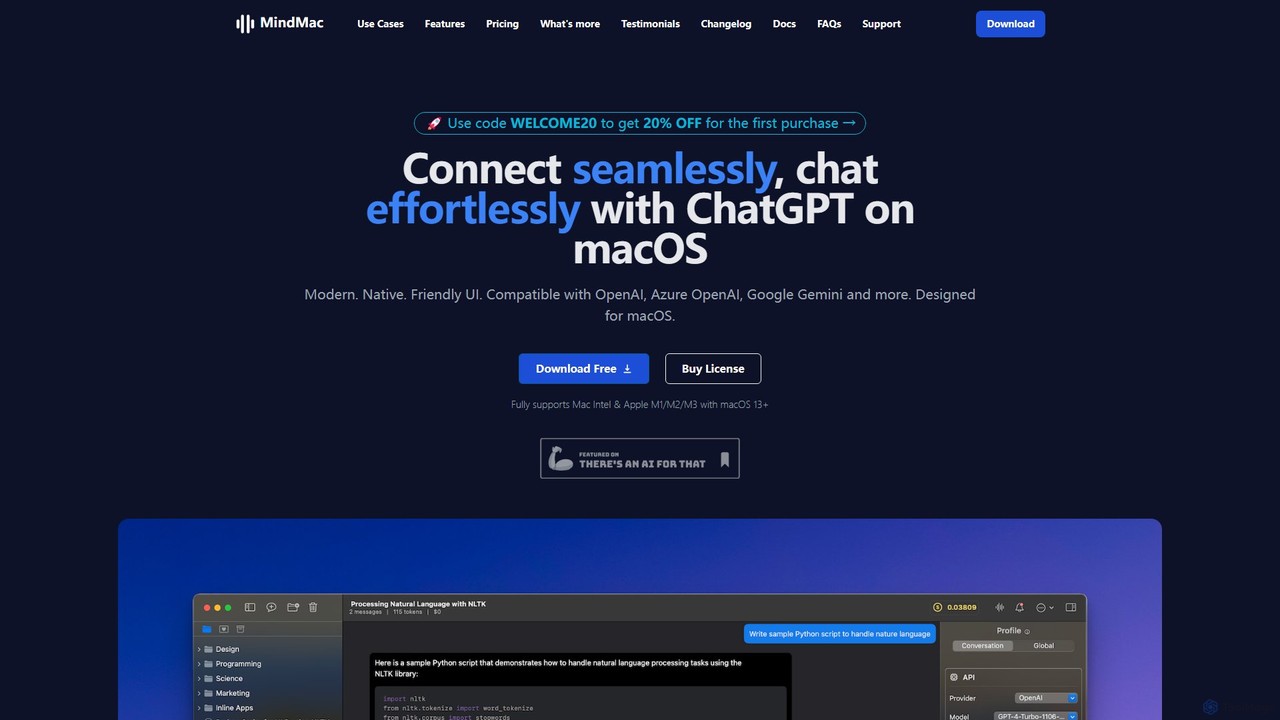
MindMac is a powerful, native macOS client that provides a unified interface for interacting with a vast range …

17.2K
Lugs.ai

Lugs.ai

Lugs.ai is a macOS desktop application providing real-time, highly accurate transcription and captioning for all computer and microphone …

2.1K

About Macos

macOS AI tools are applications specifically designed and optimized to run natively on Apple's macOS operating system. These tools leverage the unique hardware and software architecture of Mac devices, particularly the Apple Silicon (M-series) chips and their integrated Neural Engine. This results in superior performance, enhanced energy efficiency, and robust privacy through on-device data processing. By integrating deeply with macOS features like the Menu Bar, Shortcuts, and Finder, these tools offer a seamless and intuitive user experience that web-based alternatives cannot match.

Core Features

  • Apple Silicon Optimization: Natively compiled for M-series chips, enabling rapid on-device AI processing and lower power consumption.
  • Deep System Integration: Offers quick access and control through the Menu Bar, Finder extensions, and system-wide services.
  • Privacy-First Processing: Many tasks are performed locally on the device, keeping sensitive data secure and private.
  • Unified User Experience: Adheres to Apple's Human Interface Guidelines for a clean, consistent, and easy-to-navigate interface.

Use Cases

These tools are ideal for creative professionals, developers, writers, and students who work primarily within the Apple ecosystem. For instance, a developer can use a native AI code assistant that runs faster on their MacBook, while a writer can benefit from a distraction-free text editor with on-device summarization and grammar checks. They are particularly valuable for users who prioritize performance, privacy, and a tightly integrated workflow.

How to Choose

When selecting a macOS AI tool, first verify if it runs natively on Apple Silicon for optimal performance. Assess the level of system integration—does it offer a Menu Bar utility or Shortcut actions? Review its privacy policy to understand if data is processed locally or on the cloud. Finally, consider its design and ease of use to ensure it fits naturally into your existing macOS workflow.

MacosUse Cases

1

Instant Text Enhancement via Menu Bar

A content creator or student highlights text in any application—a web browser, a PDF, or a document. They then click a menu bar icon for their native macOS AI tool. A small, non-intrusive window appears, offering options to summarize, rephrase, correct grammar, or translate the selected text instantly. This workflow eliminates the need to copy-paste text into a separate web page or app, saving significant time and maintaining focus. The entire process is powered by on-device processing, ensuring speed and privacy for the user's content.

2

On-Device Confidential Audio Transcription

A journalist or researcher records a sensitive interview on their MacBook. Instead of uploading the audio file to a cloud service, they use a native macOS transcription app. The app utilizes the Apple Neural Engine to convert speech to text directly on the machine. This process is not only fast and efficient but also completely private, as the audio data never leaves the device. The final transcript can be exported in various formats, and the user has full confidence that the confidential information has remained secure throughout the process.

3

AI-Powered Code Completion in Native IDEs

A software developer working on a Mac uses an AI assistant that integrates directly into their native Integrated Development Environment (IDE) like Xcode or VS Code. As they type, the tool provides intelligent, context-aware code completions and suggestions. Because the tool is optimized for Apple Silicon, these suggestions appear instantly with minimal latency. This tight integration allows the developer to stay within their primary coding environment, improving productivity and reducing context switching compared to using a separate web-based AI coding tool.

4

Automated File Organization in Finder

A user with a cluttered 'Downloads' folder uses a macOS AI utility with Finder integration. They can right-click a selection of files or an entire folder and choose an 'Auto-Organize' action. The AI analyzes the content of each file (e.g., invoices, images, documents) and automatically moves them to predefined folders like 'Finances', 'Photos', or 'Work Documents'. The tool can also intelligently rename files based on their content, such as adding the date from an invoice to its filename, streamlining file management directly within the native file browser.

5

Local Image Generation and Enhancement

A graphic designer uses a native macOS AI image generator to create assets for a project. By running the tool locally, they can generate dozens of variations rapidly, taking full advantage of the Mac's GPU and Neural Engine without waiting for cloud server queues. They can then use another integrated AI tool to enhance the resolution or edit the generated images, all within a fluid, offline-capable workflow. This on-device approach provides a significant speed advantage for iterative creative work and ensures the project's visual assets remain confidential.

6

Creating Smart Workflows with Shortcuts

A power user leverages the native Shortcuts app on macOS to build a custom automation. They create a workflow that takes a URL as input, uses an AI action from a native tool to summarize the webpage's content, then takes that summary and creates a new note in Apple Notes. This entire multi-step process can be triggered with a single click or a keyboard shortcut. This deep integration between a third-party AI tool and a core OS feature like Shortcuts allows for powerful, personalized automations that are not possible with web-based tools.

MacosFrequently Asked Questions