LetsView
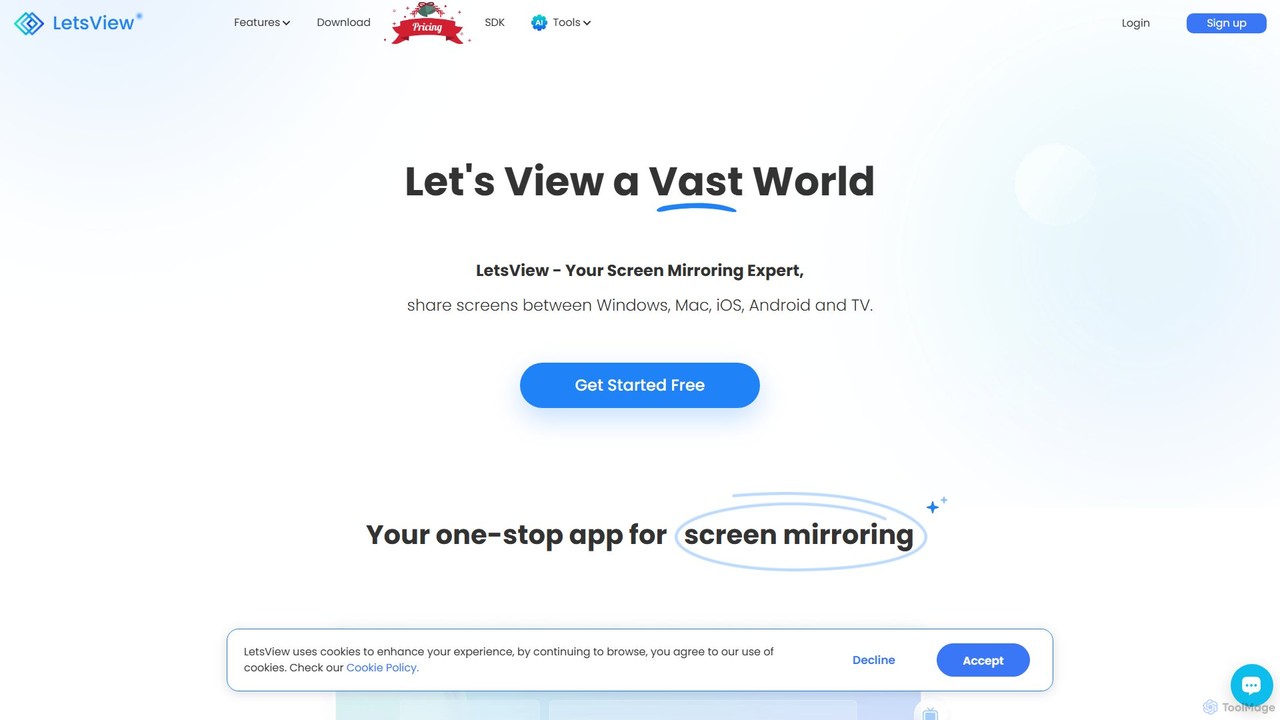
A powerful and versatile screen mirroring and remote access tool. LetsView allows you to wirelessly cast your phone, …
A powerful and versatile screen mirroring and remote access tool. LetsView allows you to wirelessly cast your phone, tablet, or computer screen to a larger display like a PC or TV in high definition. It supports cross-platform mirroring, remote control, and even functions as a second monitor, making it ideal for presentations, entertainment, and remote collaboration.
About Screen Sharing
Screen Sharing tools are applications that allow a user to broadcast the contents of their computer screen to one or more remote viewers in real-time. These tools capture the screen's output as a video stream and transmit it over a network, often including interactive features like annotation and remote control. They are fundamental for effective remote collaboration, technical support, and online presentations, enabling clear visual communication without physical proximity. As a key component of productivity software, they transform passive viewing into an active, shared workspace for teams.
Core Features
- Real-Time Broadcasting: Share an entire screen, a specific application window, or a selected area with minimal delay.
- Annotation and Whiteboarding: Draw, highlight, or add text on the shared screen to emphasize key points during a presentation.
- Remote Control: Grant temporary control of your mouse and keyboard to another participant for hands-on assistance or co-editing.
- Session Recording: Capture the screen sharing session as a video file for documentation, training, or for those who couldn't attend.
- Multi-Participant Viewing: Enable multiple users to view the shared screen simultaneously, which is ideal for webinars and team meetings.
Use Cases
Screen Sharing tools are widely used in IT for remote support, in sales for live product demonstrations, and in education for virtual classrooms. Project managers use them for collaborative reviews, while development teams utilize them for pair programming and code walkthroughs, making them essential for distributed work environments.
How to Choose
When selecting a Screen Sharing tool, consider performance and latency for a smooth experience. Evaluate security features like end-to-end encryption and access controls. Check for integration capabilities with your existing calendar and communication apps. Finally, assess the quality of interactive features like annotation and remote control to ensure they meet your collaboration needs.
Screen SharingUse Cases
Remote Technical Support and Troubleshooting
An IT support specialist receives a ticket from an employee struggling with a software configuration issue. Instead of relying on lengthy email exchanges, the specialist initiates a screen sharing session. The employee shares their screen, allowing the specialist to see the problem exactly as it appears. Using the remote control feature, the specialist navigates the employee's system, diagnoses the misconfiguration, and corrects it in minutes. This direct visual access reduces resolution time by over 70% compared to phone or email support.
Collaborative Design and UI/UX Feedback
A UI/UX designer needs to present a new mobile app prototype to stakeholders, including product managers and engineers. The designer initiates a screen sharing call and walks through the interactive prototype. As they navigate the app flow, stakeholders use annotation tools to circle specific elements, add comments, and suggest changes directly on the screen. This real-time, visual feedback process eliminates ambiguity and ensures everyone is aligned, leading to faster design iterations and a more cohesive final product.
Live Software Sales Demonstrations
A sales representative for a SaaS company is pitching to a potential enterprise client located in another country. Using a screen sharing tool, the representative provides a personalized, live demonstration of the software's key features. They can tailor the walkthrough to the client's specific pain points, answer questions in real-time, and even grant temporary control to let the client interact with the software. This interactive approach is far more engaging than a pre-recorded video and significantly increases the likelihood of closing the deal.
Online Education and Virtual Tutoring
An online tutor is teaching a student complex mathematical concepts. The tutor shares a digital whiteboard application on their screen, where they can write out equations and draw diagrams step-by-step, just like on a physical whiteboard. The student can see the process unfold in real-time and ask questions immediately. For subjects like coding, the tutor can share their code editor, run the code, and debug it live with the student, providing a practical and highly effective learning experience.
Collaborative Code Review and Pair Programming
A distributed software development team needs to review a complex piece of code. Instead of asynchronous comments in a pull request, two developers hop on a screen sharing call. One developer shares their code editor and walks through the logic. The other developer can follow along, ask clarifying questions, and suggest alternative approaches in real-time. For pair programming, they can pass remote control back and forth, allowing both to write and edit code in the same environment, significantly improving code quality and knowledge sharing.
Remote Project Management and Team Alignment
A project manager is conducting a weekly sprint review with a remote team. They share their screen to display the project management board (e.g., Jira, Trello). This allows them to visually walk the team through completed tasks, discuss roadblocks in the 'in-progress' column, and collaboratively plan the next sprint's priorities. Sharing the screen ensures everyone is looking at the same data source, preventing misunderstandings and keeping the entire team synchronized on project status and goals, regardless of their physical location.