ImgTools
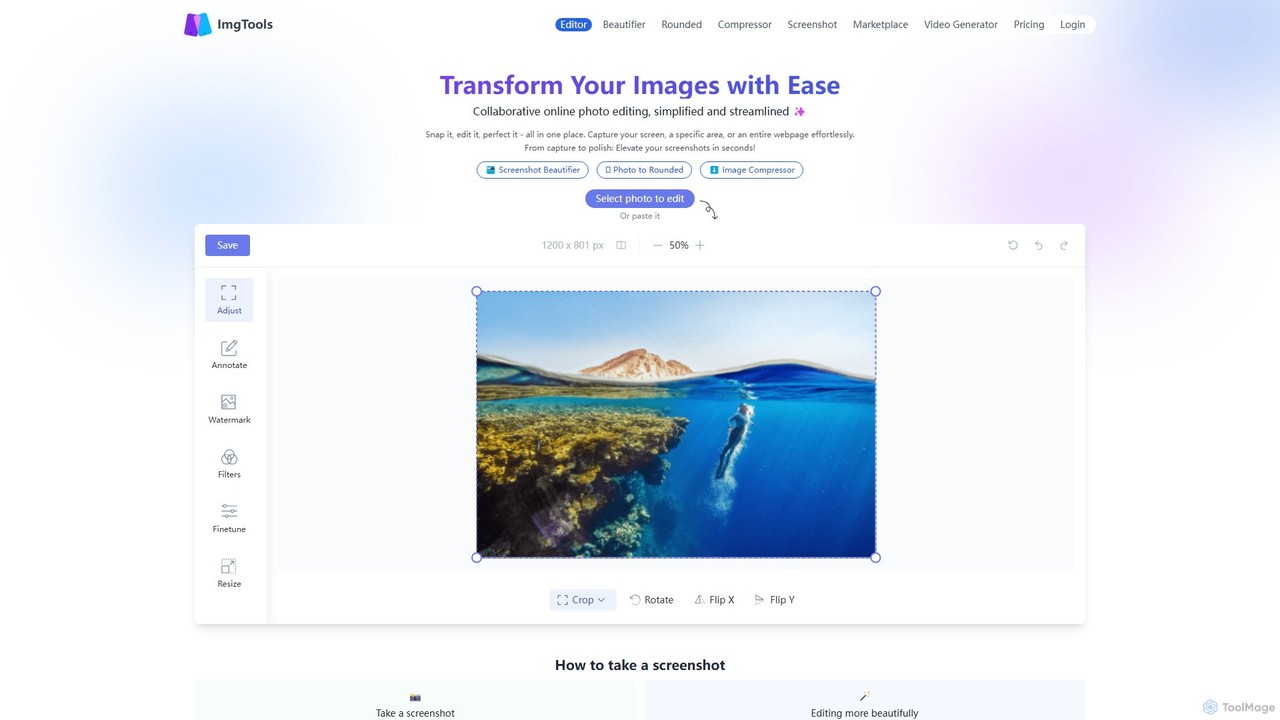
ImgTools is a versatile, browser-based image editing suite designed to effortlessly transform your screenshots and photos. It combines …
ImgTools is a versatile, browser-based image editing suite designed to effortlessly transform your screenshots and photos. It combines a powerful screenshot utility with an intuitive editor, allowing you to beautify, annotate, compress, and watermark images directly in your browser, with a strong focus on user privacy.
About Screenshot Utility
AI Screenshot Utilities are advanced tools that capture your screen and use artificial intelligence to understand and process the visual content. Unlike traditional screenshot tools, they leverage technologies like Optical Character Recognition (OCR) and computer vision to make images interactive and searchable. This allows users to not only capture information but also to extract text, identify objects, and automate workflows directly from a screenshot. These utilities transform static images into dynamic assets, significantly boosting productivity for tasks involving documentation, feedback, and data collection.
Core Features
- Intelligent Text Recognition (OCR): Accurately extracts and copies text from any image, screenshot, or PDF, making non-selectable text usable.
- Smart Annotation & Redaction: Automatically detects and suggests annotations or redactions for sensitive information like names, emails, and phone numbers.
- Content-Aware Search: Enables searching through your entire screenshot library using keywords that match the text or objects within the images.
- Automated Workflow Creation: Generates step-by-step guides or tutorials automatically by analyzing a sequence of screenshots from a process.
- UI Element Recognition: Identifies interactive elements like buttons and forms within a screenshot for documentation or analysis purposes.
Use Cases
These tools are invaluable for technical writers creating software documentation, customer support teams capturing error messages, and UX/UI designers collecting visual feedback. Developers and QA testers also use them extensively for detailed bug reporting, as the tools can capture not just the image but also associated metadata and text for faster issue resolution.
How to Choose
When selecting an AI Screenshot Utility, consider the accuracy of its OCR engine, as this is a core function. Evaluate its workflow automation capabilities and how well it integrates with your existing tools like Jira, Slack, or Notion. Also, assess its privacy features, such as whether processing happens locally on your device or in the cloud, and check for cross-platform compatibility (desktop app, browser extension).

Screenshot UtilityUse Cases
Automated Creation of How-To Guides
A technical writer is tasked with creating a user manual for new software. Instead of manually taking screenshots, pasting them into a document, and writing each step, they use an AI Screenshot Utility. They simply perform the workflow once, and the tool automatically captures each action (click, type, etc.) as a separate, annotated screenshot. The AI then sequences these images and generates descriptive text for each step based on OCR and UI element recognition, creating a complete how-to guide in minutes. This reduces documentation time by over 70% and ensures accuracy.
Efficient Bug Reporting for QA Teams
A QA tester finds a visual bug in a web application. Using an AI screenshot tool, they capture the area. The tool automatically includes crucial metadata like the browser version, OS, screen resolution, and page URL. It also allows the tester to quickly blur any sensitive user data on the screen. With one click, the annotated screenshot and all its associated technical data are sent directly to a Jira ticket, providing developers with a complete, actionable context to fix the bug faster, eliminating back-and-forth communication.
Building a Searchable Visual Knowledge Base
A researcher or student constantly gathers information from various sources like webinars, locked PDFs, and videos. They use an AI screenshot tool to capture key slides, charts, and paragraphs. The tool's OCR automatically processes every screenshot, making the text within them fully searchable. Over time, they build a personal, visual knowledge base. When writing a paper, they can simply search for a term like 'market growth 2023' and instantly find all relevant screenshots they've collected, regardless of the original source, saving hours of re-watching videos or searching through files.
Quick Data Extraction from Reports and Dashboards
A business analyst needs to pull specific figures from a non-exportable web dashboard or a scanned PDF report. Instead of manually retyping the data, which is prone to errors, they take a screenshot of the table or chart. The AI tool's OCR feature instantly recognizes the tabular structure and extracts the data, allowing the analyst to copy and paste it directly into Excel or Google Sheets. This process turns a tedious, 15-minute task into a 30-second action, ensuring data accuracy for analysis and reporting.
Streamlining Customer Support Responses
A customer support agent receives a screenshot from a user showing an error message. The agent uses an AI screenshot tool to open the image. The tool's OCR instantly extracts the error code and message text, which the agent can copy to search their internal knowledge base for a solution. Furthermore, when sending back instructions, the agent takes screenshots of the solution steps, and the tool's smart annotation feature automatically highlights the relevant buttons and menus to click. This improves response accuracy and reduces the time to resolution for each support ticket.
Collecting and Analyzing Visual User Feedback
A UX designer is gathering feedback on a new website design from social media. Users are posting screenshots with comments and highlights. The designer uses an AI screenshot tool to capture these posts. The tool not only saves the image but also uses OCR to extract the user's comments. This allows the designer to create a searchable database of visual feedback. They can then search for keywords like 'confusing button' or 'text too small' to quickly identify common pain points and group related feedback, making the analysis process much more efficient and data-driven.