ChatWithCloud
ChatWithCloud is a powerful CLI tool that enables developers and DevOps engineers to manage their AWS cloud infrastructure …
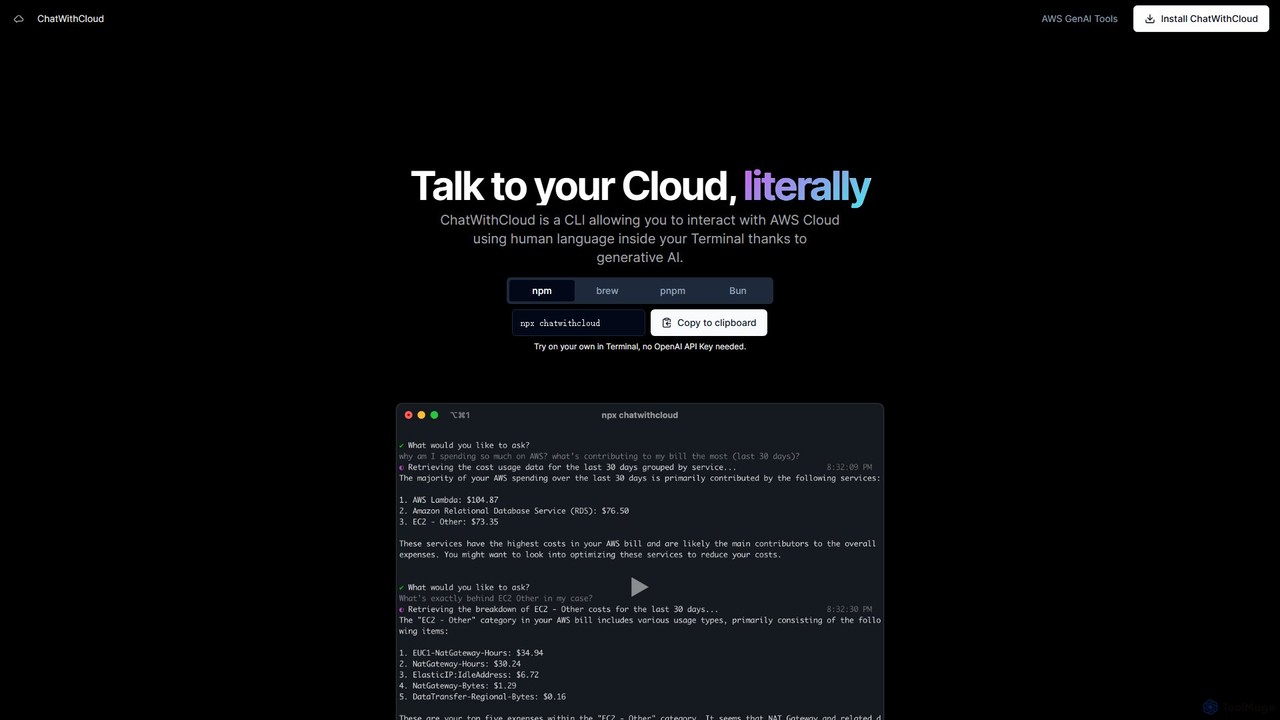
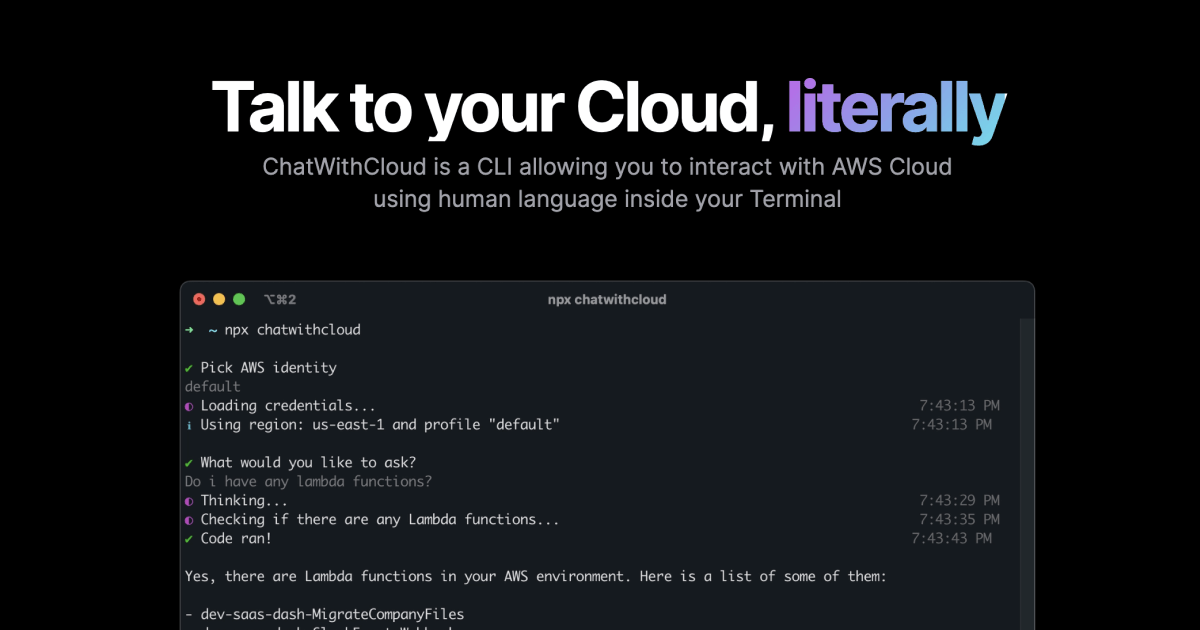
ChatWithCloud is a powerful CLI tool that enables developers and DevOps engineers to manage their AWS cloud infrastructure using natural language. Powered by generative AI, it simplifies cost analysis, security auditing, troubleshooting, and even automates fixes directly from the terminal.
About Command Line
AI Command Line tools are utilities that integrate artificial intelligence directly into the terminal to enhance developer productivity. These tools leverage Large Language Models (LLMs) to interpret natural language, translating human intent into precise, executable shell commands. They can generate complex scripts, explain cryptic command outputs, and suggest corrections for errors, effectively acting as an intelligent assistant within your command-line interface. This significantly reduces the time spent searching for command syntax and debugging scripts.
Core Features
- Natural Language to Command: Translates plain English descriptions into complex shell commands for tools like Git, Docker, and AWS CLI.
- Script Generation: Creates shell scripts, Dockerfiles, or configuration files based on high-level requirements.
- Command Explanation & Debugging: Analyzes and explains what a command does or provides suggestions to fix errors in your scripts.
- Context-Aware Suggestions: Offers intelligent autocompletion and command suggestions based on your project's context and history.
- Workflow Automation: Chains multiple commands to automate multi-step tasks from a single natural language prompt.
Use Cases
These tools are primarily used by developers, DevOps engineers, and system administrators. Common scenarios include automating cloud infrastructure management on platforms like AWS or GCP, generating boilerplate code for containerization with Docker and Kubernetes, and simplifying complex Git operations. They are also valuable for learning new command-line utilities by providing instant examples and explanations.
How to Choose
When selecting an AI Command Line tool, consider its integration with your preferred shell (e.g., Zsh, Bash, Fish). Evaluate the underlying AI model, as this impacts the quality of suggestions. Pay close attention to the tool's privacy policy, especially whether it sends your command history to the cloud. Finally, check for specific support for the technologies and platforms you use most frequently.

Command LineUse Cases
Automating Complex Git Workflows
A software developer needs to perform a complex sequence of Git commands, such as cherry-picking multiple commits from a development branch to a release branch and then creating a tag. Instead of manually looking up syntax and executing commands one by one, they can type a natural language prompt like, 'cherry-pick commits A, B, and C from dev to release-v1.2, then tag it as v1.2.0'. The AI tool generates and executes the precise sequence of `git` commands, preventing errors and saving significant time during release cycles.
Generating Dockerfiles and Configurations
A DevOps engineer needs to containerize a new Node.js microservice. Instead of writing a Dockerfile from scratch, which requires remembering specific instructions and best practices, they can issue a prompt: 'create an optimized Dockerfile for a Node.js 18 application that exposes port 3000, copies package.json, runs npm install, and uses a non-root user'. The AI tool instantly generates a complete, production-ready Dockerfile, incorporating multi-stage builds and security best practices, reducing setup time from minutes to seconds.
Debugging Shell Script Errors
A system administrator is running a complex backup script that fails with a cryptic 'permission denied' error deep within a loop. Instead of adding multiple `echo` statements to trace the issue, they can pipe the script and its error output to the AI tool and ask, 'Why am I getting this error and how can I fix it?'. The AI analyzes the script's logic, identifies that a variable for a file path is becoming corrupted inside the loop, and suggests the exact line of code to correct. This transforms a potentially lengthy debugging session into a quick fix.
Managing Cloud Infrastructure with CLI
A cloud engineer needs to find all EC2 instances in a specific region that are not using the latest AMI and then generate a report. This task typically requires chaining several AWS CLI commands with `jq` for JSON parsing. Using an AI command line tool, the engineer can simply ask, 'List all EC2 instances in us-west-2 that are not running ami-0abcdef1234567890 and output their instance ID and launch time to a CSV file'. The tool constructs the entire command pipeline, saving the engineer from the complexity of AWS CLI syntax and `jq` filtering.
Complex Data Processing with `awk` and `sed`
A data analyst is faced with a large log file and needs to extract specific information. They need to find all lines containing 'ERROR', extract the timestamp and user ID from those lines, and count the occurrences for each user. Writing the correct `grep`, `sed`, and `awk` combination is notoriously difficult. With an AI tool, they can state their goal: 'from application.log, find all lines with ERROR, extract the timestamp (1st field) and user ID (5th field), and count errors per user'. The AI generates the correct one-liner, making complex text processing accessible without deep shell scripting expertise.
Learning New Command-Line Tools
A junior developer needs to use `ffmpeg` for the first time to convert a video file. The `ffmpeg` tool has hundreds of options, and finding the right combination can be daunting. Instead of scouring documentation, the developer can ask the AI, 'how do I use ffmpeg to convert input.mov to output.mp4, resize it to 1280x720, and set the audio bitrate to 128k?'. The AI provides the exact command: `ffmpeg -i input.mov -vf scale=1280:720 -b:a 128k output.mp4`, along with an explanation of each flag. This accelerates the learning process and empowers users to leverage powerful tools more quickly.