ToolMage
Sign in

Best 1 Scanning & Ocr AI tools for Productivity

Popular Scanning & Ocr AI tools in Productivity include picturetotext, helping you work more efficiently.

picturetotext
Freemium

picturetotext

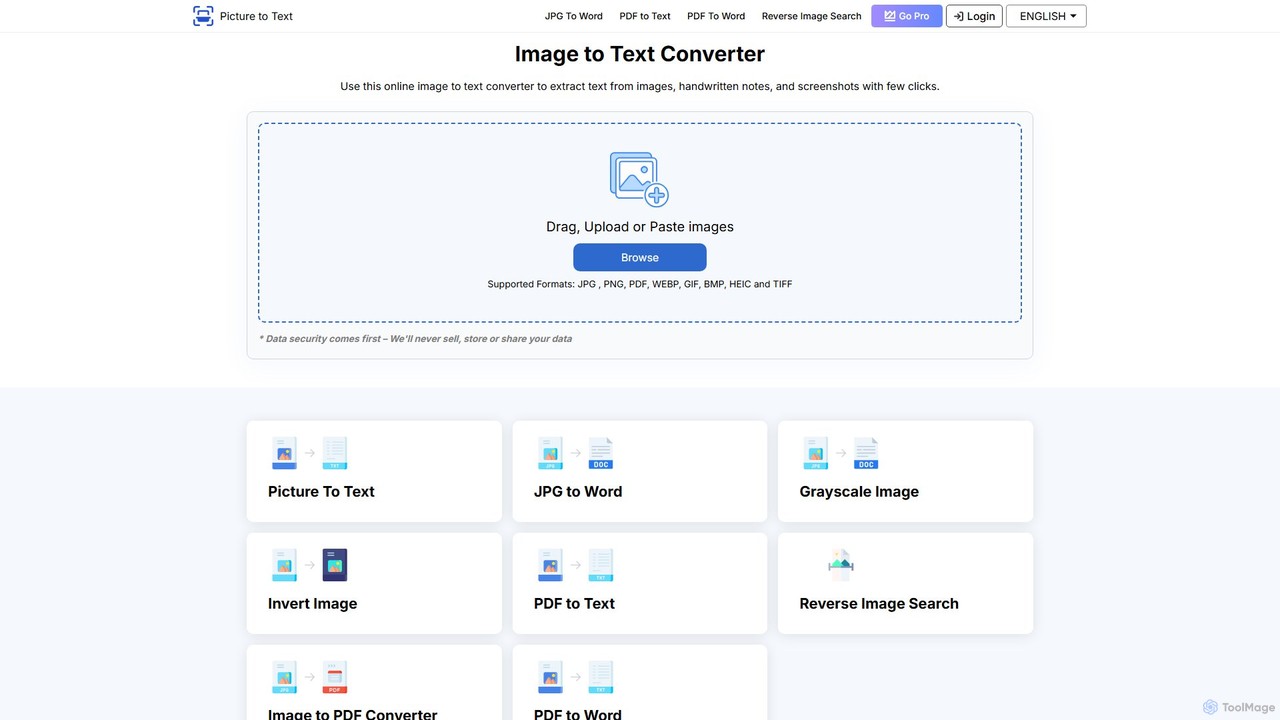
An AI-powered OCR tool that accurately converts images into editable text. It supports various formats, batch processing, and over 20 languages. Ideal for digitizing documents, automating data entry, and improving study efficiency with a user-friendly interface and a focus on data privacy.

Data Entry
Visits 14.6KFavorites 130Likes 121

About Scanning & Ocr

Scanning & OCR tools are a class of software that uses artificial intelligence to convert text from images, scanned documents, and PDFs into editable and searchable machine-readable data. These tools employ Optical Character Recognition (OCR) and computer vision to accurately identify characters, words, and document layouts. Their primary function is to bridge the gap between physical and digital information, automating data extraction and eliminating manual data entry. This technology is a key component of digital transformation in many productivity workflows.

Core Features

  • Text Recognition: Accurately extracts and converts printed, typed, or even handwritten text from images into digital text formats.
  • Layout Analysis: Preserves the original document structure, including columns, tables, and formatting, during conversion.
  • Data Extraction: Automatically identifies and pulls specific information, such as invoice numbers, dates, or names from structured documents.
  • Multi-language Support: Recognizes and processes text in a wide variety of languages and scripts.
  • Image Pre-processing: Automatically improves image quality (e.g., deskewing, noise reduction) to enhance recognition accuracy.

Use Cases

These tools are widely used in industries like finance for invoice and receipt processing, legal for digitizing contracts and case files, and healthcare for processing patient forms. Business professionals use them for digitizing business cards and meeting notes, while researchers and students convert academic papers and books into searchable digital archives.

How to Choose

When selecting a Scanning & OCR tool, consider its accuracy rate for your specific document types. Evaluate the range of supported languages and file formats (PDF, JPG, PNG). For business use, check for API availability for integration with other software. Also, consider its ability to handle complex layouts, tables, and handwritten text if those are part of your requirements.

Scanning & Ocr use cases

1

Automate Invoice Data Entry

An accounts payable specialist in a mid-sized company processes hundreds of PDF invoices weekly. By using an AI OCR tool, they can automatically extract key data such as vendor name, invoice number, date, and total amount. The extracted data is then automatically populated into their accounting software. This process reduces manual data entry time by over 90% and significantly minimizes human error, leading to faster payment cycles and more accurate financial records.

2

Digitize Legal Archives for Research

A paralegal at a law firm is tasked with finding precedents from thousands of scanned case files from the past 20 years. Manually searching through these image-based PDFs is impossible. By processing the entire archive with an OCR tool, all documents become fully text-searchable. The paralegal can now find specific keywords, names, or case numbers across the entire database in seconds, dramatically accelerating legal research and case preparation.

3

Convert Handwritten Notes to Digital Text

A project manager captures brainstorming ideas on a whiteboard during a team meeting. Instead of manually typing up the notes, they take a photo of the whiteboard. An OCR tool with handwriting recognition capabilities converts the photo into editable digital text. The manager can then quickly clean up the text, organize the ideas, and share the meeting minutes with the team via email or a project management tool, all within minutes of the meeting ending.

4

Extract Data from Receipts for Expense Reports

A sales consultant who travels frequently needs to submit expense reports. They accumulate dozens of paper receipts for meals, transport, and lodging. Using a mobile OCR app, they can simply snap a photo of each receipt. The app extracts the merchant's name, date, and total amount, and automatically categorizes the expense. This eliminates the tedious task of manually entering each item, ensures no receipts are lost, and speeds up the reimbursement process.

5

Create a Searchable Academic Paper Library

A PhD student is conducting a literature review and has collected hundreds of academic papers, some of which are old, scan-only PDFs. To manage this information efficiently, the student uses an OCR tool to process all image-based files. This converts their entire collection into a fully searchable digital library. Now, they can instantly search for specific theories, author names, or data points across all papers, saving countless hours of manual skimming and improving the quality of their research.

6

Extract Tables from Financial Reports

A financial analyst needs to compare quarterly performance data from multiple PDF reports. These reports contain complex tables that are difficult to copy and paste into a spreadsheet. Using an advanced OCR tool with table recognition, the analyst can automatically extract the entire table structure and data directly into an Excel or CSV file. This preserves the rows, columns, and cell data, allowing for immediate analysis and comparison without hours of tedious and error-prone re-typing.

Scanning & Ocr FAQ

What are AI Scanning & OCR tools?

AI Scanning & OCR (Optical Character Recognition) tools are software applications that convert images of text into machine-readable text data. Unlike simple scanners that create an image, these tools use AI to 'read' and understand the characters, words, and layout of a document. This allows you to turn static content from scanned papers, photos, or PDFs into editable, searchable, and analyzable digital text.

How do I choose the right OCR tool?

To choose the right OCR tool, consider these factors:

  • Accuracy: Check reviews or test the tool with your specific document types (e.g., invoices, handwritten notes). High accuracy is crucial.
  • Language Support: Ensure it supports the languages you need to process.
  • Feature Set: Do you need basic text conversion, or advanced features like table extraction, layout analysis, or handwriting recognition?
  • Integration: If you need to connect it to other software (like accounting or CRM systems), look for tools with API access.
  • Ease of Use: The interface should be intuitive for your team's technical skill level.
What's the difference between a scanner app and an OCR tool?

A simple scanner app or function creates a digital image of a document, much like a photograph. The resulting file (like a PDF or JPG) is just a picture of the text; you cannot select, copy, or search the words within it. An OCR tool goes a step further: it analyzes that image, recognizes the characters, and converts them into actual, usable text data. Essentially, a scanner creates a 'picture of words,' while OCR creates 'words from a picture.'

Can OCR tools read handwriting?

Yes, many modern AI-powered OCR tools can read handwriting, a technology often referred to as Intelligent Character Recognition (ICR). However, the accuracy can vary significantly based on the legibility of the handwriting, the quality of the scan or photo, and the sophistication of the tool's AI model. Cursive and messy handwriting is more challenging than neat, printed handwriting. It's best to test a tool with samples of the handwriting you intend to process.

What types of files can I use with OCR tools?

Most OCR tools support a wide range of common image and document formats. The most frequently supported file types include:

  • Image Files: JPG/JPEG, PNG, TIFF, BMP, GIF
  • Document Files: PDF (both image-based and text-based)
  • Other Formats: Some advanced tools may also support formats like DjVu or process images directly from a URL.
  • PDF is one of the most common formats, as many scanned documents are saved this way. It's important to check the specific tool's documentation for a full list of supported file types and any size limitations.