Productivity Best in category 2 results Screenshot Tool AI Tool

Popular AI tools in the Screenshot Tool field of Productivity include CharmShotAI、Full Page Screenshot, etc., helping you quickly improve efficiency.

Full Page Screenshot

Full Page Screenshot

A reliable Chrome browser extension for capturing flawless full-page screenshots. It intelligently handles complex, modern websites with dynamic …

3.0K
CharmShotAI

CharmShotAI

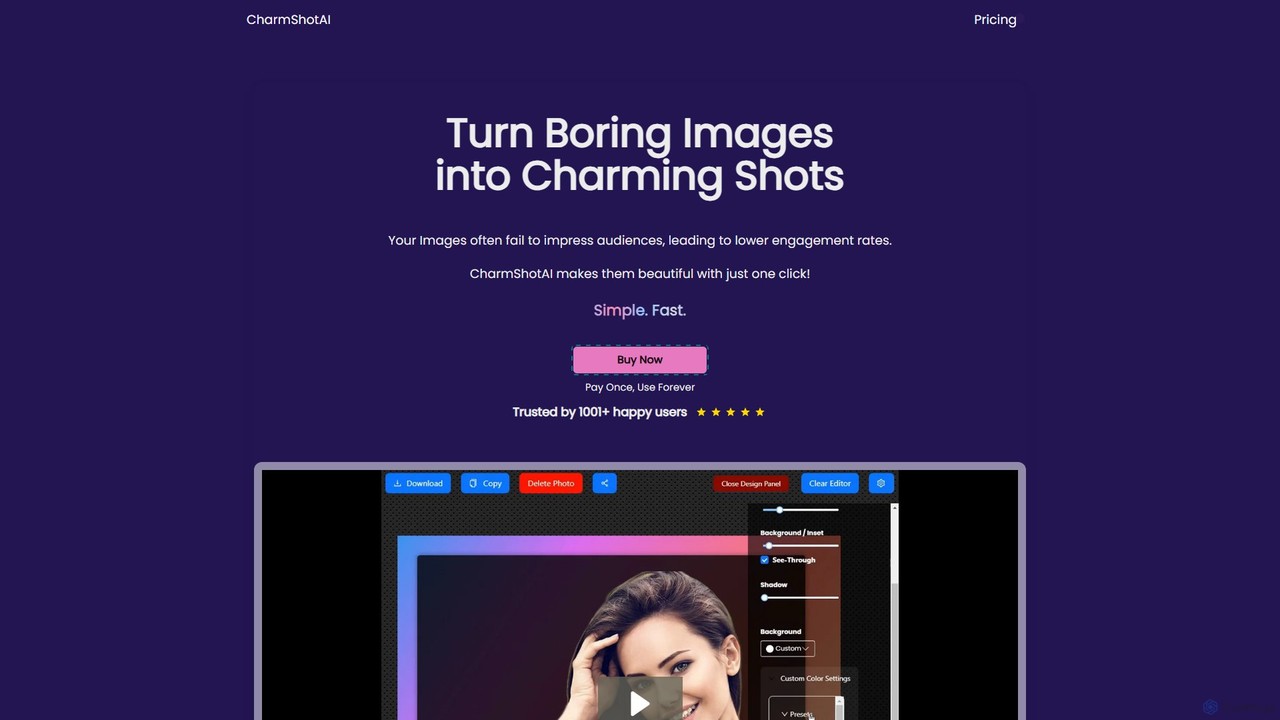
CharmShotAI is an AI-powered image editor that transforms plain screenshots and images into visually appealing graphics with one …

5.5K

About Screenshot Tool

Screenshot Tools are specialized software applications designed to capture images of a computer screen or a selected portion of it, significantly enhancing productivity. These tools go beyond basic system functions by offering advanced features like precise selection, annotation, and direct sharing capabilities. They are invaluable for visual communication, documentation, and providing quick feedback in various professional and personal contexts, streamlining workflows that rely on visual information.

Core Features

  • Flexible Capture Modes: Capture full screen, specific windows, selected regions, or even scrolling web pages.
  • Advanced Annotation: Add text, arrows, shapes, highlights, and pixelation to sensitive information directly on the captured image.
  • Cloud Integration & Sharing: Seamlessly upload screenshots to cloud storage or share them via links, email, or social media.
  • OCR (Optical Character Recognition): Extract editable text from images, converting visual information into usable data.
  • Timed & Scheduled Capture: Set specific intervals or times for automatic screen captures, useful for monitoring or time-lapse.

Use Cases

Screenshot tools are widely adopted across various sectors. Developers use them to document bugs with visual evidence, while customer support teams capture issues to guide users through solutions. Educators create visual aids for lessons, and marketing professionals quickly grab content for social media posts or presentations, making visual communication more efficient and impactful.

How to Choose

When selecting a screenshot tool, consider its capture flexibility (regions, scrolling), annotation suite (text, shapes, blur), and sharing options (cloud, direct links). Evaluate integration with existing workflows (e.g., project management tools) and check for advanced features like OCR or timed captures. User interface simplicity and cross-platform compatibility are also crucial for a smooth experience.

Screenshot ToolUse Cases

1

Documenting Software Bugs for Developers

Software developers and QA testers frequently use screenshot tools to visually document bugs. Instead of lengthy text descriptions, they can capture the exact error message or UI glitch, annotate it with arrows and text to highlight the problem area, and instantly share it with their team. This significantly reduces communication overhead and accelerates the bug-fixing process by providing clear, undeniable visual evidence.

2

Creating Visual Tutorials and Guides

Educators, trainers, and content creators leverage screenshot tools to build comprehensive visual tutorials. They capture step-by-step images of software operations, website navigation, or complex processes, adding explanatory text and highlights to each image. This method makes learning more accessible and engaging for students or users, simplifying complex instructions into easily digestible visual content.

3

Providing Quick Visual Feedback in Design

Designers and project managers utilize screenshot tools for rapid visual feedback on mockups, websites, or graphic designs. They can quickly capture a specific design element, draw attention to areas needing revision with annotations, and share it directly with team members or clients. This iterative feedback loop is much faster and clearer than written descriptions, speeding up design cycles.

4

Capturing Long Web Pages for Archiving

Researchers, journalists, and legal professionals often need to archive entire web pages, including content that extends beyond the visible screen. Advanced screenshot tools offer "scrolling capture" functionality, allowing them to capture a complete, single image of a long web page. This ensures all information is preserved for reference, evidence, or offline viewing without missing any details.

5

Extracting Text from Images with OCR

Professionals in data entry, research, or content management use screenshot tools with OCR capabilities to extract text from non-editable images, such as scanned documents, presentations, or infographics. By capturing the image and running OCR, they can quickly convert visual text into editable digital format, saving considerable time compared to manual transcription and improving data accuracy.

6

Enhancing Customer Support with Visuals

Customer support agents frequently use screenshot tools to provide visual solutions to user queries. When a customer describes a problem, the agent can capture relevant parts of their own screen, annotate steps or highlight specific buttons, and send it as a clear visual guide. This reduces ambiguity, helps customers follow instructions more easily, and improves overall support efficiency and satisfaction.

Screenshot ToolFrequently Asked Questions