Productivity Best in category 1 results Screenshots AI Tool

Popular AI tools in the Screenshots field of Productivity include jelli, etc., helping you quickly improve efficiency.

Free
jelli

jelli

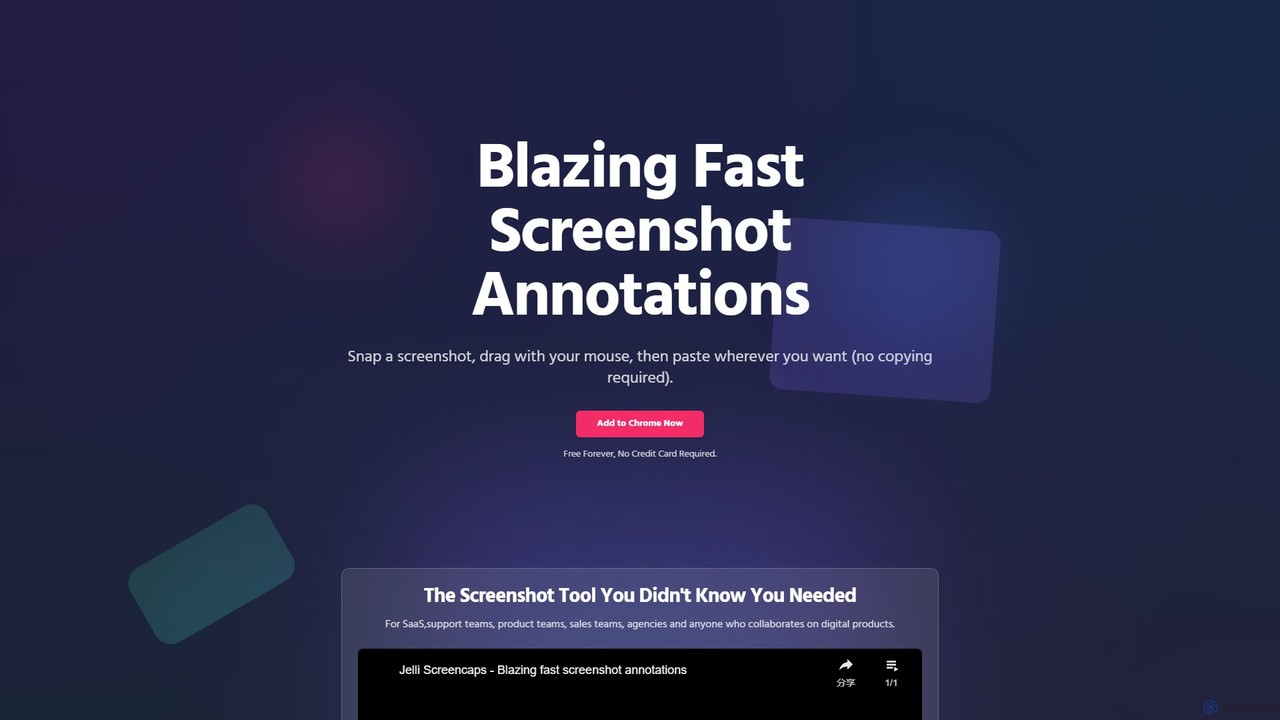
jelli is a blazing-fast Chrome extension for screenshot annotation. Instantly capture your screen, add arrows, rectangles, and other …

2.7K

About Screenshots

AI Screenshot tools are applications designed for capturing, annotating, and sharing screen images with enhanced intelligence. These tools often use Optical Character Recognition (OCR) to extract text from images and smart selection to automatically identify UI elements. They significantly accelerate workflows by making it easy to create visual guides, report bugs, and provide clear feedback. Unlike basic system utilities, AI screenshot tools offer advanced features like cloud storage, link sharing, and powerful editing capabilities, making them a cornerstone of modern productivity.

Core Features

  • Smart Capture: Automatically detects and captures specific windows, menus, or screen regions, saving time on manual cropping.
  • OCR Text Recognition: Extracts and copies text directly from any captured image, including videos, presentations, and protected web pages.
  • Advanced Annotation: Provides a rich set of tools like arrows, text boxes, highlighters, and blur effects to communicate ideas clearly.
  • Instant Sharing & Cloud Sync: Generates a shareable link immediately after capture and automatically syncs screenshots to the cloud for access on any device.
  • Scrolling Capture: Captures the full content of long web pages, documents, or chat windows in a single, continuous image.

Use Cases

These tools are widely used by software development teams for bug reporting, customer support agents for creating visual instructions, and designers for gathering feedback on mockups. Educators and content creators also rely on them to produce high-quality tutorials and training materials. In any role that requires clear visual communication, these tools are invaluable.

How to Choose

When selecting a screenshot tool, consider the accuracy of its OCR technology and the variety of annotation options. Evaluate its integration capabilities with your existing workflow tools like Slack, Jira, or Trello. Also, assess the platform compatibility (Windows, macOS, browser extension) and the balance between free features and paid subscription plans to find the best fit for your needs.

ScreenshotsUse Cases

1

Detailed Software Bug Reporting

A QA tester encounters a visual glitch in a web application. Using an AI screenshot tool, they capture the specific area of the screen showing the bug. They then use annotation tools to draw an arrow pointing to the glitch, add a text box explaining the expected behavior, and use a step-numbering tool to show the sequence of actions that led to the error. The annotated image is instantly uploaded, and a shareable link is automatically copied to their clipboard, which they paste directly into a Jira ticket, providing clear, actionable visual context for the development team.

2

Creating Step-by-Step Visual Guides

A customer support specialist needs to create a tutorial for a new software feature. They perform the workflow, taking a screenshot at each critical step. Using the tool, they add numbered annotations, highlight important buttons, and blur out sensitive personal information. The tool can automatically arrange these screenshots in sequence. The final series of images is exported as a single PDF or shared via a link, providing the customer with an easy-to-follow, professional-looking guide that reduces support tickets and improves user onboarding.

3

Extracting Text from Non-Selectable Sources

A market researcher is watching a webinar and needs to capture key statistics from a presentation slide. Since the text on the video stream cannot be copied, they use a screenshot tool with OCR. They capture the slide, and the tool instantly extracts all the text into a copyable format. The researcher then pastes this data directly into their report or spreadsheet, saving significant time and avoiding manual transcription errors. This is also useful for grabbing text from scanned PDFs, images, or protected websites.

4

Collaborative Design Feedback

A UI/UX designer shares a link to a new webpage mockup with their team. Instead of writing long emails describing changes, team members use a screenshot tool to capture parts of the design. They add annotations directly on the image, such as 'Increase font size here' with an arrow, or circling an icon and suggesting 'Use a different color'. Each annotated screenshot is shared back in a Slack channel, creating a clear, visual, and centralized feedback loop that is much faster and less ambiguous than text-only communication.

5

Archiving Online Receipts and Confirmations

After making an online purchase, a user wants to save a copy of the order confirmation page for their records. Instead of printing to PDF, which can sometimes format poorly, they use a scrolling capture feature to grab the entire page in one image. The tool's OCR automatically makes the text in the receipt (like order number and price) searchable. The screenshot is then automatically saved to a designated cloud folder, creating an organized, searchable archive of important purchases without any manual filing.

6

Quick Visual Communication in Team Chats

During a fast-paced discussion in a team chat like Slack or Microsoft Teams, a project manager needs to quickly point out a specific metric on a dashboard. They take a quick screenshot of the dashboard, circle the relevant chart with a bright red color, and paste it directly into the chat. This action takes less than five seconds and is far more effective than trying to describe the chart's location in text ('the third bar chart from the left, in the bottom row...'). It eliminates ambiguity and keeps the conversation flowing smoothly.

ScreenshotsFrequently Asked Questions