Video Best in category 17 results Screen Recording AI Tool

Popular AI tools in the Screen Recording field of Video include Loom、TechSmith、Tella、Bubbles、FocuSee、Supercut、Berrycast、Canvid、Kite, etc., helping you quickly improve efficiency.

Tight Studio

Tight Studio

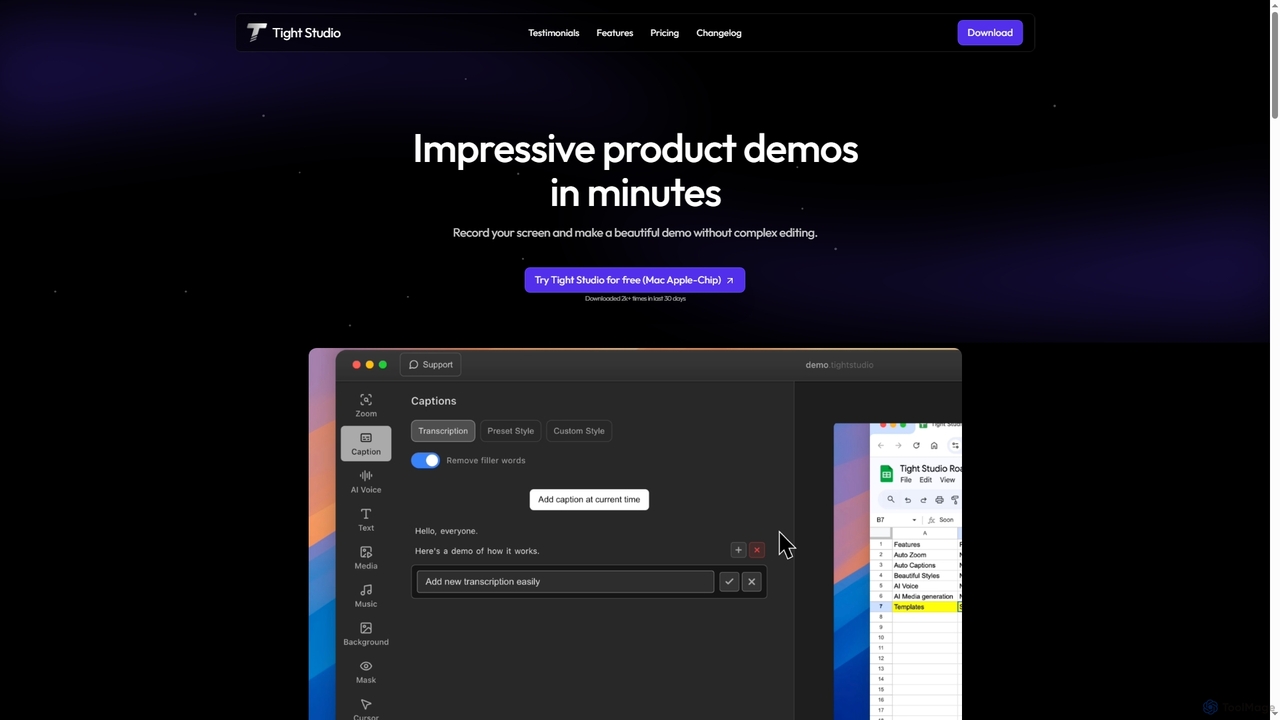
Tight Studio is an AI-powered screen recording and video editing application for Mac, designed to create professional product …

2.1K
Free
Supercut

Supercut

Supercut is an AI-powered screen recording tool designed for teams to create professional, branded videos with blazing speed. …

1.8K
Loom

Loom

Loom is an AI-powered video messaging platform for work that allows users to instantly record and share their …

18.8M
Tella

Tella

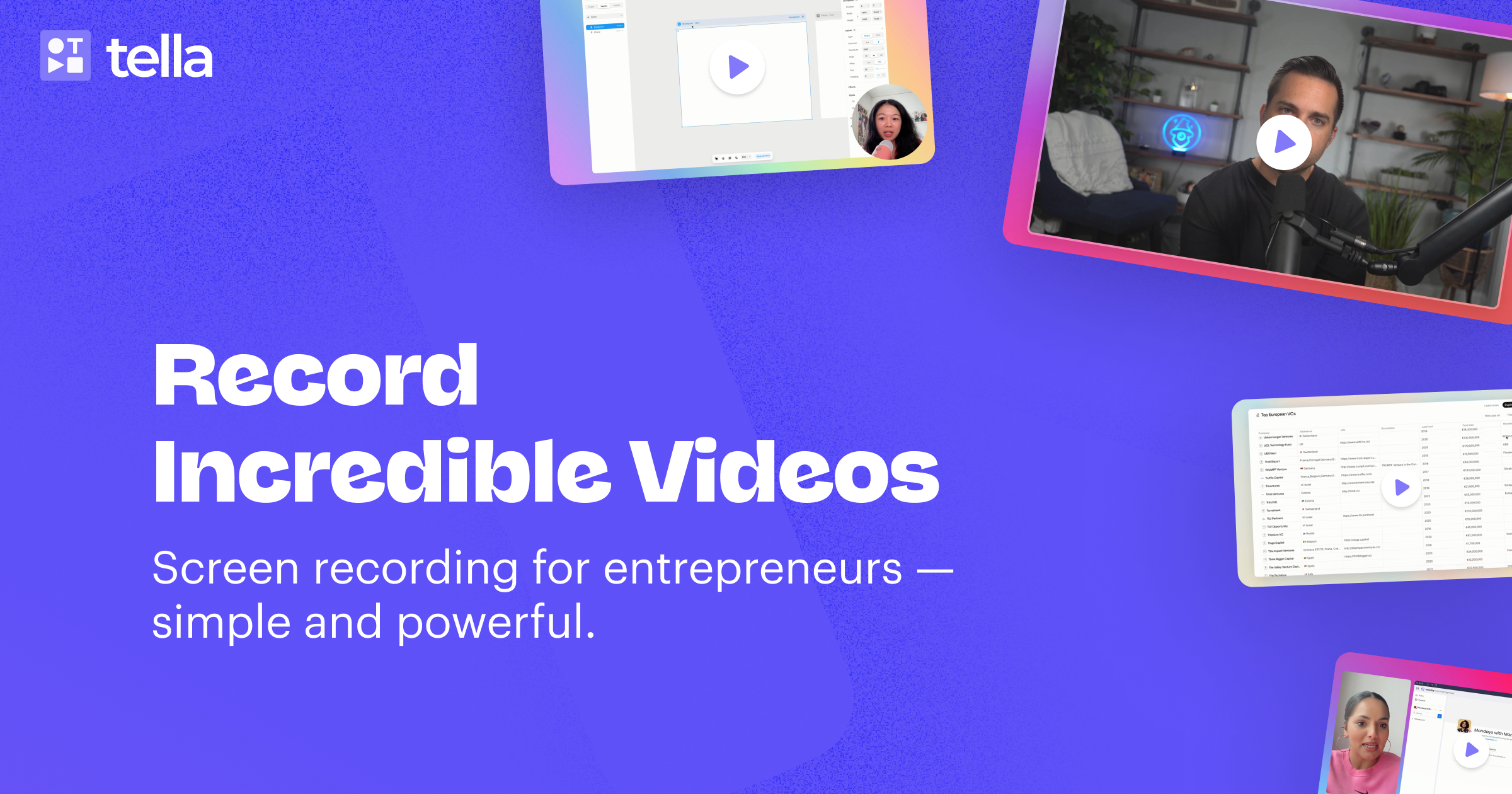
Tella is an AI-powered screen recorder and video editor for Mac & Windows that simplifies video creation. It …

329.6K
appahead

appahead

appahead is a premium software studio offering a suite of meticulously crafted applications for macOS, iOS, and visionOS. …

8.2K
CrystalSound

CrystalSound

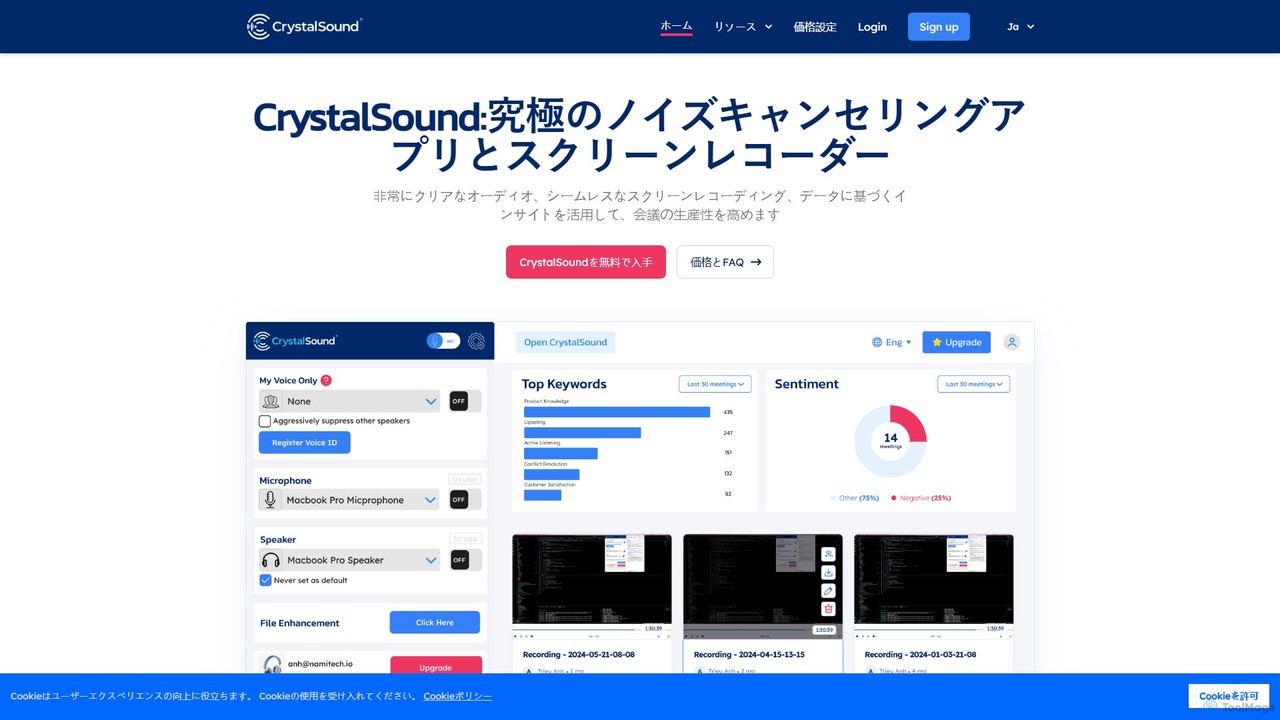
CrystalSound is an AI-powered noise-cancelling and screen recording application designed to enhance online meeting productivity. It eliminates background …

9.1K
Free
Supercut

Supercut

Supercut is an AI-powered screen recording tool designed for teams to create professional, branded videos with blazing speed. …

51.9K
ScreenStory

ScreenStory

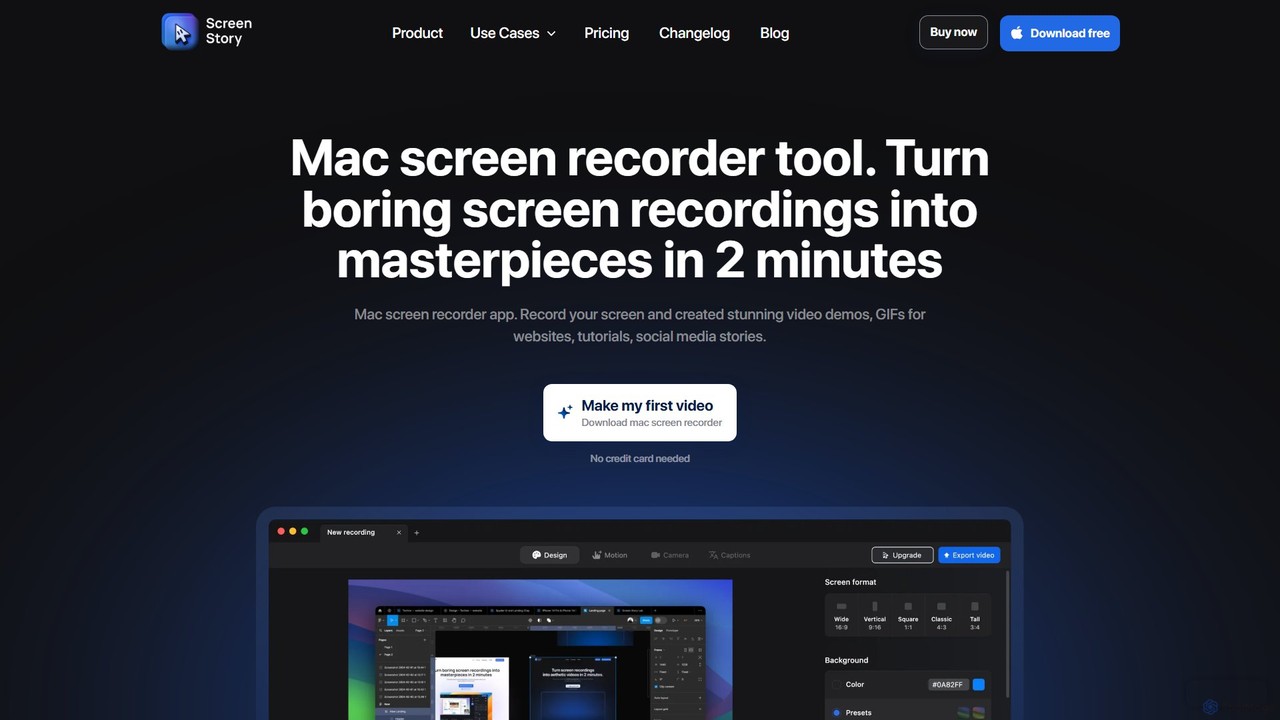
ScreenStory is an intelligent screen recording app for macOS that automatically transforms standard screen captures into polished, professional-looking …

12.1K
FocuSee

FocuSee

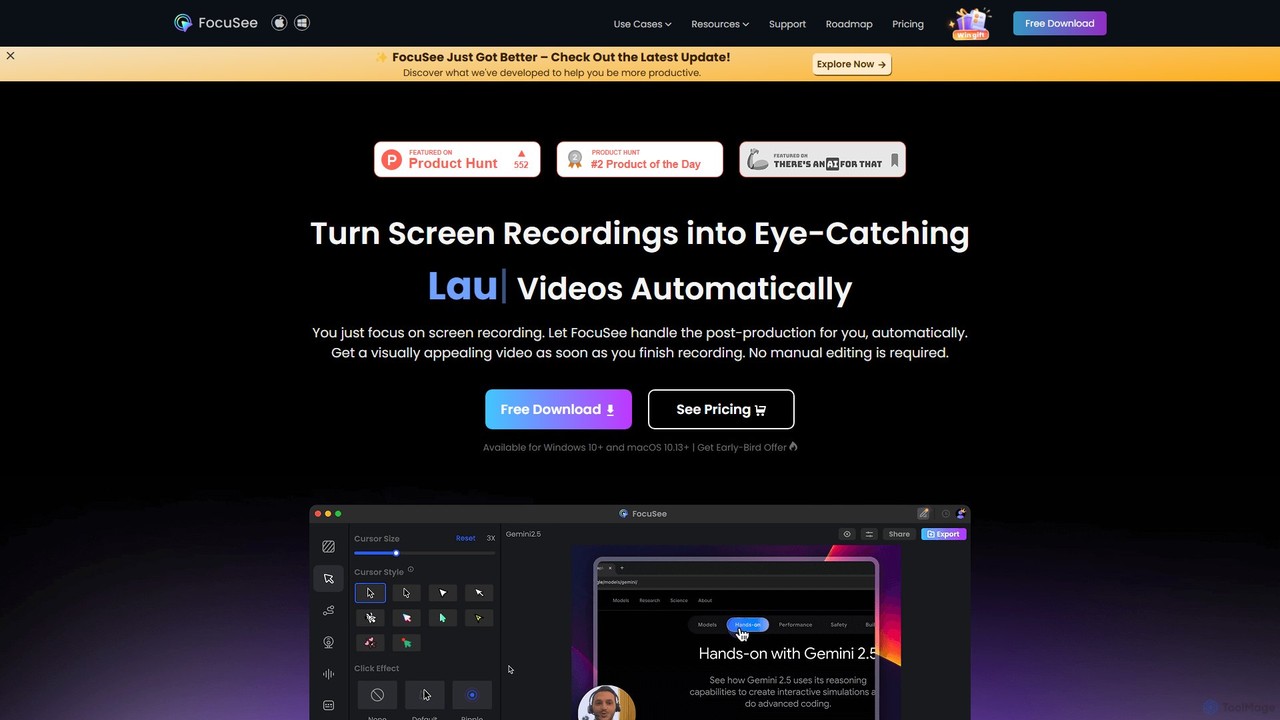
FocuSee is an AI-powered screen recording and video editing software designed to create professional-looking videos with ease. Its …

87.3K
Komodo

Komodo

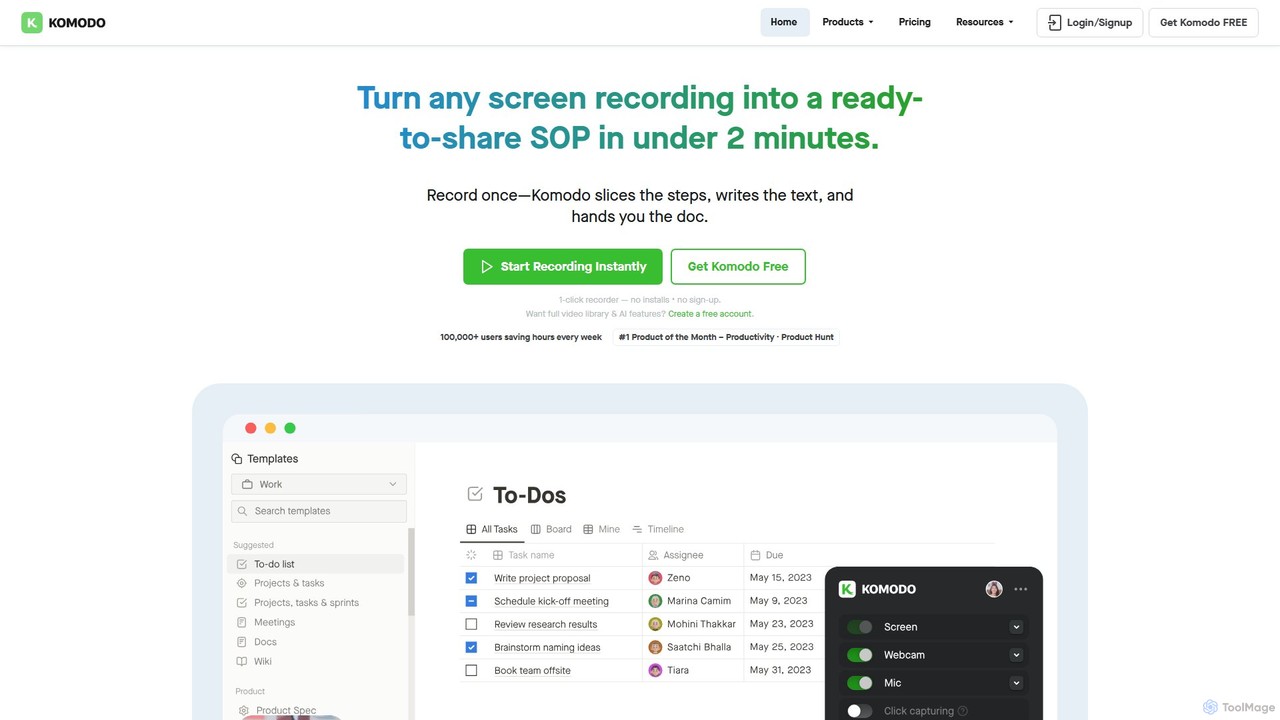
Komodo is an AI-powered screen recorder and knowledge base that automatically transforms screen recordings into step-by-step SOPs, guides, …

7.6K
BeGenieUs

BeGenieUs

BeGenieUs is an all-in-one AI-powered collaborative suite designed to streamline workflows. It offers a range of tools including …

1.8K
Tella

Tella

Tella is an AI-powered screen recorder and video editor for Mac and Windows, designed for entrepreneurs and creators. …

290.7K
TechSmith

TechSmith

TechSmith offers a powerful suite of tools, including Snagit and Camtasia, for professional screen capture and video creation. …

979.1K
Canvid

Canvid

Canvid is an AI-powered screen recorder for Windows and Mac designed to create professional-looking demos effortlessly. It automatically …

33.7K
Kite

Kite

Kite is a powerful screen recorder for Mac that helps you create stunning, professional-grade product demo videos in …

31.1K
Berrycast

Berrycast

Berrycast is an AI-powered video communication tool for Windows and Mac, designed to enhance workplace productivity. It allows …

36.3K
Bubbles

Bubbles

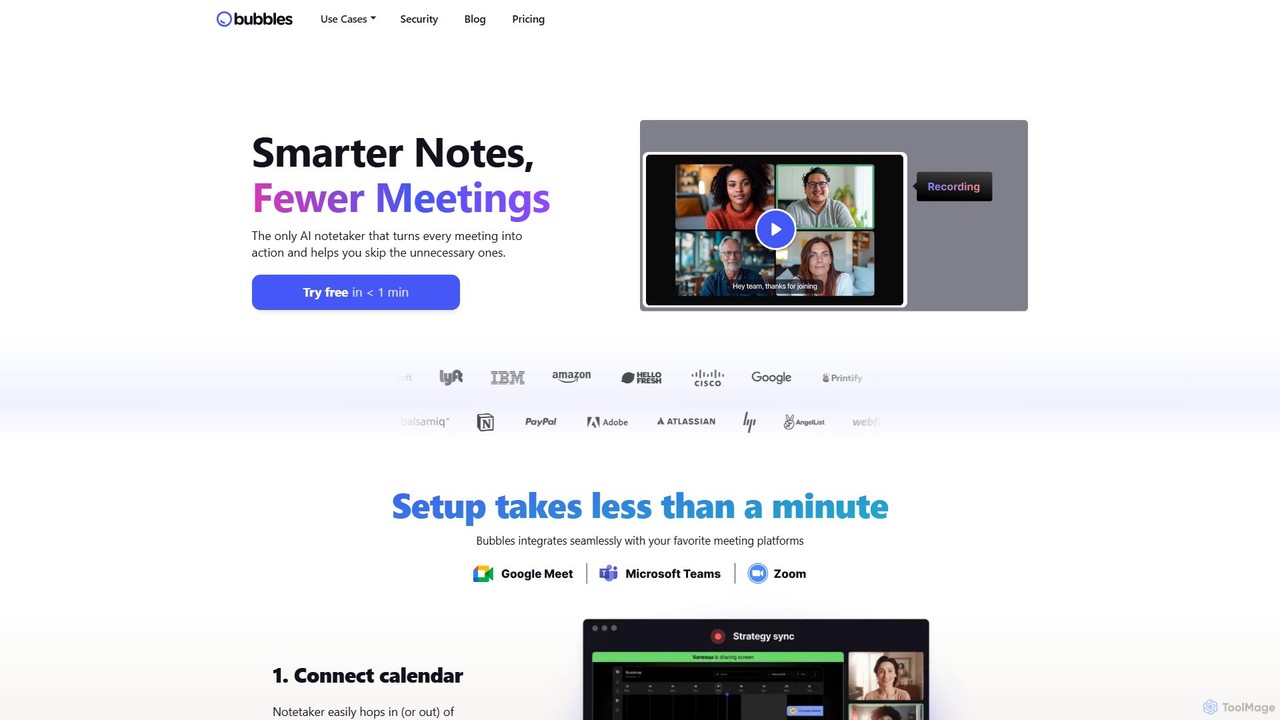
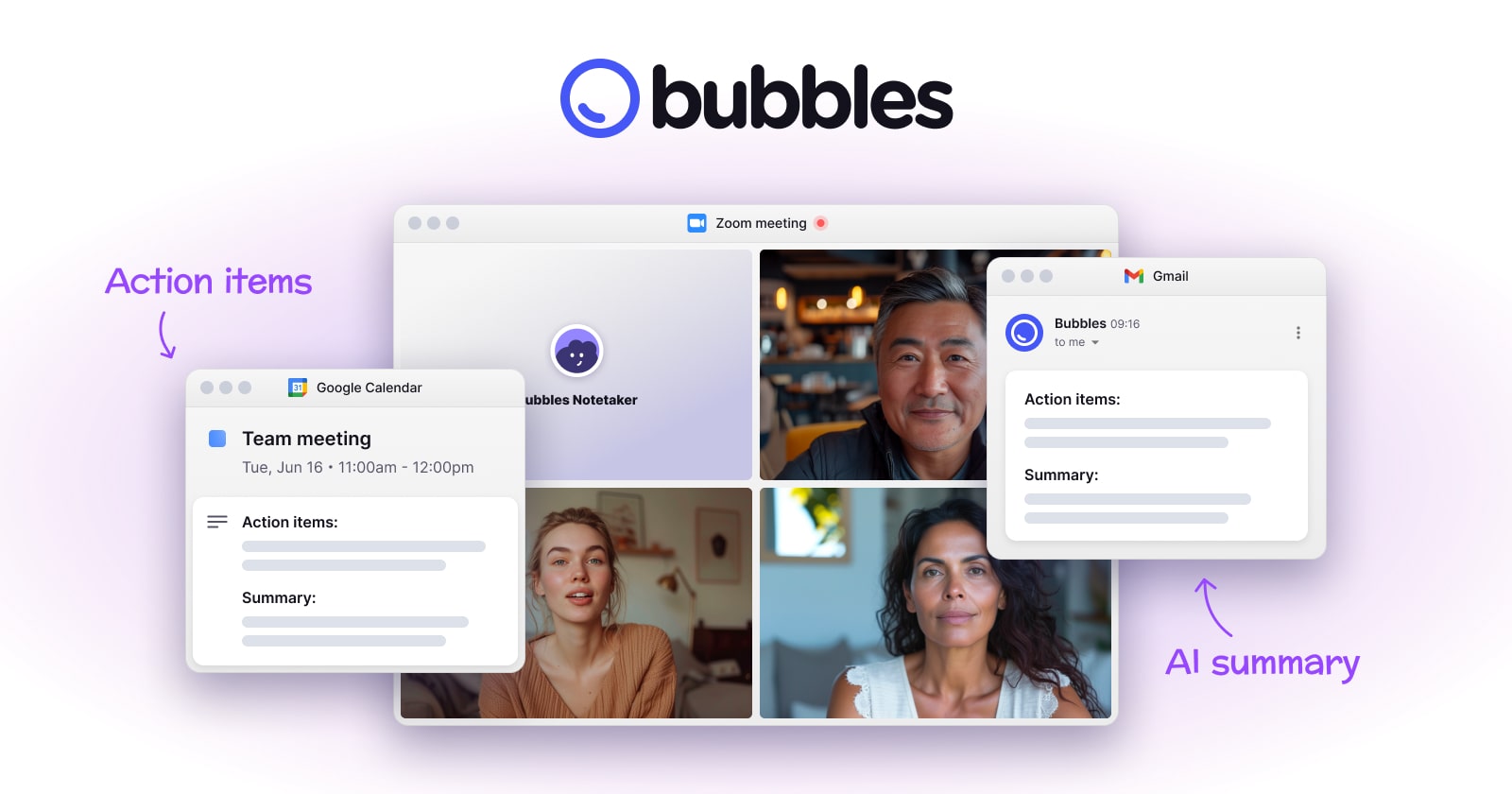
Bubbles is an AI-powered meeting assistant and screen recorder designed to reduce meeting fatigue and enhance team productivity. …

192.2K

About Screen Recording

AI Screen Recording tools are applications designed to capture on-screen activity, often enhanced with artificial intelligence to automate post-production tasks. These tools intelligently analyze recorded content to provide features like automatic transcription, filler word removal, and content-based chapter generation. They are essential for creating professional tutorials, detailed software demonstrations, and clear asynchronous feedback with significantly reduced editing time. Many also offer smart highlight detection to automatically identify the most important moments in a recording.

Core Features

  • AI-Powered Transcription: Automatically converts spoken audio into accurate, time-stamped text for subtitles and searchable content.
  • Smart Editing: Intelligently detects and suggests the removal of silences, filler words (e.g., 'um', 'ah'), and repetitive sections.
  • Automated Summaries & Chapters: Generates concise summaries and creates a table of contents based on topics discussed in the video.
  • Multi-Source Recording: Captures the screen, webcam, and microphone audio simultaneously, often as separate tracks for flexible editing.
  • Real-time Annotation: Allows for drawing, adding text, or highlighting areas directly on the screen during the recording process.

Use Cases

These tools are widely used in education for creating online course materials, in software development for bug reporting and code reviews, and in corporate settings for employee training and onboarding. Marketing and sales teams also leverage them to produce engaging product demos and personalized video messages for clients.

How to Choose

When selecting a tool, consider the recording quality (resolution and frame rate), the accuracy of its AI features like transcription, and its integration capabilities with other platforms (e.g., cloud storage, project management tools). Also, evaluate the user-friendliness of the interface and the flexibility of its editing and export options.

Screen RecordingUse Cases

1

Create Software Tutorials and Training Videos

A technical trainer uses an AI screen recorder to create a step-by-step guide for new software. They record their screen and voice-over simultaneously. The AI automatically transcribes the narration for closed captions, identifies key steps to create video chapters, and suggests cutting out long pauses and filler words. This process reduces manual editing time by over 50%, allowing the trainer to produce polished, accessible, and easy-to-navigate training content much faster.

2

Document and Report Software Bugs

A quality assurance (QA) tester records their screen while replicating a software bug. The tool captures every click, keystroke, and on-screen action with perfect clarity. The tester uses real-time annotation to circle the error message and add text notes. The resulting video provides developers with an unambiguous visual record of the issue, eliminating back-and-forth communication and accelerating the debugging process. The recording can be directly shared to a project management tool like Jira or Asana.

3

Provide Asynchronous Team Feedback

A project manager reviews a new website design by recording their screen and providing verbal feedback. Instead of writing a long email, they navigate the site, highlight areas of concern, and explain their thoughts. The AI generates a searchable transcript of the feedback. Team members can watch the video at their convenience or quickly search the transcript for keywords like 'header' or 'button' to jump directly to relevant feedback, making the review process more efficient and clear.

4

Create Personalized Sales Demos

A sales representative records a short, personalized product demo for a prospective client. They use the screen recorder to walk through the features most relevant to the client's needs, addressing them by name. After recording, the AI helps trim the video for conciseness and generates a quick summary of the key points discussed. This personalized video message stands out from generic emails, increases engagement, and helps build a stronger relationship with the prospect, leading to higher conversion rates.

5

Develop Online Course Content

An educator records a lecture that combines slides, a live coding demonstration, and their webcam feed. The screen recording tool captures all these sources simultaneously. Post-recording, the AI automatically generates accurate subtitles, making the content accessible to international students and those with hearing impairments. It also creates a table of contents from the lecture topics, allowing students to easily review specific sections. This streamlines the production of high-quality, accessible e-learning materials.

6

Record and Analyze User Experience (UX) Sessions

A UX researcher records a user testing a new mobile app prototype. The tool captures the user's screen taps and swipes, along with their facial expressions via webcam and their verbal feedback via microphone. The AI transcribes the user's 'think-aloud' commentary, allowing the researcher to quickly search for mentions of specific features or pain points. This multi-layered data capture provides deep, qualitative insights into user behavior and helps the design team make more informed decisions.

Screen RecordingFrequently Asked Questions